Assigning weight to objects and library elements
1 min read
- Desktop
Function#
You can assign weight to different objects in Halocline Layout. This allows you to see these weights in Halocline Performance as well as include them in your personal analysis and save them in your exported report. It is also a parameter that is required for evaluating the key indicator method.
Instruction#
Assign weight#
Context Menu > Properties > Weight
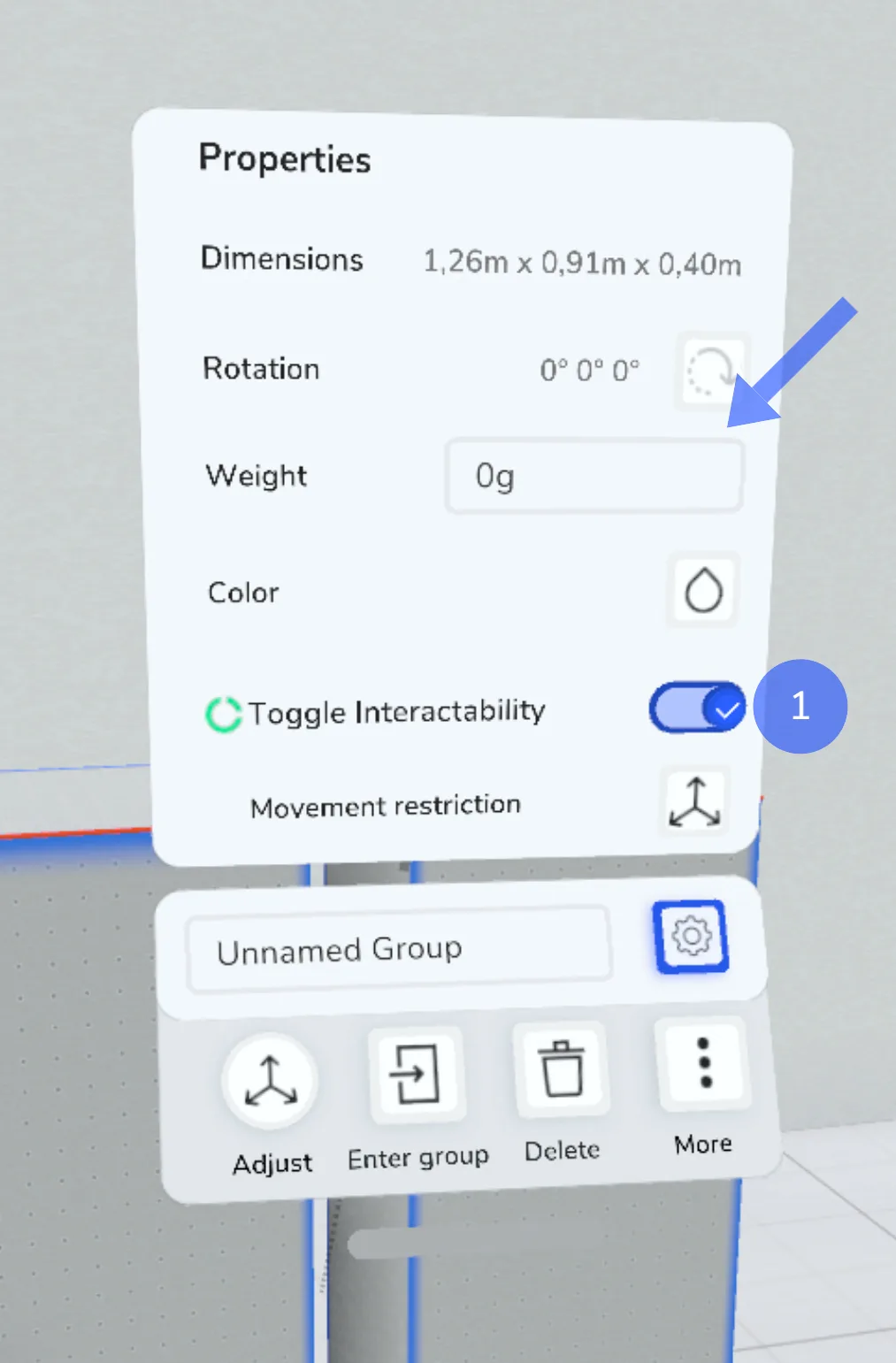
Start Halocline Layout and select the object you want to assign a weight to. Open the properties window in the context menu via the gear symbol. Click on the Weight field and enter the desired weight using the keyboard.
Note that you can only assign a weight to objects for which the interactability in Performance is activated (1).
You can display the weight of an object in Halocline Layout by pointing (hovering) at it with the select tool. The weight will be displayed along with the name.
Tip:
Use the pointer on the keyboard like sticks on a drum kit.
Assign weight in the library#
Menu > Library > Preview > Weight
If you save an object with a weight assigned to it in the library, the weight will be saved with it. Additionally, you have the possibility to assign weights to objects that are already stored in the library.
To do this, open the library in Halocline Layout and navigate to the desired object. Select the object and click on the Weight button in the Preview window.
You can assign a weight to the following objects:
Related to