Layout VR menu at a glance: tools and library
2 min read
- Desktop
Function#
The menu gives you access to tools and functionalities of Halocline Layout in VR.
Anleitung#
Open#
Press the menu button above the touchpad to open the menu in VR.
Select
Operate the menu with the controller you used to open it. Click with the trigger to switch to the different areas of the menu via the tabs or to select an action.
Close
If you have clicked on a button, the menu will close automatically. If you want to close the menu without selecting anything, press the menu button on your controller again.
Move
You can grab the menu at the bottom bar to move it if it opens at an inconvenient position. To do this, hold down the trigger.
Tip
Hold the pointer on a menu item for a long time to get more information.
Sections | Tabs#
Main menu#
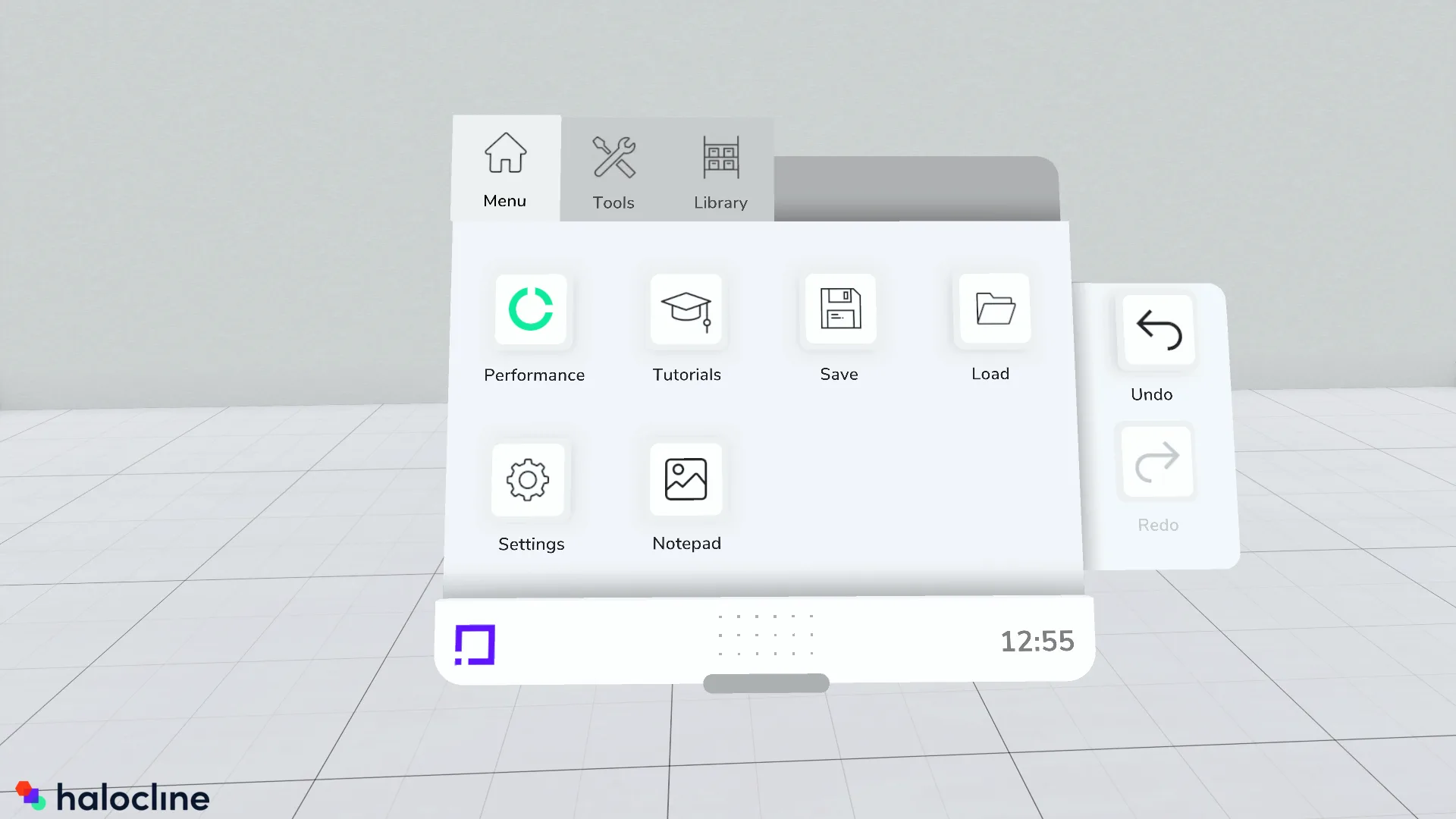
In the main menu you will find higher-level functions such as save, load, the settings window and the switch to Halocline Performance.
Functions
-
- Switch to Halocline Performance
- Watch tutorial videos in VR
- Save the current state
- Open settings window
- Open notepad
Tools#
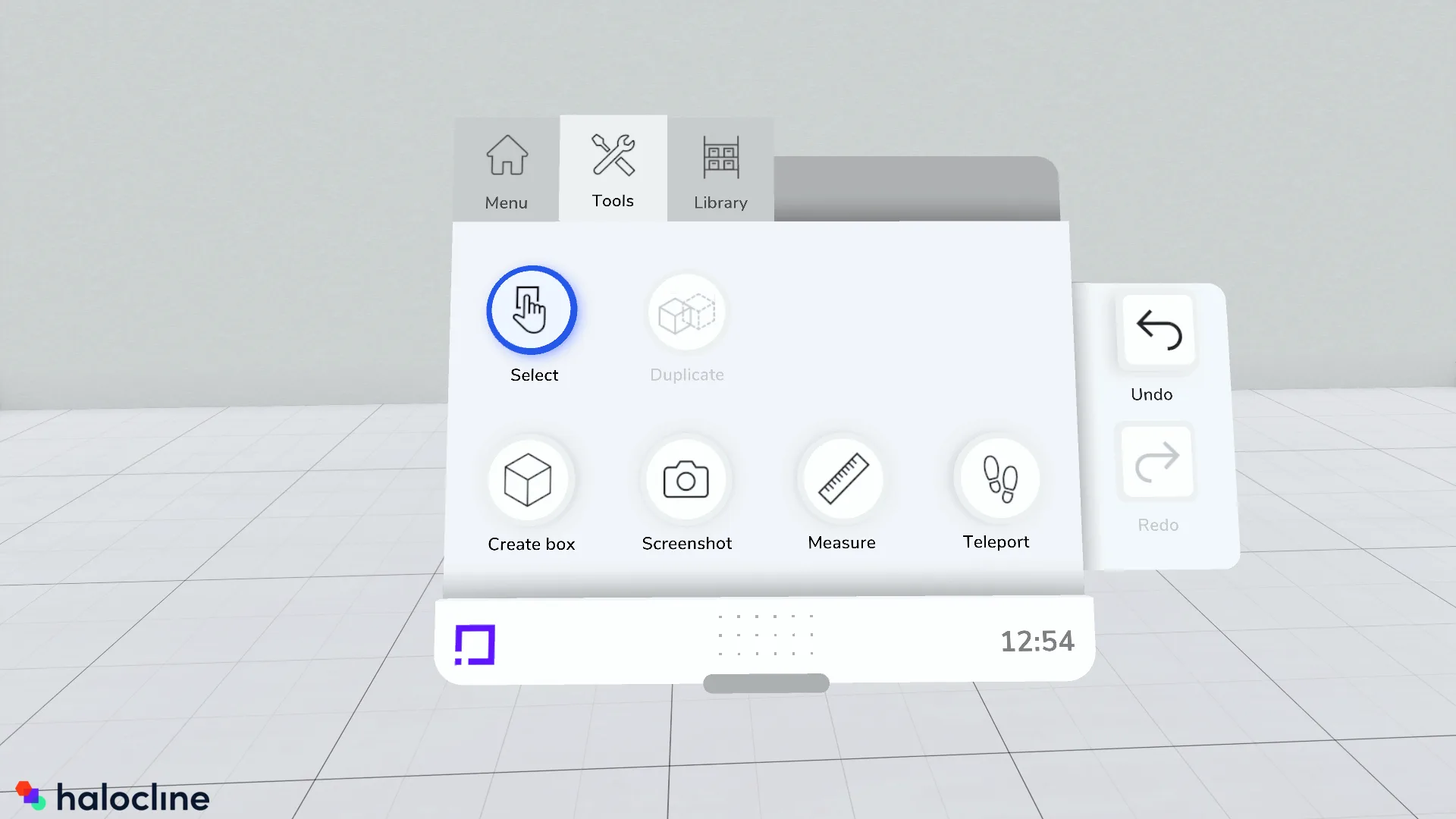
To perform actions in Halocline Layout, you can assign different tools to your controller. For example, when you start Layout, you will find the tools "Teleport" on the left controller and "Create Box" on the right controller. You can change them in the "Tools" tab.
The tool determines which actions you can perform with the controller. You change the tool on the hand with which you click the button. The currently selected tool of your hand is outlined in blue.
Functions
Library#
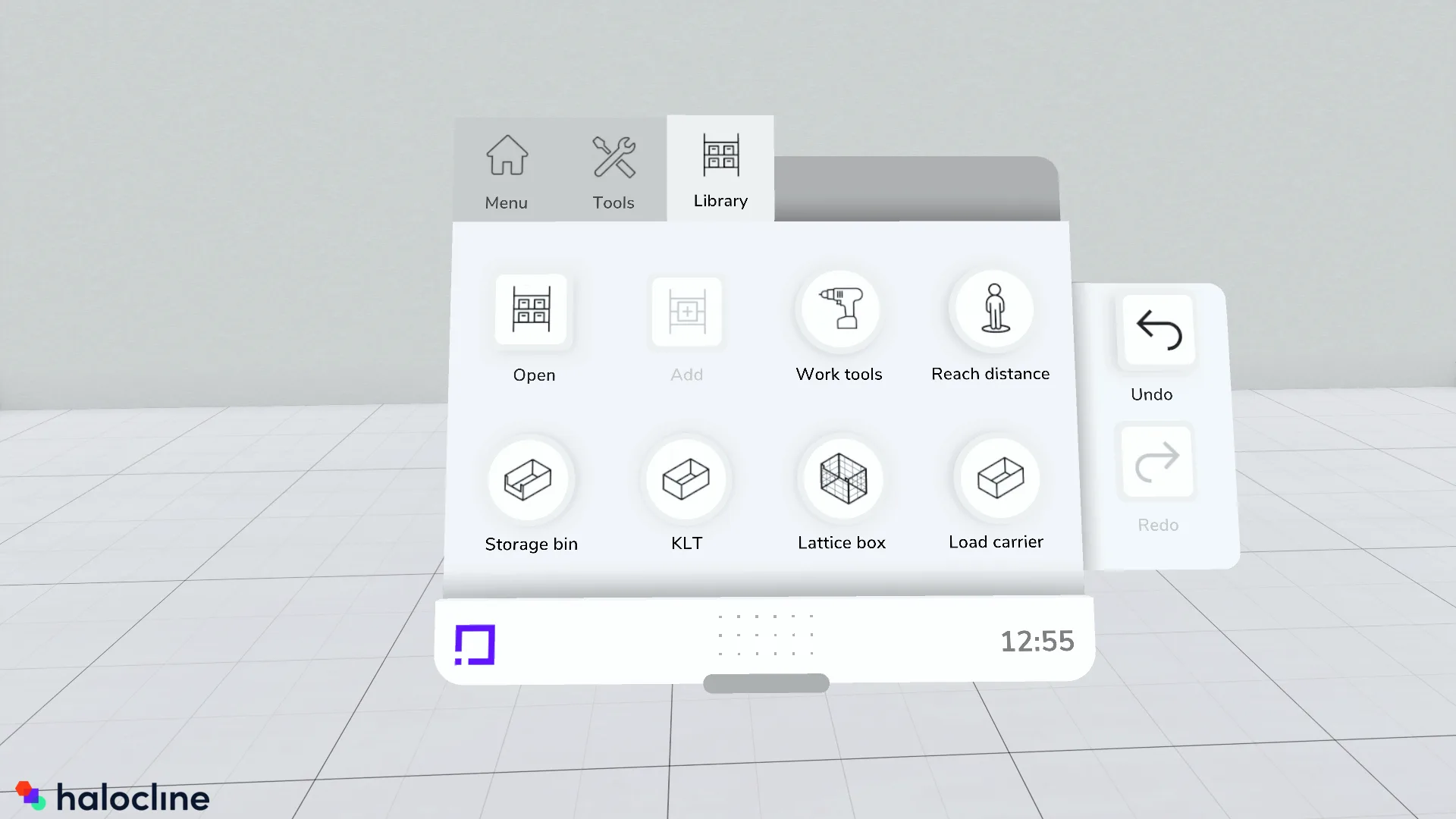
Use the "Library" tab to open the library and add elements to it. In addition to your own library, this tab also contains standard objects such as load carriers and power tools that you can place in the scene.
Functions
- Load carrier tools
- Storage bin
- KLT
- Lattice box
- User customized load carrier
- Power tools
- Open library
- Add selected objects to the library