Library in Halocline Layout: placing and saving objects
2 min read
- Desktop
Function#
In version 2026.3, the way the library is used has changed substantially. In particular, load carriers, tools, and reach-distance avatars are now regular library objects. You'll find our standard objects in the public library and your own custom objects in your own collections.
This article describes the new functionality.
If you start Layout in VR, you can access the library window either via Menu > Library > Open.
If you start Layout on desktop, you open the library window via the menu in the top right.
Alongside a selection of pre-installed standard objects and tools, you can also save your own custom-designed objects there.
The library's management functions in Layout are more limited than the options in the desktop app.
Instructions#
Open & Placing#
Menu > Library > Open
You'll see an overview of all objects in the center of the window. The organization here matches the desktop library: your local and public objects are found in folders and collections.
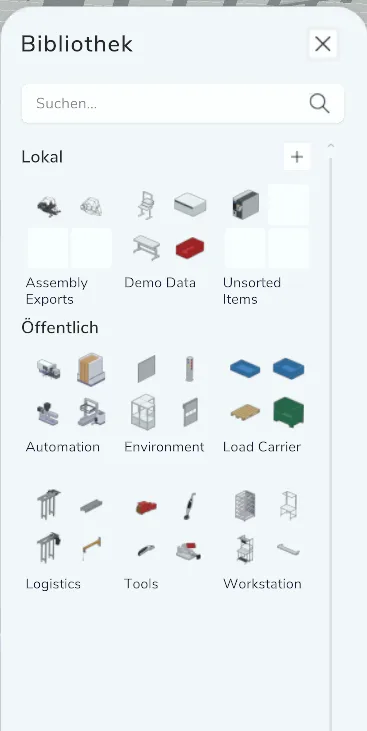
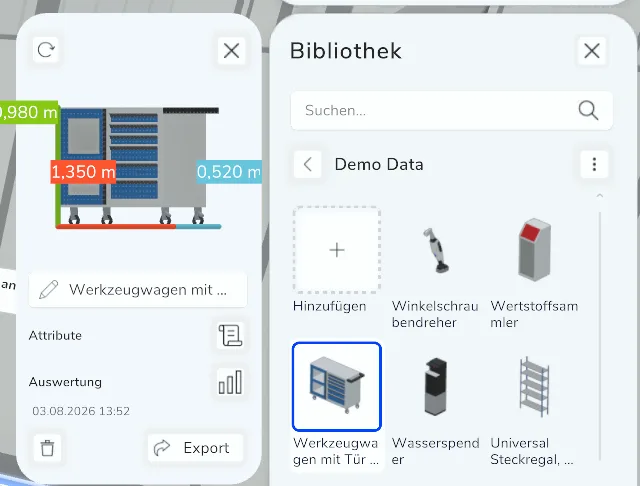
Selecting an object with the VR controller or mouse shows a preview of the selected element, including all information. Place the object in the layout by simply pointing at an open area.
Using the thumb functions in VR (touchpad or joystick) or the "R" key on desktop, you can rotate the object, quickly switch between objects, and deselect the current object.
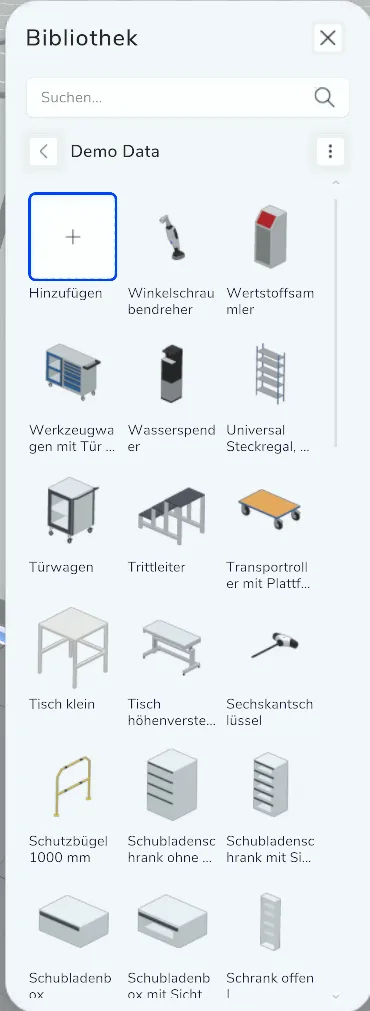
Add object#
Once you've selected one or more objects in the layout, you can add them to a collection in your local library using the "Add" button.
Rename #
Click the name input field in the preview to rename the object. Type the name on the keyboard and confirm with the blue checkmark.
Tip: Use paste on the keyboard to use text from the clipboard.
Delete object#
Click the trash icon below the name in the preview window.
If you delete an item by mistake, you can restore it in the bottom right corner of the center window.
Export object#
Click on the Export icon under the name in the preview window.
The exported data is located under Documents/Halcoline/Export.
Note: This feature is not part of every plan, see the pricing page.
Search the library#
Click on the search field and enter a search term. Confirm with the blue checkmark. You will be shown all objects whose names contain your search term. Click on the "X" in the search field to reset the search.