Layout context menu at a glance: actions and properties
1 min read
Available in
- Desktop
Function#
The context menu gives you quick access to all properties and actions that you can perform with the selected objects.
Instructions#
Spawn
- Select an object with the select tool.
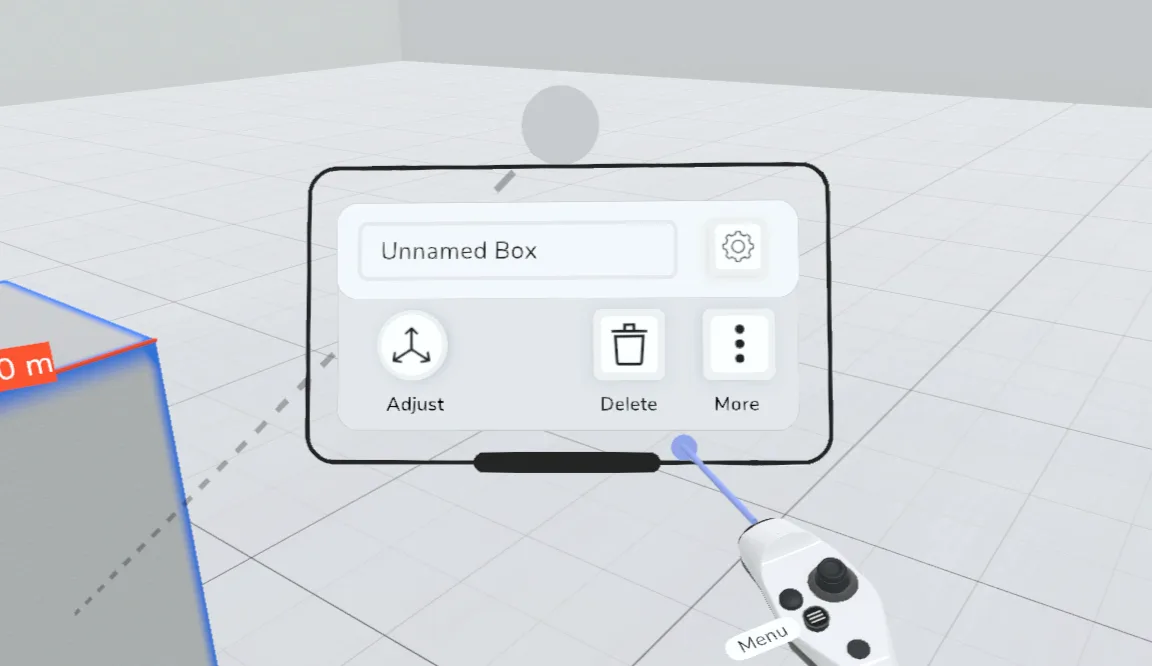
- The context menu will automatically appear to the side of you.
- If you point to it, you can move it along the frame by holding down the trigger button:
Actions
You will find the following actions in the context menu:
- Adjust
- Group and Enter group
- Delete
Functions that are used less often can be expanded by clicking on "More". These are the following options:
- Add to library
- Unassign part
- Add to variant
These are based on your selection, i.e. you have different functions depending on whether you have selected a single box or a group, for example.
Properties
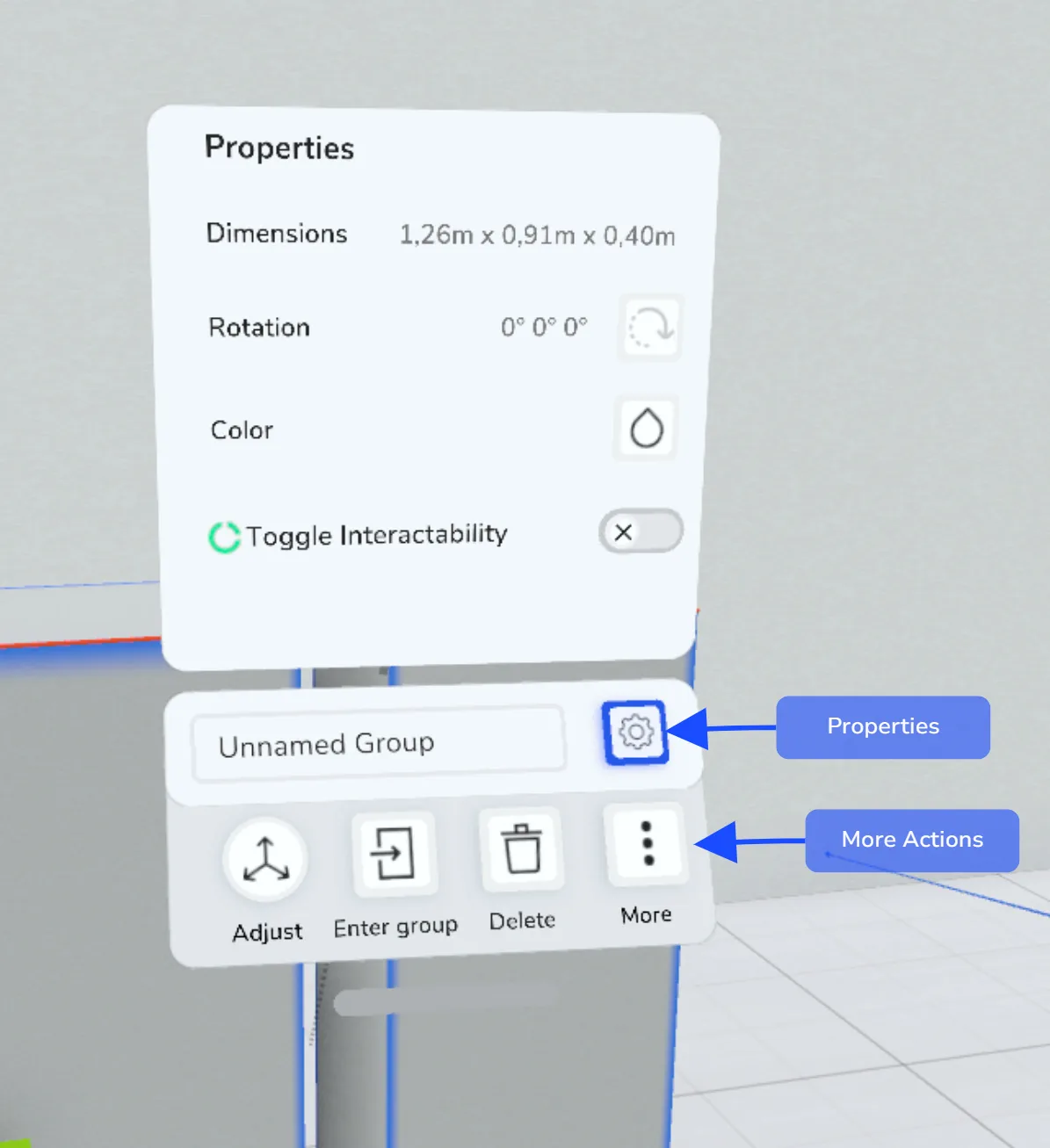
- Name: In the white box you will find an indication of what is selected. If you have selected a single object or a group, you can name it by clicking on the input field.
- Others: Use the gear icon to open the properties window. Here you can see all properties such as dimensions, color and weight. Click on the corresponding buttons to set values.
Group mode
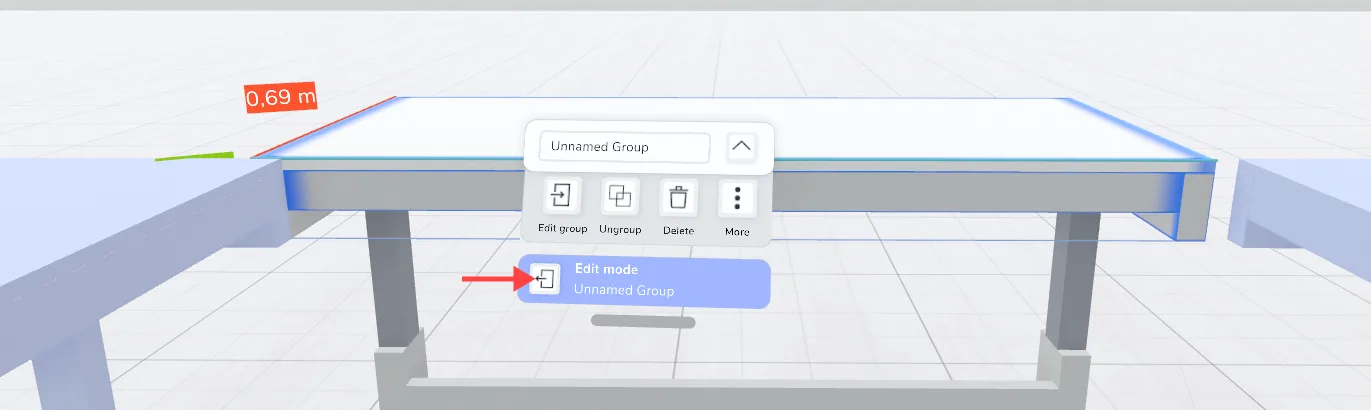
You can enter and leave groups via the context menu.
- Select a group and click on the "Edit" button to enter it.
- Make your changes within the group.
- Click on the Exit button to exit group mode: