Grouping objects and ungrouping them
2 min read
Available in
- Desktop
Function#
Use groups to define objects that are connected to each other. This makes it easier to work with objects that consist of several components.
Example:
A simple table consists of 5 boxes. Select all boxes and create a group from them. If you want to move the table in the course of planning, you can select the grouped table with one click instead of selecting all 5 boxes again individually.
Instruction#
Group#
- Select several objects with the multiple selection or volume selection.
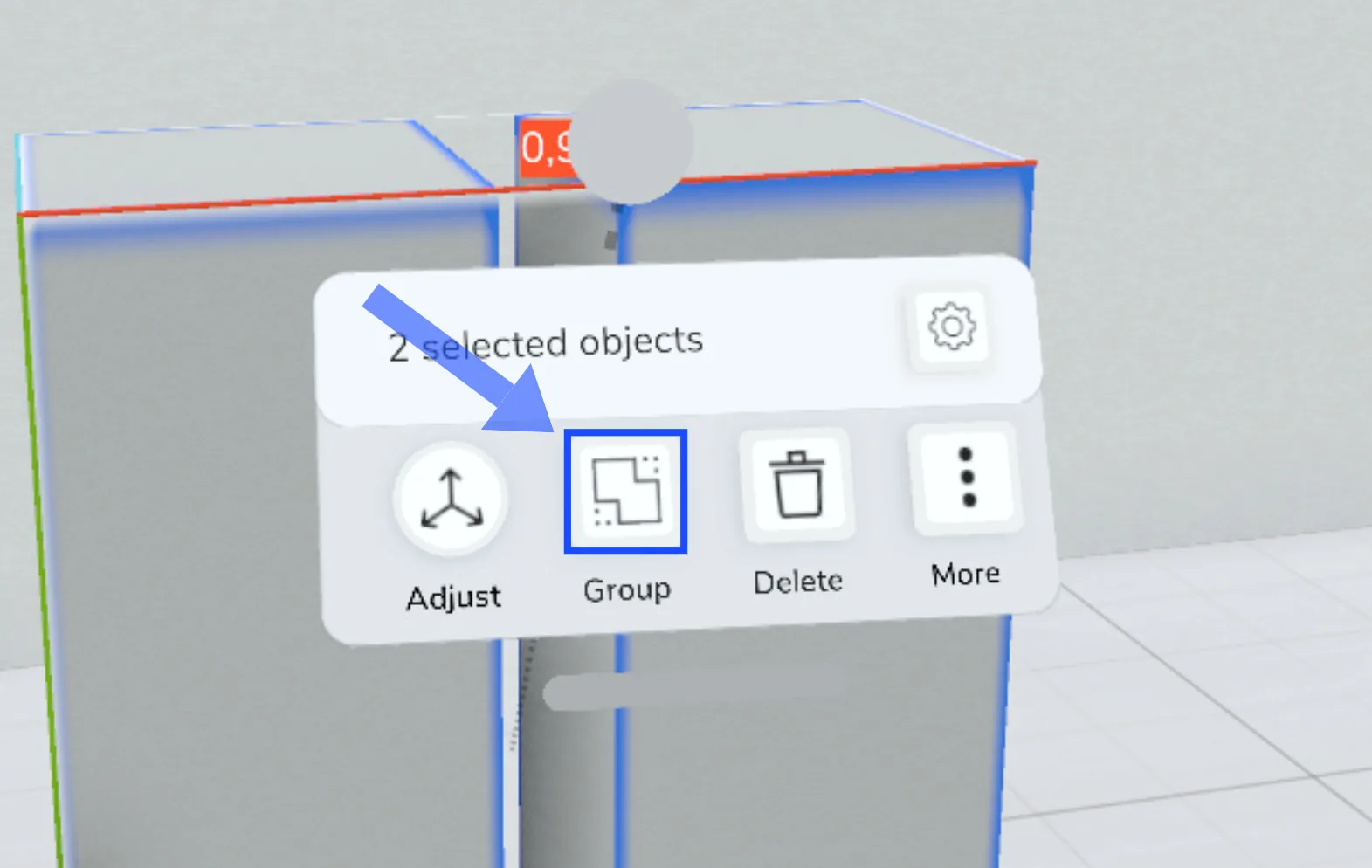
- Click the Group button in the context menu.
Notice:
- Groups can contain any number of subgroups.
- It is useful to group related objects that are often moved together to make selection easier.
Ungroup#
- Select a group.
- Click the Ungroup button in the context menu.
Notice:
- The top-most group will always be ungrouped. Groups within the disbanded group will remain.
- If you select several groups, you can also explode them at the same time. Here too, only the topmost groups are exploded.
Working with groups#
Adding objects#
- To add objects to a group, use the group mode. You activate this via the “Enter group” button in the context menu.
Edit objects in a group
- Individual objects can be selected and edited within a group without activating group mode.
- Choose the Select tool and make sure that multiple selection is turned off. This is indicated on the controller.
- Select a group and then click on the desired object within the selected group.
- The object can now be adjusted, renamed or colorized.
- If you want to edit multiple objects in the group at the same time, use group mode.
Expert tip: Use group hierarchy
- If you have created a group with multiple subgroups, you can navigate the group hierarchy with the Selection tool and select nested groups.
- Choose the Select tool. Make sure that the multiple selection is turned off. This is indicated on the controller.
- Select a group and then click on a single object within the selected group.
- Click on "Navigate hierarchy" on the touchpad to select the subgroup of the selected object.
- You always start from the selected object and navigate from it upwards in the hierarchy.
Related to