Entering a group: editing a group without ungrouping it
1 min read
Available in
- Desktop
Function#
The "Enter Group" function allows you to edit one group without dissolving it and without losing its properties.
Instruction#
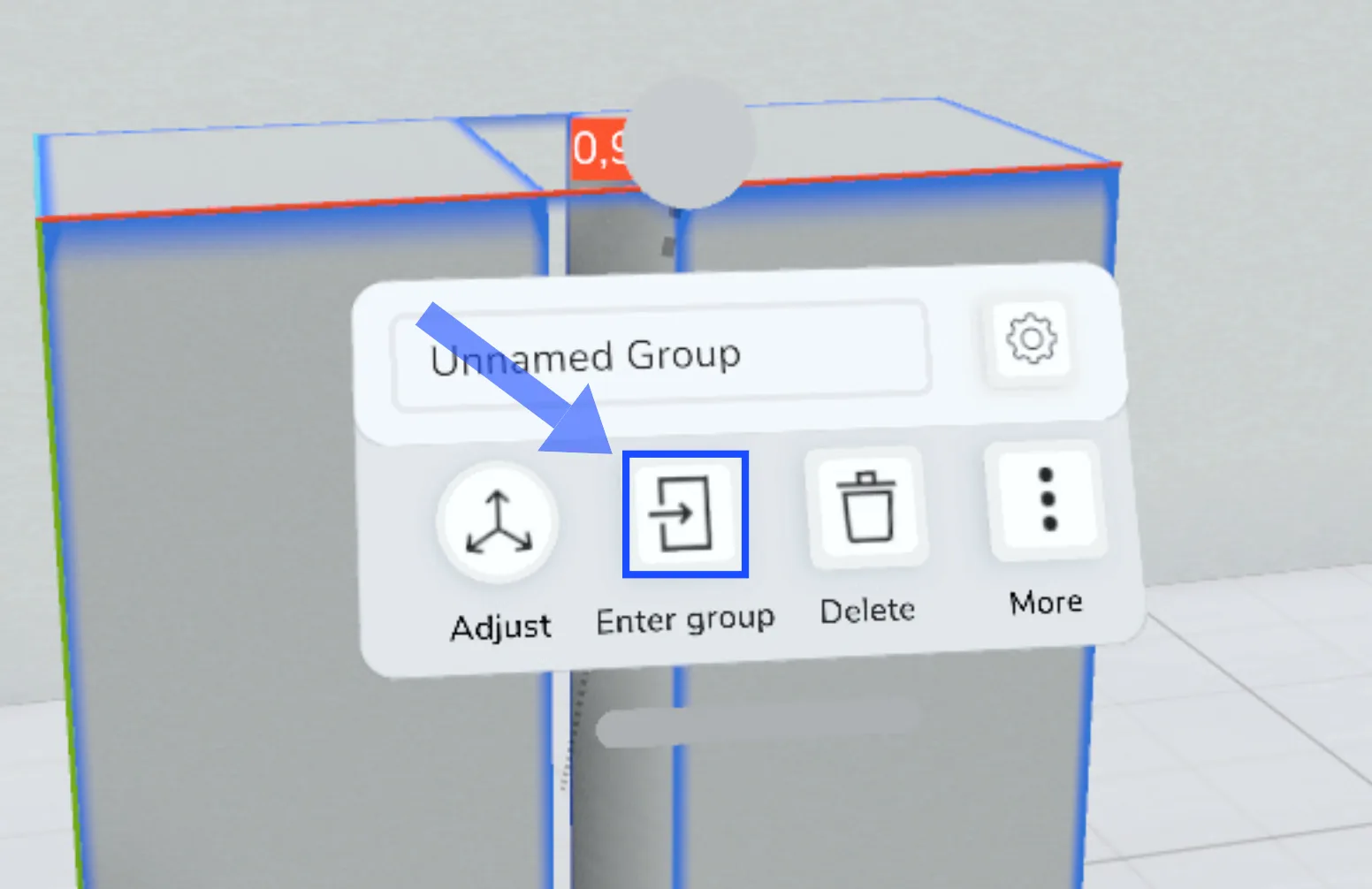
Context Menu> Enter group
Enter#
- Select one group with the Select tool.
- Click "Enter group" in the context menu.
Group mode#
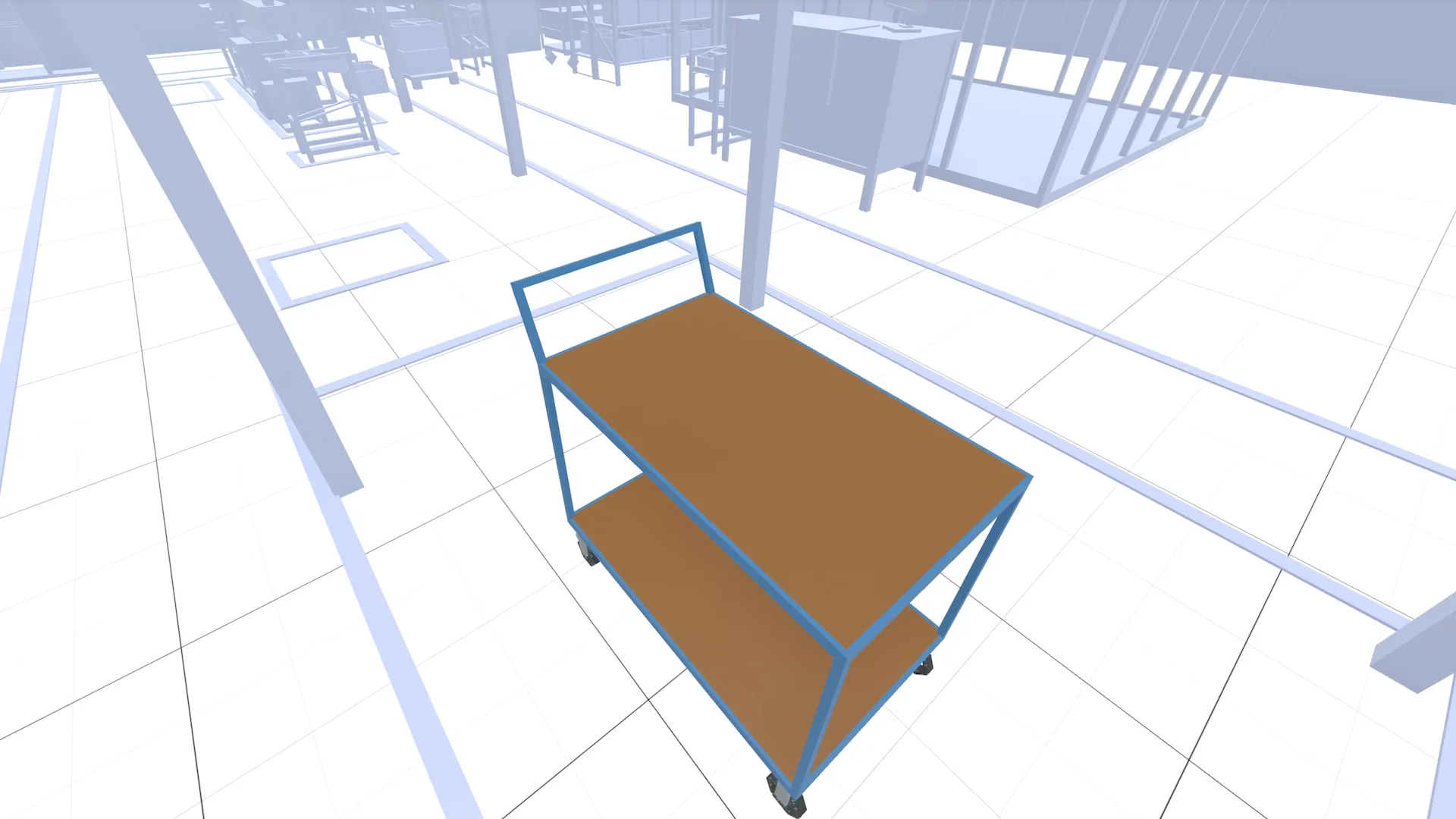
- In group mode, all objects that do not belong to the selected group are colored light blue and cannot be edited.
- All objects within the group can be selected and edited. Objects that you add in edit mode are also automatically added to the group.
Leave#
- Click the "Leave" icon in the context menu.
Example#
- Use this feature, for example, to edit a grouped workstation.
- Select it and choose "Enter group" in the context menu.
- Select several boxes with the multiple selection and move them to adjust the working height.
- Place new KLTs and replace parts.
- Leave the group mode via the "Leave" icon.
- All changes are saved in the group and all newly placed objects are a part of the group.
Notes#
-
Edit subgroups: To edit subgroups, select them in group mode and select “Enter group” again in the context menu.
Alternatively, you can also select the desired subgroup immediately using the Select tool. To do this, click twice on a box in a group using the single selection and navigate to the desired subgroup using the thumb function. Once the subgroup is selected, click on “Enter group” in the menu.
Related to