Duplicating objects: copy and paste
1 min read
Available in
- Desktop
Function#
You can use "Copy" and "Paste" to create copies of selected objects.
Instructions#
Context menu > More > Copy
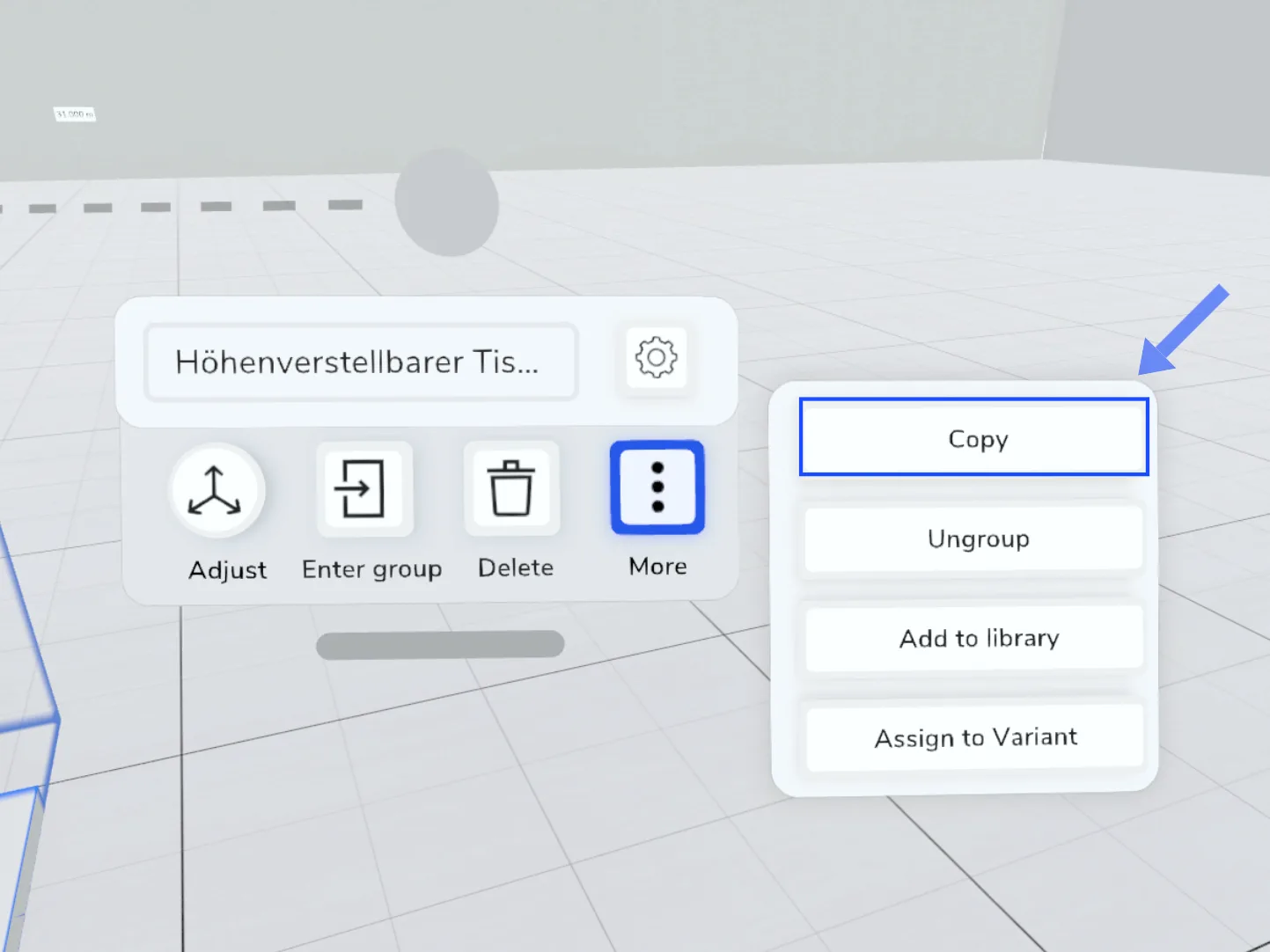
- Use the Select tool to select an object that you would like to copy.
- Select “More” in the context menu and then “Copy”.
- Point to a free area and press the trigger to place a copy of the selected object.
- The copied object remains in your clipboard until you copy a new object
- This way you can also transfer objects to a group or another variant.
Menu > Tools > Paste
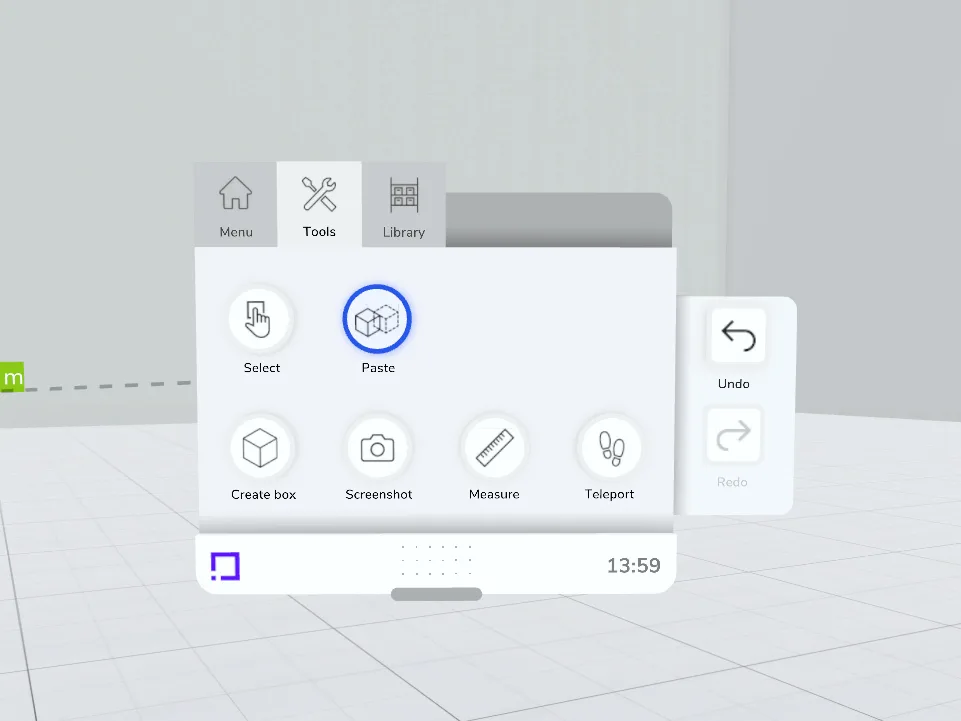
The last object copied appears as a preview. Point to a free area and press the trigger to place it.
Thumb functions#
Using the touchpad / joystick, you can rotate the object in 90° increments (press down) and specify whether the original rotation is kept or whether the rotation adapts to the surface (press up).
Desktop keyboard shortcuts#
Copy: Ctrl + C
Paste: Ctrl + V
Related to