Coloring objects and customizing the color palette
1 min read
Available in
- Desktop
Function#
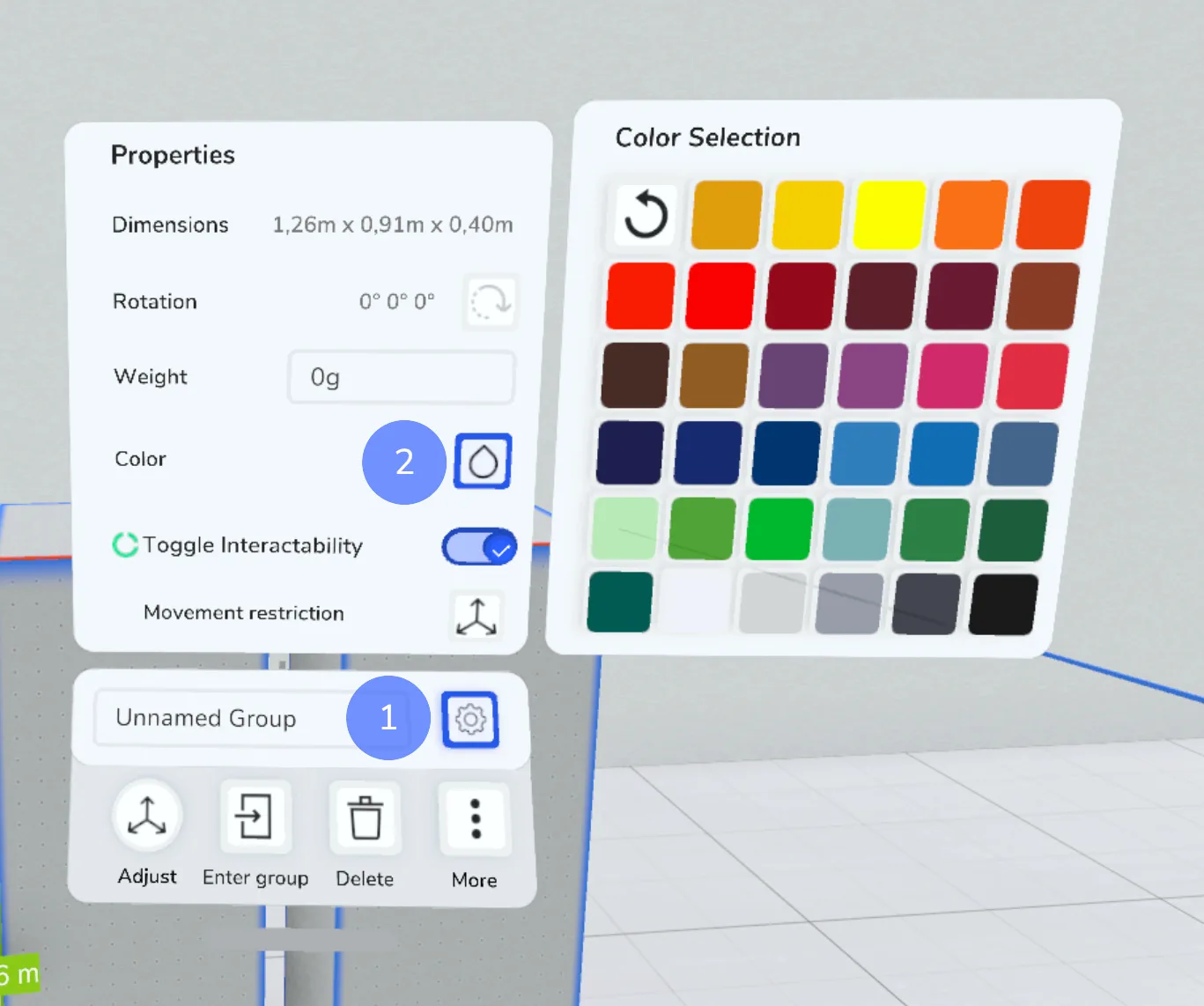
With the colorize function you can assign a color to objects.
Instruction#
Colorize#
Context Menu > Properties > Colorize
- Select one or more objects.
- In the context menu, first click the gear icon and then the color icon. This opens a window with different colors.
- Click on the desired color to colorize your selection.
- You can minimize the window by clicking on the icon again.
- You can use the reset icon to restore the default color of boxes or CAD imports.
Expert tip: Custom colors#
- It is possible to customize your color palette. To do this, make sure you have already started Halocline Layout once after installation.
- During this process the program should be closed.
- Navigate in the folder system to the installation path:
-
C:\ProgramData\Halocline\Layout\Config
- Open the color-config.json with a text editor.
- This file contains the colors available in VR in RAL color format:
-
{"colors":[1006,1023,1026,2003,2004,2005,3026,3003,3005,4004,8004,8016,8001,4005,4008,4010,3017,5002,5005,5017,5012,5015,5023,6019,6018,6038,6034,6024,6029,6026,9003,7035,7040,7024,9017]} - You can now replace unused RAL colors with a new one by replacing the 4-digit number with another one.
Notice:
- Pay attention to the format when editing this file. The colors should consist of 4 numbers and be separated with a comma.
- Halocline Layout can display up to 35 colors.
Related to