Layout settings: grid, view, graphics and station
2 min read
- Desktop
Function#
If you want to view or change your Halocline Layout settings, select the Settings button in the Main Menu.
Instructions#
Menu > Main menu > Settings#
You can open the main menu to find the settings. In the first tab you will find the Settings button. The settings window is divided into the tabs "Grid", "View", "Graphics "Station".
Tab: Grid#
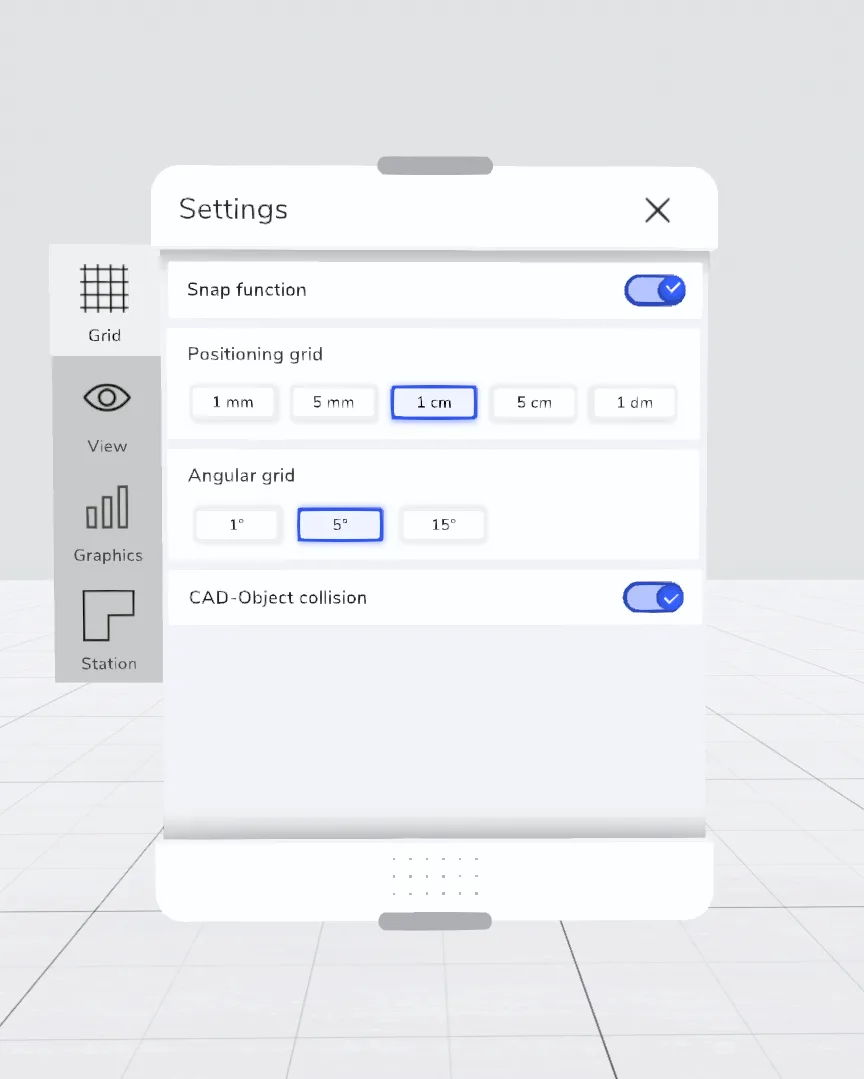
Snap function
Allows you to snap objects to other objects. You can see the difference when using the Adjust tool.
Position grid
Sets the step size for moving when using the Adjust tool, when creating boxes, and when measuring in.
Angle Grid
Sets the angle increment for rotating in the Adjust tool.
CAD object collision
If the collision is switched off, it is possible to build or walk in the CAD objects.
Tab: View#
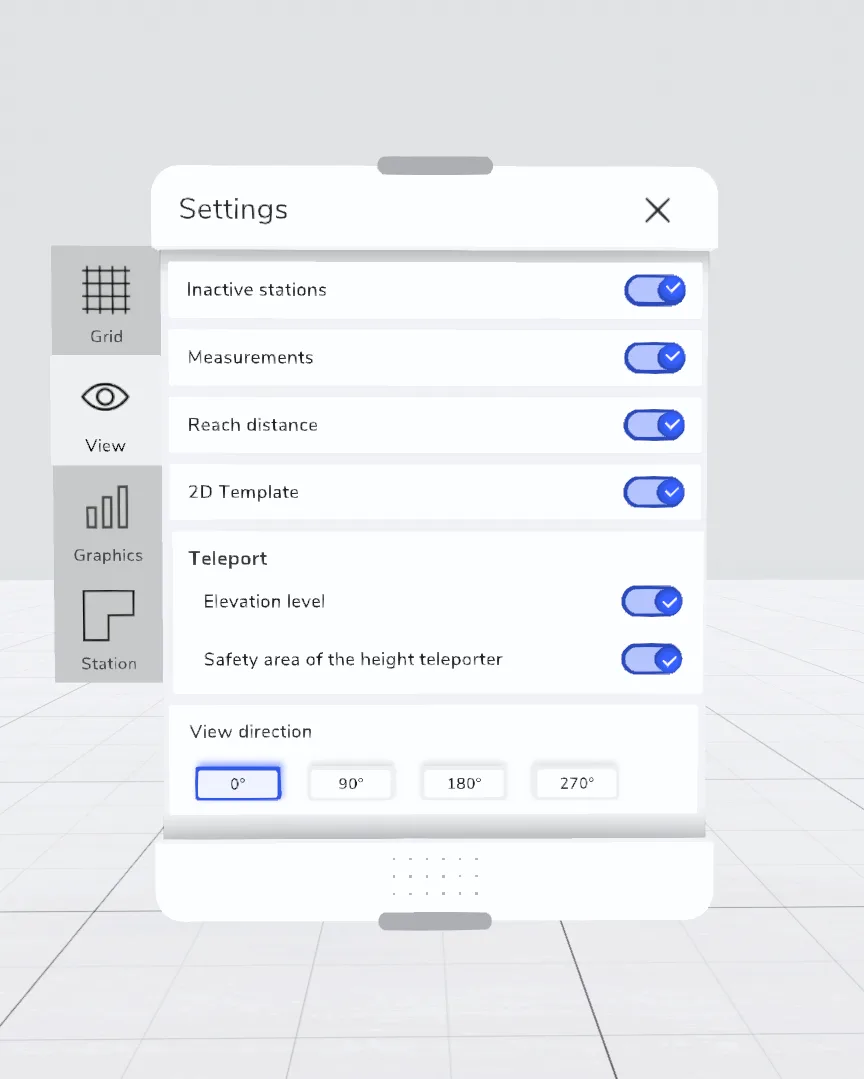
Inactive station
Inactive stations are displayed or hidden. Disabling this feature may result in a better VR experience when the hardware is heavily loaded.
Show measurements
Measurements from the Measure tool are displayed or hidden.
Show reach distances
Placed reach distance avatars are displayed or hidden.
2D layout
The 2D layout of the store floor is displayed or hidden. Disabling this feature can lead to a better VR experience when the hardware is heavily loaded. However, hiding the 2D layout makes spatial orientation more difficult.
Show shadows
Shadows are displayed or hidden. As of version 2023.2 this is disabled by default as we implemented a different type of shadows.
Teleport
Displaying the height plane
The gray level of teleporting to altitude is hidden.
Safety area of the height teleport
The moving safety area around the user is shown or hidden. Do not turn off this layer if you suffer from fear of heights.
View direction
The virtual environment is rotated by 90°. This allows you to adjust the orientation of the hall to the orientation of the real room.
Note:
The setting will not be applied after restarting Halocline Layout & Performance.
Tab: Graphics#
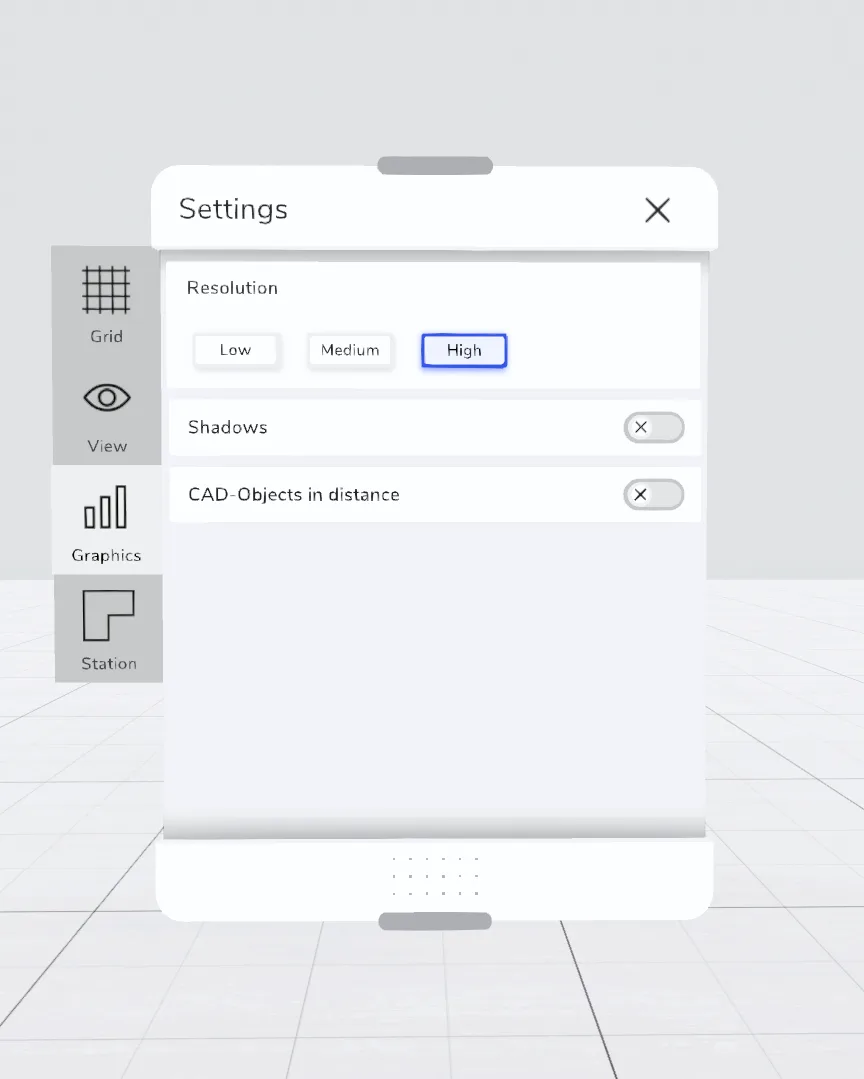
Resolution
Adjusts the overall image quality. This is automatically adjusted at every startup, depending on the complexity of the workspace and the performance of your computer, to provide the best VR experience. You can manually adjust it again here if you want a different quality.
CAD objects in distance
Sets the display of CAD objects at a distance. Activate this setting if you want to get an overview or take screenshots, for example. For a smoother VR experience, turn off CAD objects in the distance.
Show shadows
Shadows are displayed or hidden. Disabling this feature can result in a better VR experience when the hardware is heavily loaded. However, depth perception is degraded without shading.
Tab: Station#
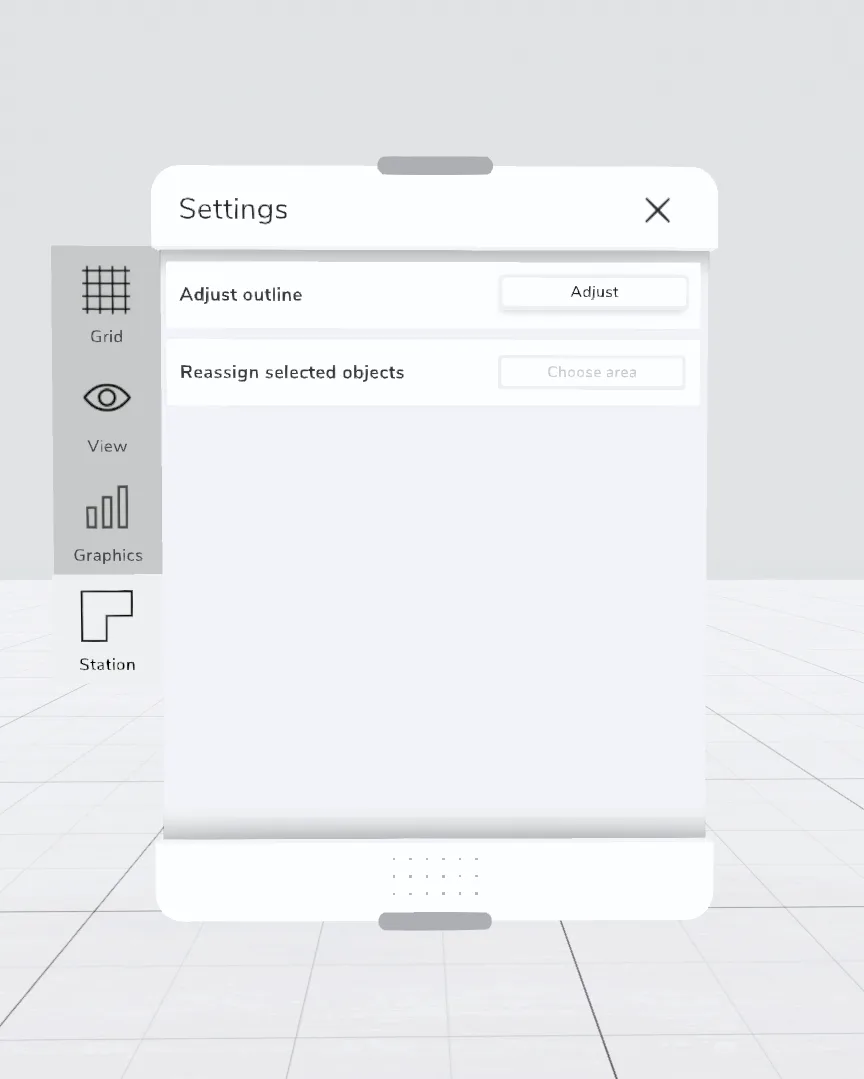
Adjust outline
Adjusts the outline of the work area to the dimensions of all objects built in this station.
Reassign selected objects
Assigns selected objects to another work area or variant.