Notepad in VR: showing notes, photos and to-do lists
2 min read
- Desktop
Function#
The notepad shows additional information you need for planning directly in VR: dimensions, photos, lists, to-do lists, texts and videos. This keeps everything in view without having to take off the headset.
The notepad is available in Halocline Layout and Halocline Performance. Open it via Menu > Main menu > Notepad.
Prepare information on the PC#
Notes and to-do lists#
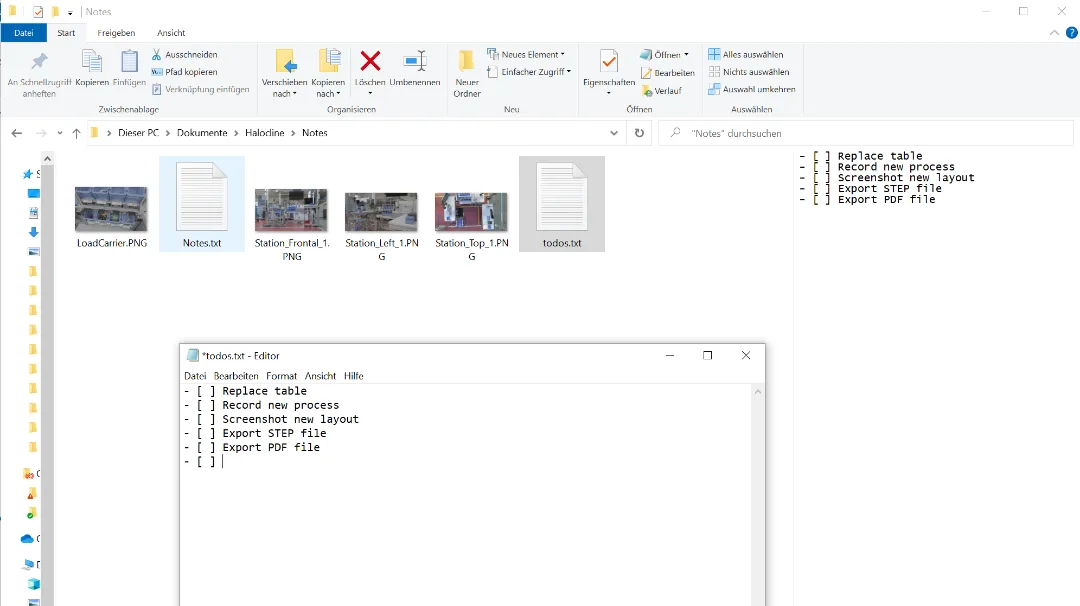
- Create a .txt file: right-click in any folder or on the desktop and select New > Text Document. Write or copy the desired text into it. Keep texts and lines rather short.
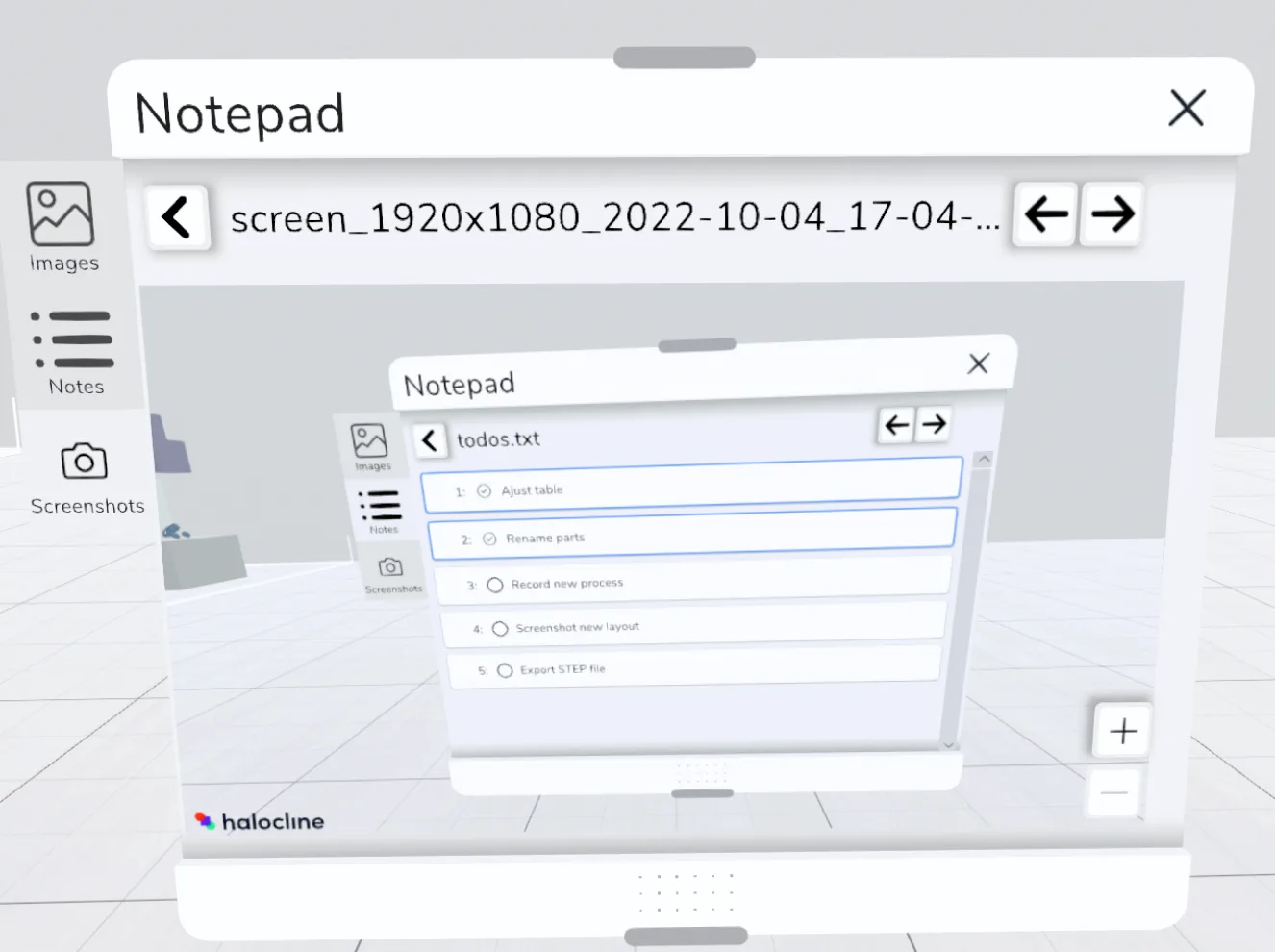
- To create a to-do item, start the line with - [ ] (see screenshot below).
- [ ] Check column spacingNote: There is a space between the minus and the opening bracket, between the two brackets, and after the closing bracket.
- You can also create a new to-do list directly in VR, using the + button in the notes view of the notepad. You can then edit it in the text editor.
Images#
- You can display any images in .jpg or .png format, for example photos from the hall or screenshots of lists and drafts from other programs.
- Microsoft explains how to take a screenshot with built-in Windows tools here: Use Snipping Tool to capture screenshots
Videos#
- Use, for example, Windows screen recording to record work states or processes as a video.
File location#
Store all files you want to view in the notepad in this folder:
%UserProfile%\Documents\Halocline\NotesSupported formats: .jpg, .png, .txt and .mp4
Using the notepad in VR#
- Open the notepad window via Menu > Main menu > Notepad. There you see all the files you have stored.
- On the left you switch between images, notes, screenshots created in Halocline and videos.
In all areas: use the arrows at the top right to switch between files, and the left arrow to return to the overview.
Images#
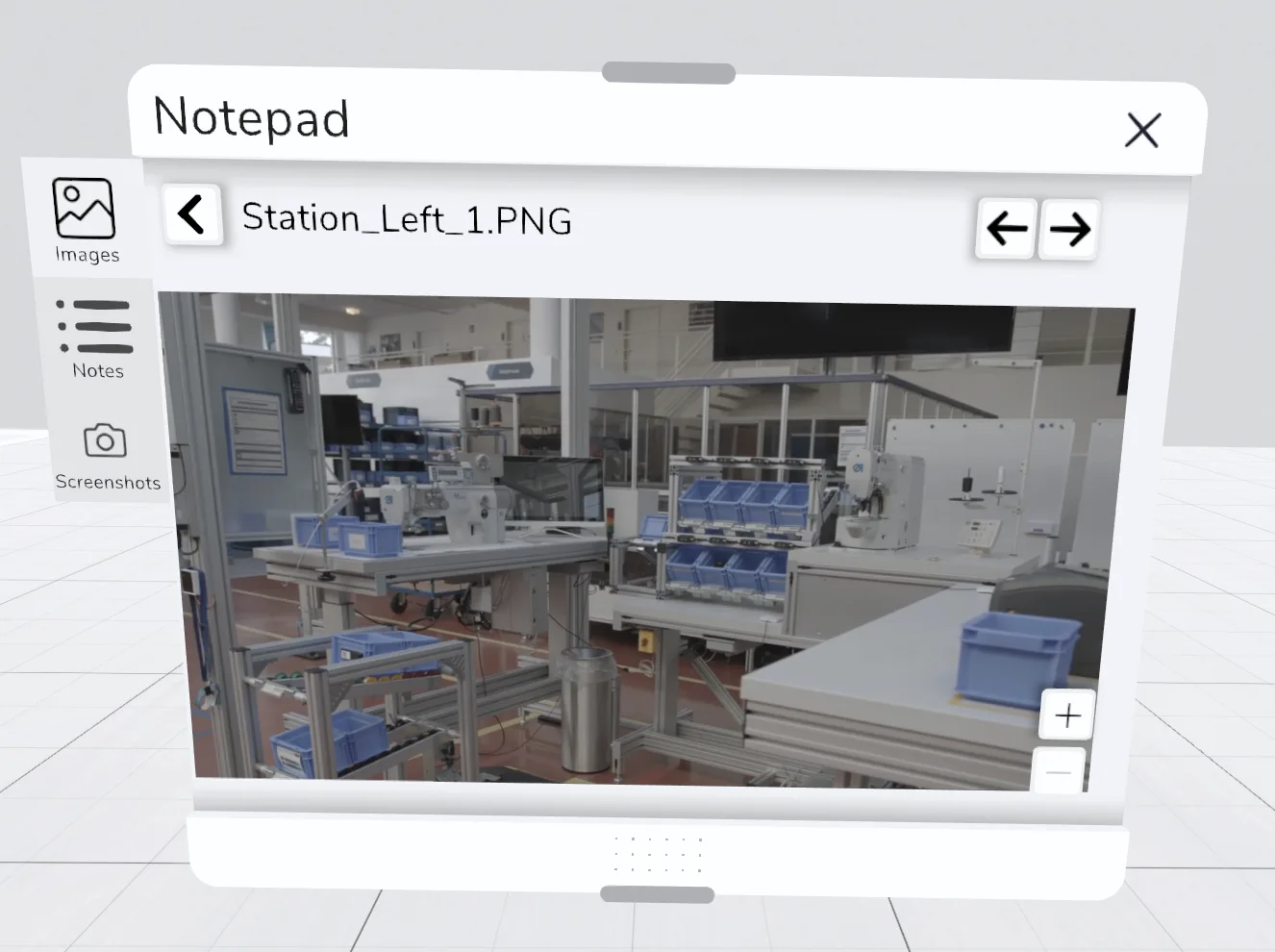
- Click a file to display it.
- Select the image section by zooming with + and –. Move the image while holding the trigger.
Notes#
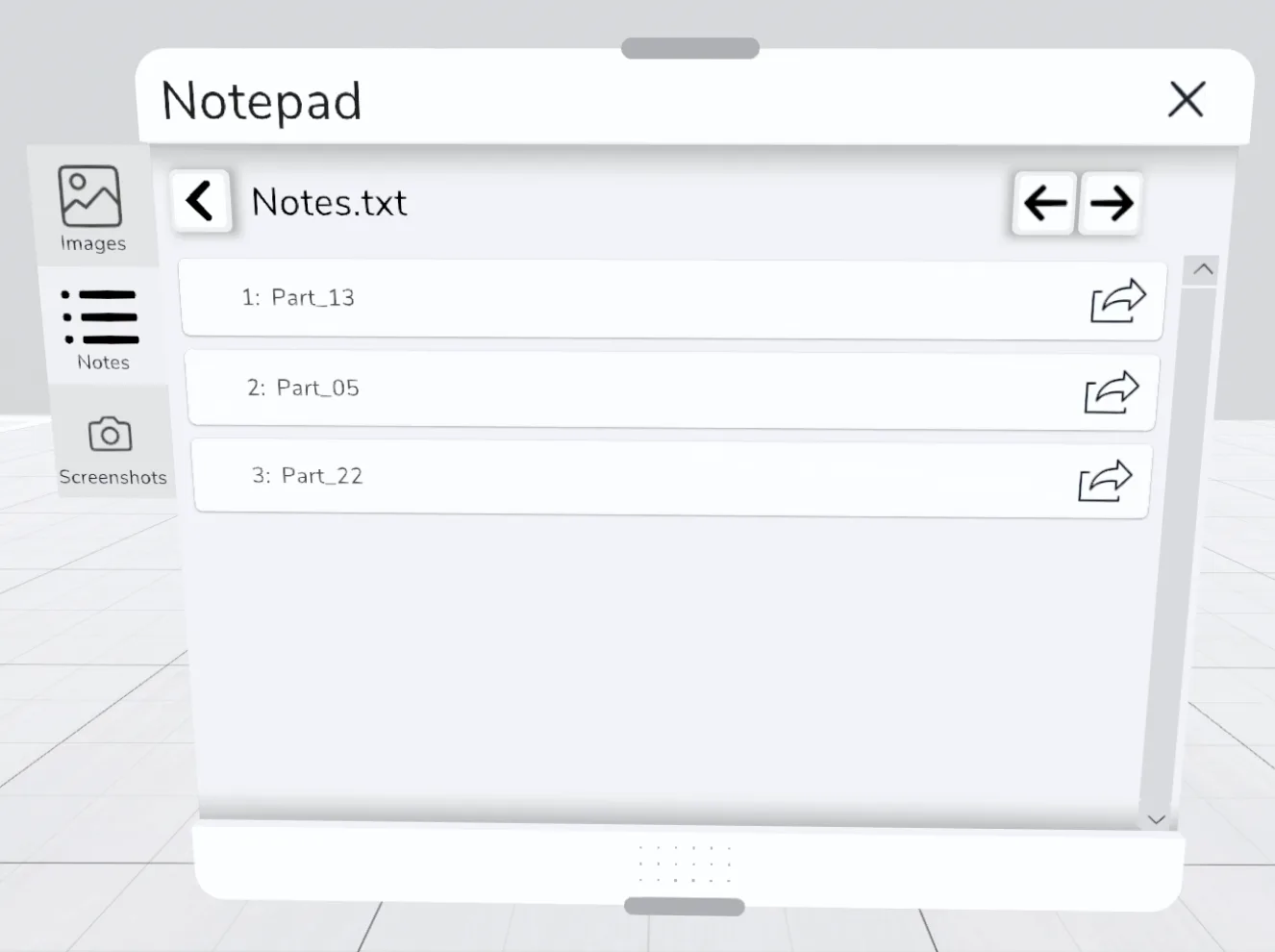
- Click a file to display it.
- Click a text entry to copy it.
Tip: This lets you name objects faster. Paste the copied text into the VR keyboard when using the Rename tool.
To-do lists#
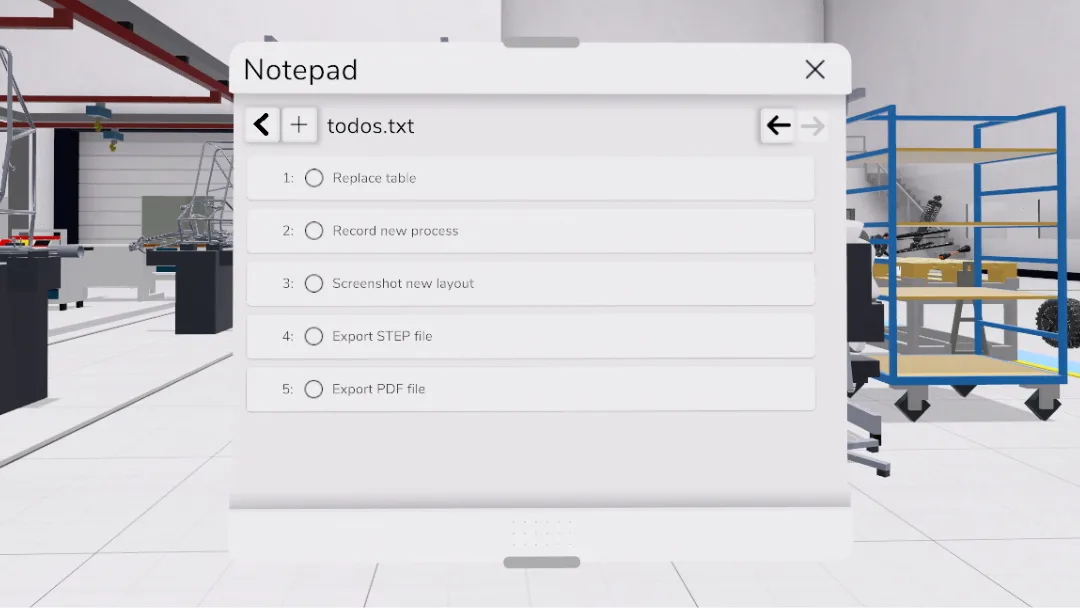
- Click a to-do item to check it off.
- Use the + to create a new to-do list.
Note: Unlike notes, to-do lists can currently only be checked off, not copied.
Screenshots#
- Here you automatically see all screenshots you created in Halocline with the desktop function or the screenshot tool, including those from Halocline Assembly and Halocline Performance.
- Click a file to display it.
- Select the image section by zooming with + and –. Move the image while holding the trigger.
Videos#
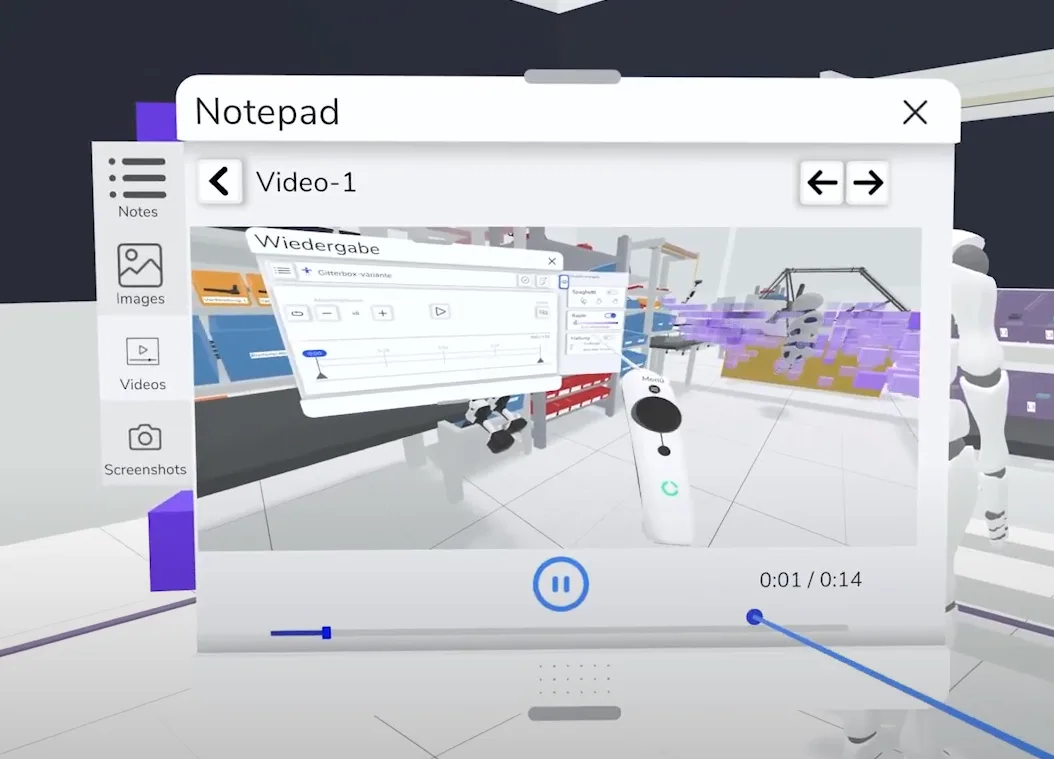
- Here you see all videos you have stored.
- Click a file to view it.
- Start and pause the video with the play/pause button.
- To jump within the video, drag the video bar to the desired position and release.
Related to