Using a 2D layout as a template (image, DWG, DXF)
2 min read
- Desktop
Function#
Existing layout data can be used, regardless of the source (2D CAD, Visio, Microsoft PowerPoint, Microsoft Excel, Autodesk AutoCAD etc.) as a template to create the virtual factory in Halocline Layout. Currently supported formats are
- image formats: .jpg and .png
- CAD formats: .dwg, .dxf
Note:
Halocline Layout supports the import of .jpg. and .png files with a maximum resolution of 16384x16384 pixels.
Instructions#
Create 2D template#
- Select the shopfloor via the dropdown menu.
- Click on the three dots next to the shopfloor name and select Create 2D template.
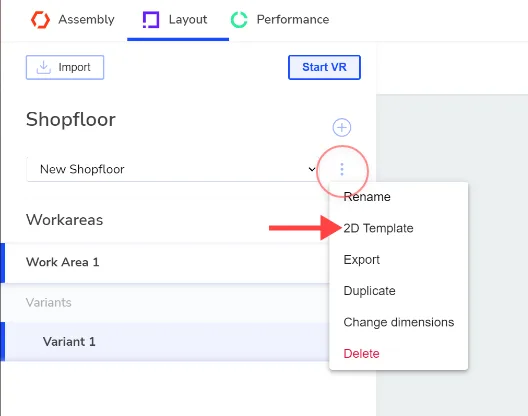
- An overlay opens on the left where you can set the template.
- Under File, select the 2D layout as .png, .jpg, .dwg or .dxf.
DWG & DXF files#
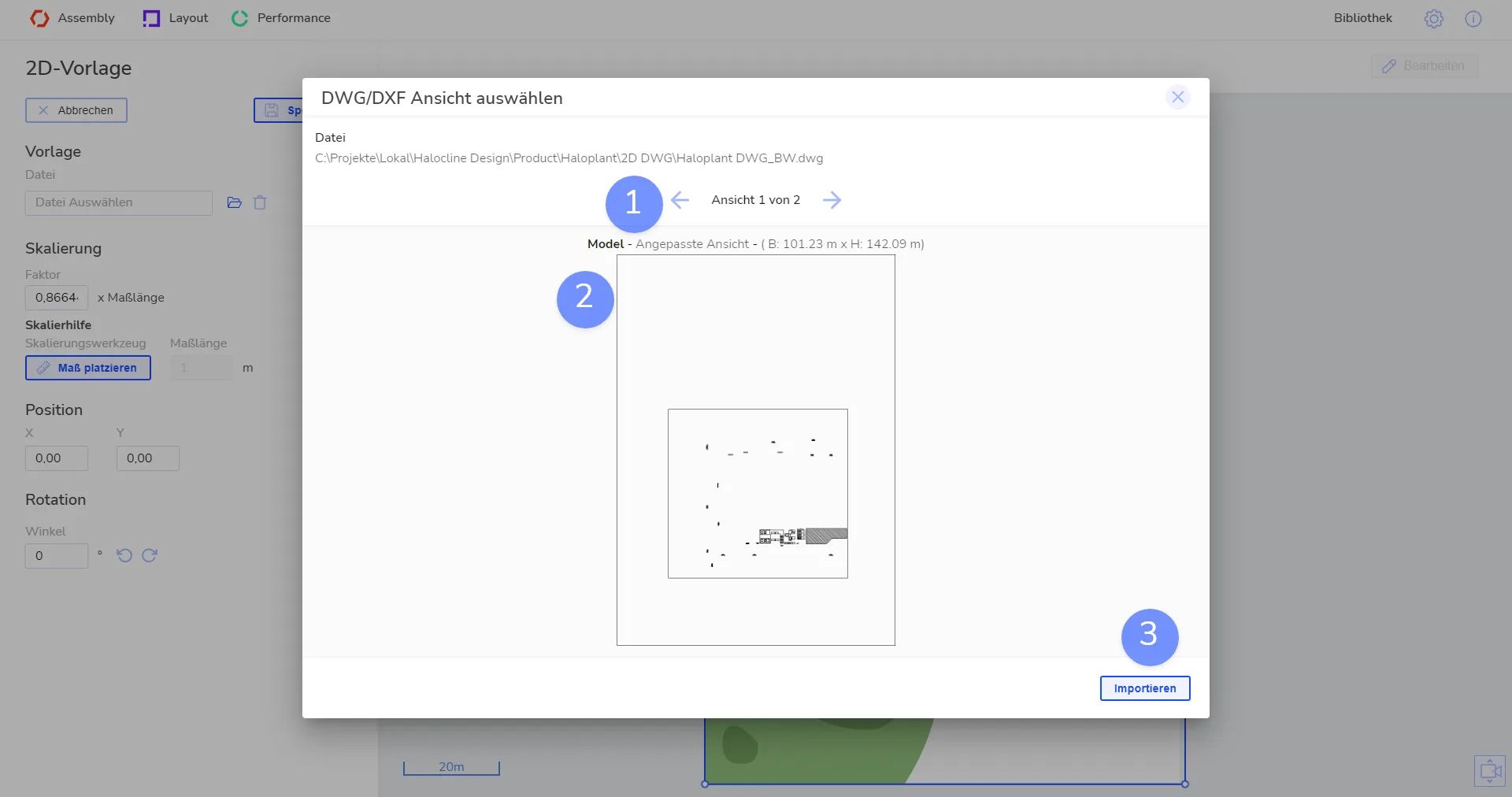
- Change view: All views from your DWG file are displayed here. You can switch between the zoom settings "Fit to content" & "As saved".
- Preview: The preview image of the view is displayed here. The name of the view, zoom setting and external dimensions of the view are shown at the top.
- Import: Starts conversion from view to 2D template. The duration of the conversion depends on the file size. The scaling is automatically taken from the file and can be changed manually if required.
Representation
- Lines are colored black to preserve the contrast.
- Graphics settings in VR have an influence on the resolution of the 2D template (use the "Medium" or "High" option for the highest resolution).
Images#
Scaling the 2D layout
If you import images, you may have to adjust the 2D layout to the actual dimensions of the hall.
You can use the "Ratio" input field on the left and the circle in the preview on the right to scale the image with a fixed aspect ratio.
Use the scaling help if there is a known dimension in the 2D layout to automatically determine the correct size.
Scaling help
First zoom to a known dimension in the template using the mouse wheel (e.g. a pallet, a piece of equipment or similar).
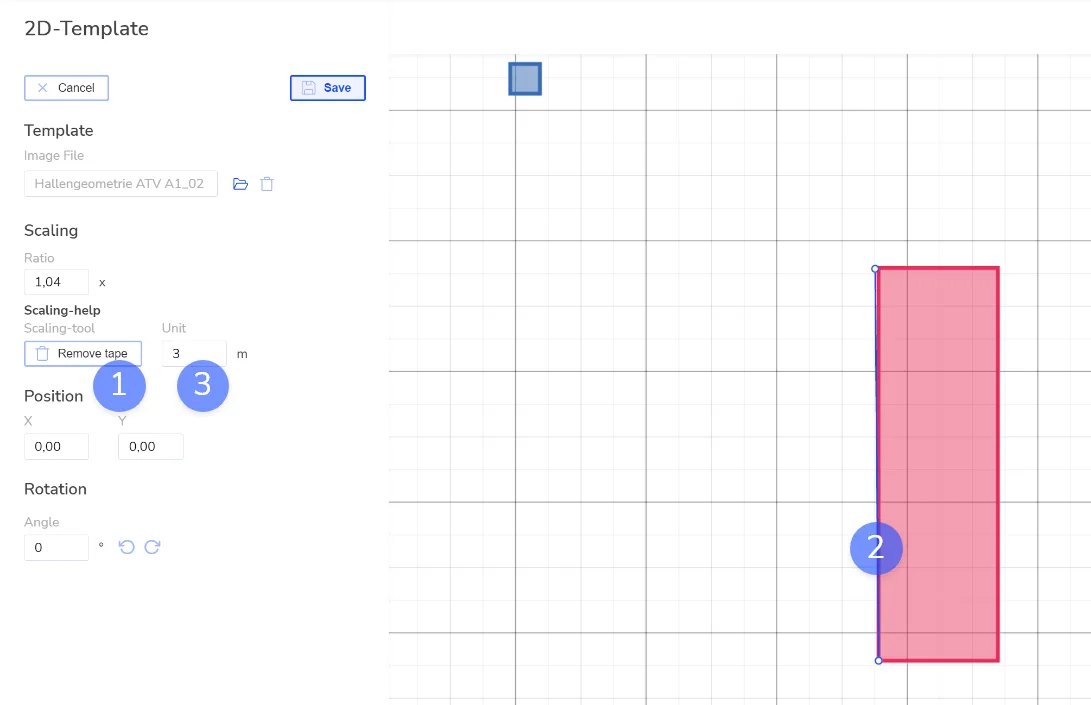
- Click on the Place tape button on the left.
- Place a line at the known dimension with 2 clicks.
- Then enter the real distance between the two points on the left-hand side. The 2D layout is then scaled accordingly.
Position and rotation#
- Use the arrows in the middle of the layout template, the rotation arrow at the bottom, and the Position and Rotation sections on the left side of the screen to move your layout to the right place.
- With a click on OK you create the template and can now use it in Halocline Layout.
Tip: To create a screenshot using Microsoft Windows board tools, please see here: Use Snipping Tool to capture screenshots
Related to