Editing variants in 2D: outline, position, starting point
2 min read
Available in
- Professional
- Desktop
Function#
You can define the outline, the position and the starting point of a variant in Halocline Desktop.
The outline is used to indicate the boundaries of the variant. This helps to better divide the shopfloor in 2D view and to clearly delimit the available space in VR.
With the position you also change the contents of your variant and can thus easily experiment with the rough layout of your shopfloor.
The starting point determines where you are in the store floor when you start VR with the selected variant.
Instruction#
2D Editing#
Select your variant and click on "Edit" in the upper right corner.
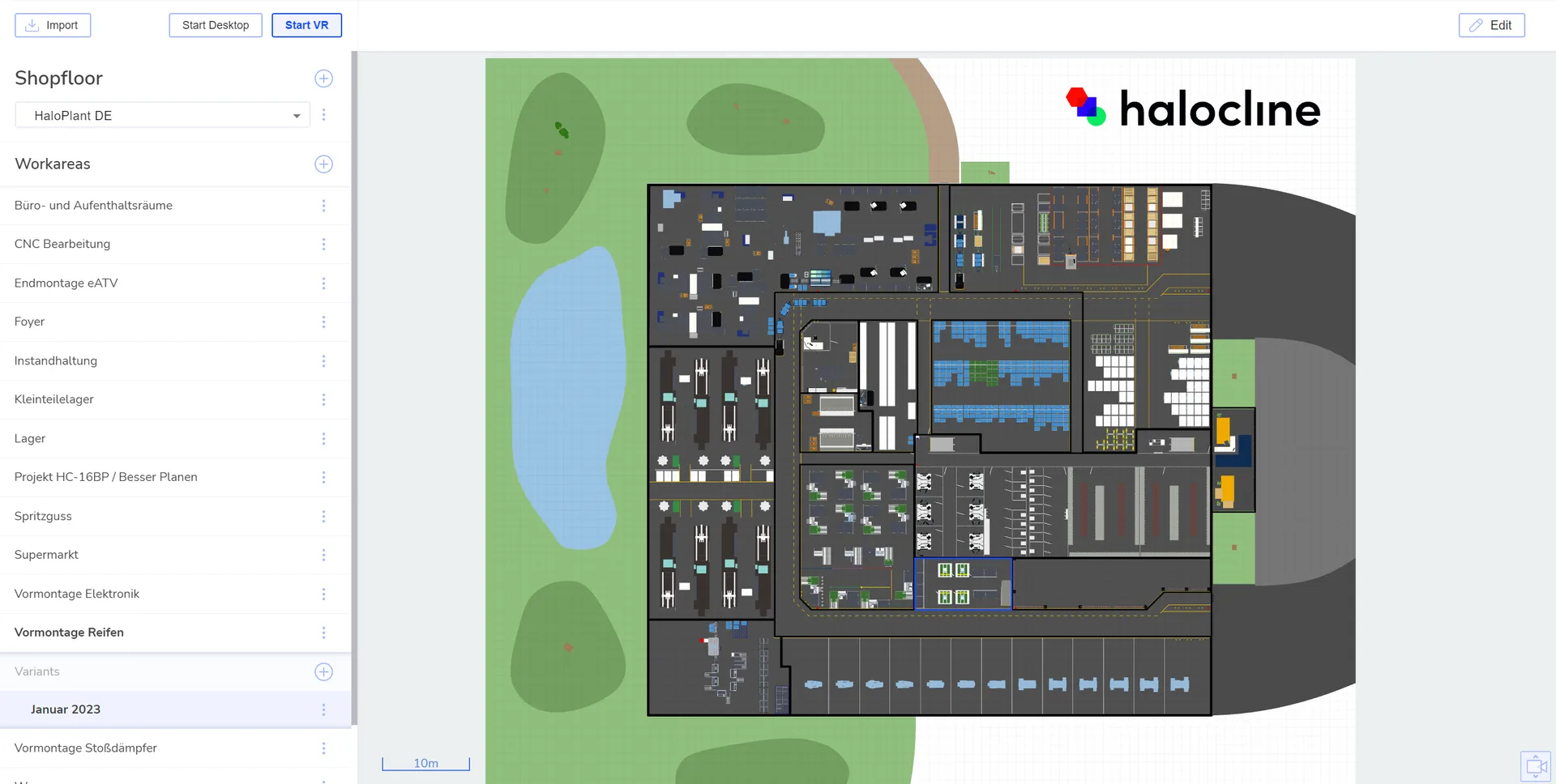
This will get you into this editing mode:
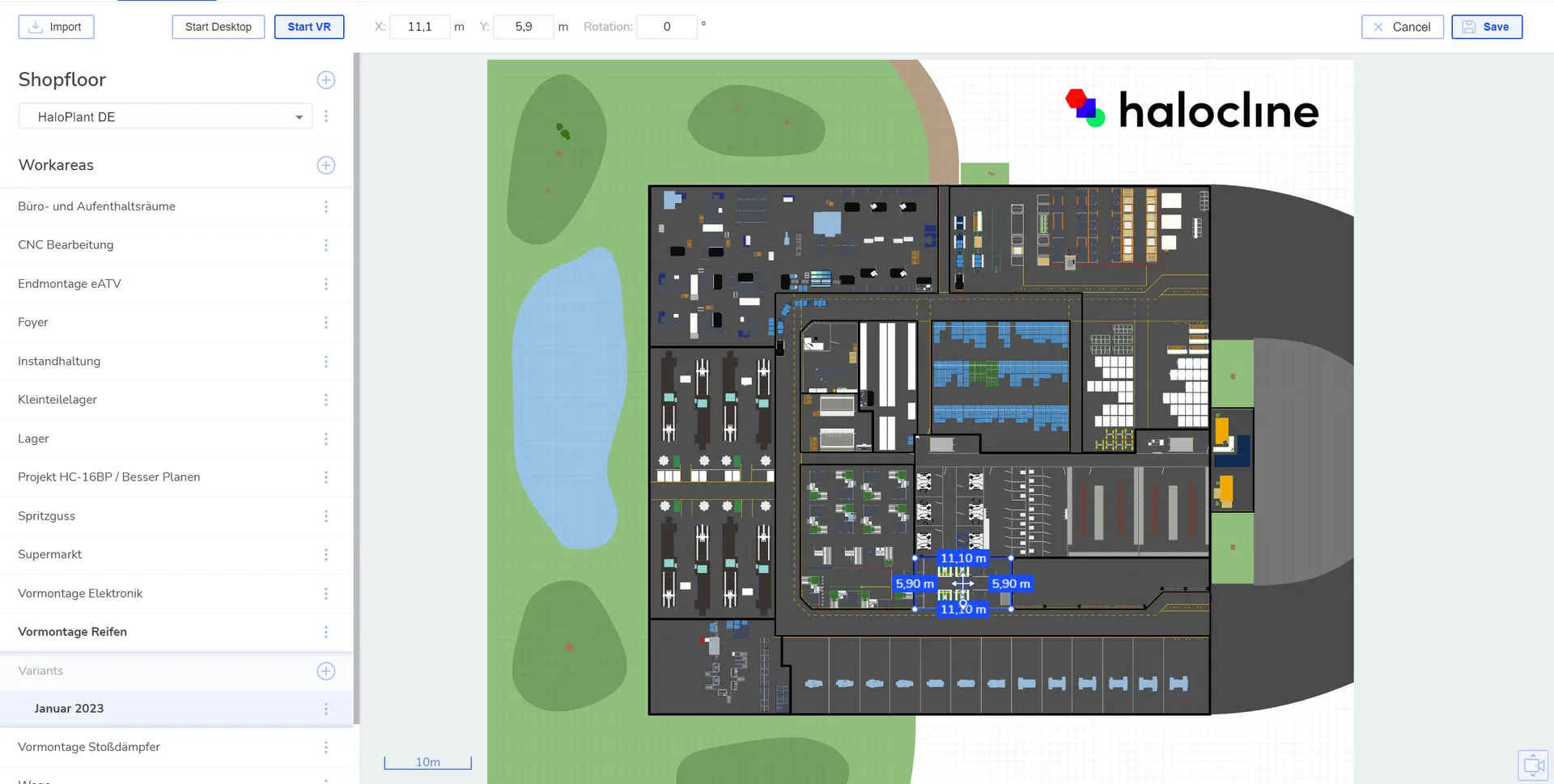
Confirm your changes with the "Save" button.
Change position 
 #
- Move the whole variant, using the "Move" gizmo in the middle.
- Rotate the station using the "Rotation" gizmo or the "Rotation" input field at the top.
- Note that already built objects will be moved and rotated as well.
Set start point  #
- Move the location icon to the place where you want to start in VR.
- Make sure that there are no objects at this position.
Adjust outline#
Move  #
- Grab the line to move the outline.
- This does not affect already built objects
Resize 

- Grab a point at the corners to change the size.
- Use the input fields above to enter an exact measurement for a rectangle.
- Note that you can only use the input fields if the outline is rectangular. Once you've added more corner points, the fields will be disabled.
Add and remove points
- Create additional points to create shapes other than rectangles. Click on the line to create a new point. You can touch and move them again.
- To delete points, click on the desired point and press the "delete" key on your keyboard.
Related to