Importing data at a glance: CAD, 2D layout, hall model
2 min read
- Desktop
In this article, you'll find an overview of all import options and how to use them.
CAD Data#
You can import your CAD data into Halocline in two different ways:
 Assembly#
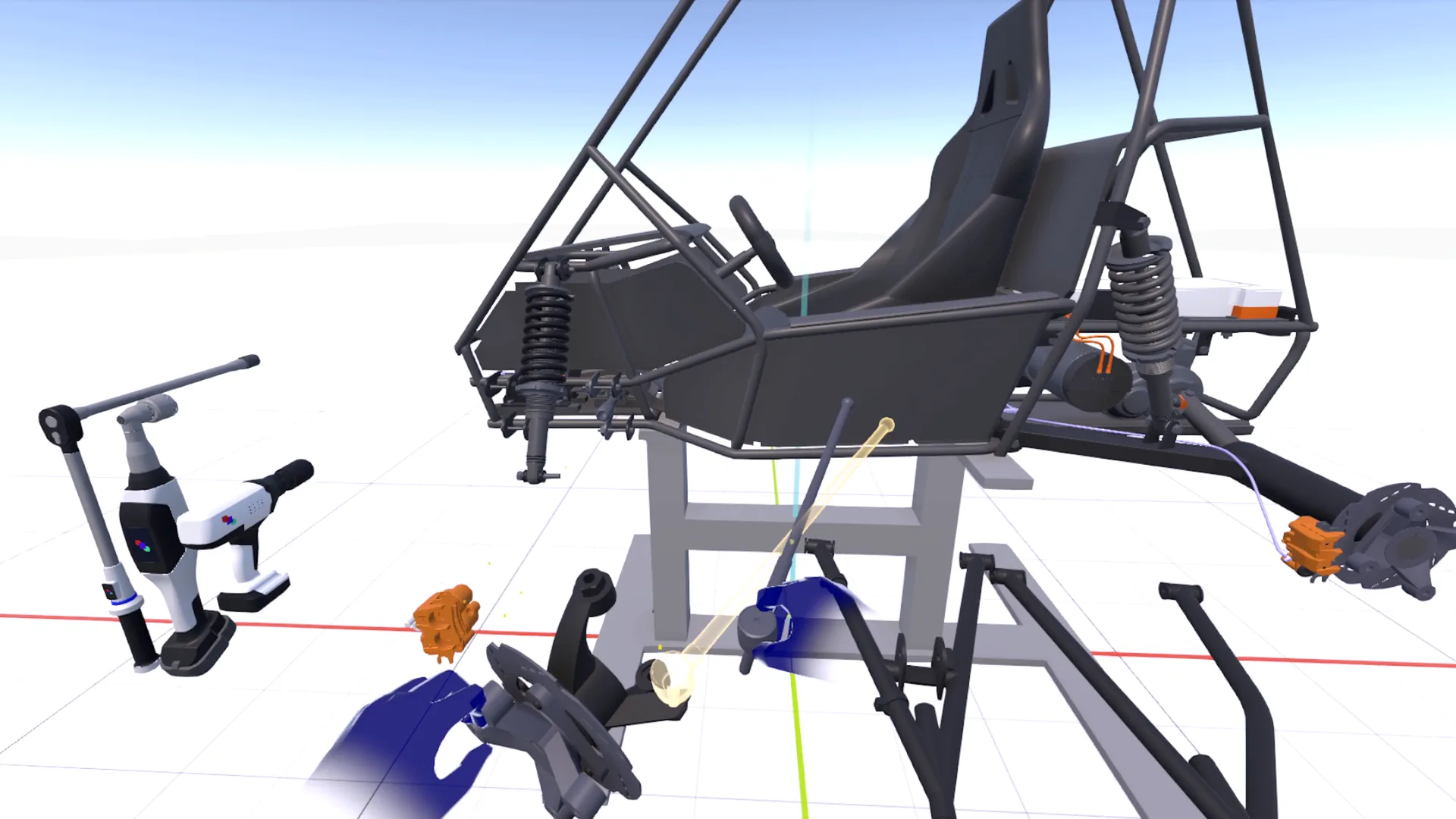
In Halocline Assembly, you can analyze and edit your CAD data.
Here, the data is displayed very precisely. In this part of the software, you can review and plan assembly sequences. You can also select individual components or assemblies and export them to Halocline Layout.
Use this import function to prepare your product data and equipment.
Here you can select individual parts and reuse them in Halocline Layout.
Instructions
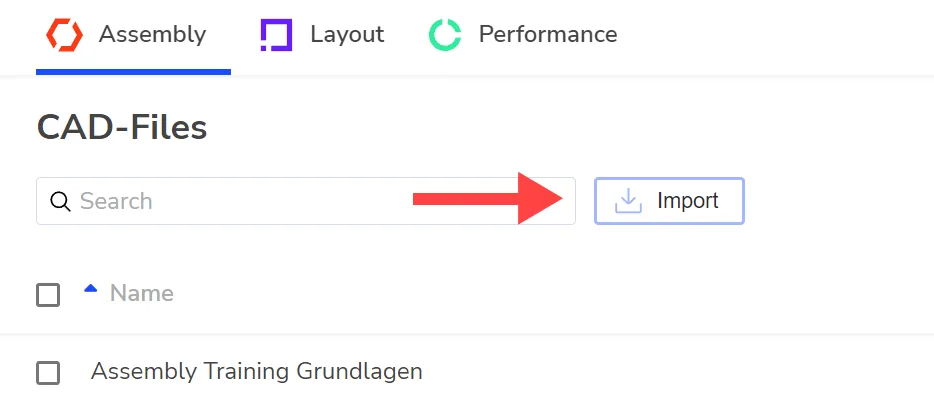
To do this, click Import in the Assembly tab, at the top left next to the search field. Select one or more files.
 Layout#
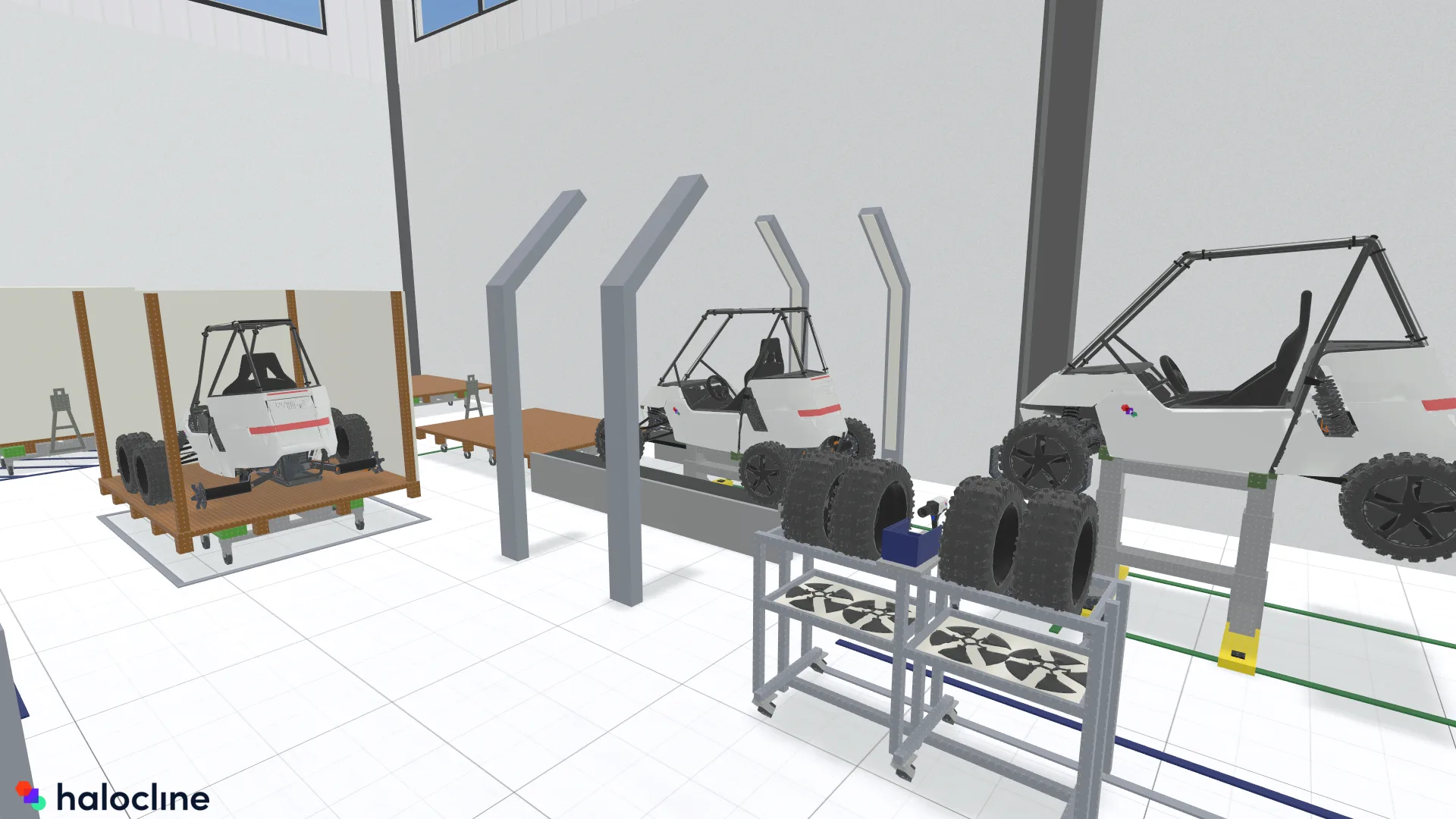
In Halocline Layout, you can insert your CAD data into your layout planning.
Depending on the import option, the data is displayed in an abstracted form.
Use this function for equipment, machinery, or individual assemblies that you want to insert into your layout.
Instructions
To do this, click Plus in the Library tab, at the top right next to the search field. Click CAD files and select one or more files. Then choose the import option.
Import Options
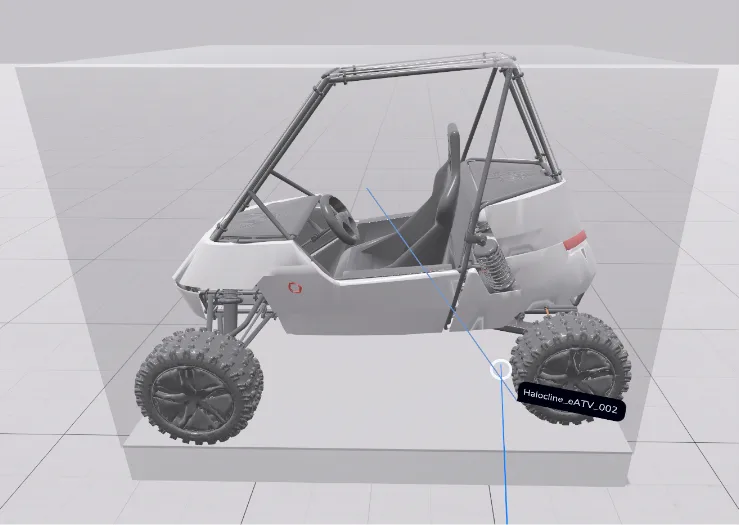
CAD
Select CAD (fine) or CAD (coarse) to see the 3D model in Layout. Use this option if displaying the model as a placeholder is sufficient for you and you don't want to modify it further.
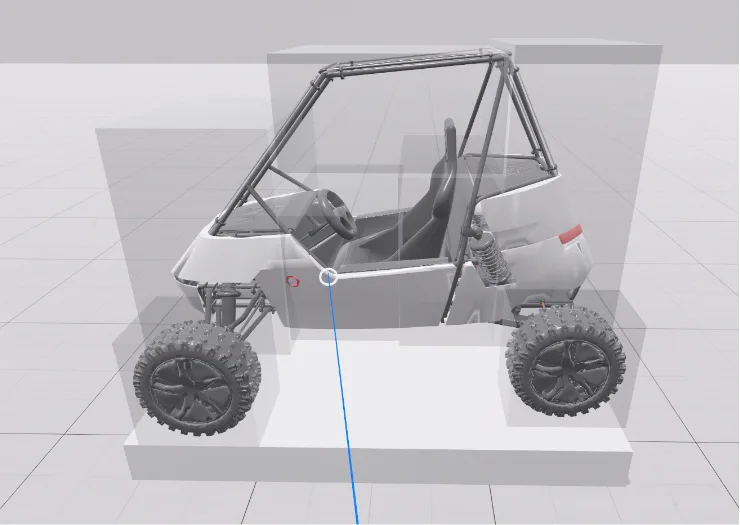
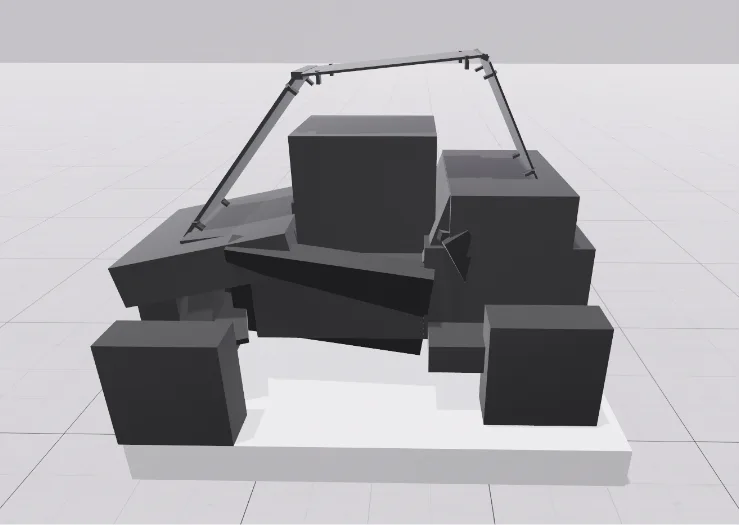
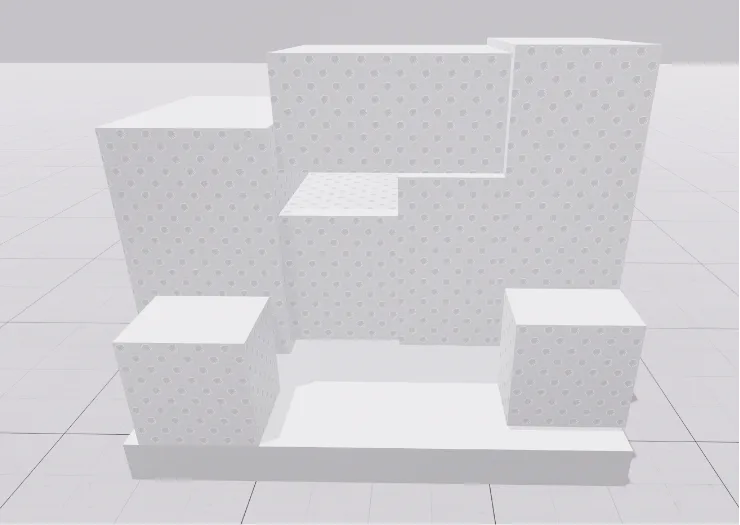
Box / Part
Select boxes or parts to get an abstract representation made of boxes. Use this option for equipment and machinery that you want to adjust in Layout and evaluate in Performance.
Related Links#
List of all file formats: Supported CAD Formats
More detailed information and examples of the import options in Layout: Options When Importing
Preparing product data – transferring assemblies from Assembly to Layout: Export of Assemblies and Individual Parts
Building Data#
You can use your building as a 3D model in Layout. You'll find all the information here: Import of Building Data
2D Layouts#
You can project an existing 2D layout onto the floor as a template. You'll find all the information here: 2D Layout
Images, Lists, and Videos#
You can display additional files such as images, to-do lists, or videos in VR to help you with your planning. You'll find all the information here: Notepad in VR
Halocline Data#
To use data from other Halocline users, you can import files in the .halo[...] format.
For shopfloors, work areas, and variants, use the Import button in the Layout tab. In the following window, you can set the desired import location depending on the file type.
For library objects, use the Import button in the Library tab. In the following window, select Library elements.
Related to