Checking gripping space and working heights with the gripping-space avatar
2 min read
- Professional
- Desktop
Function#
With the help of the reach distance avatar, you can already see during the planning in Halocline Layout which areas of your workstation are easily reachable and which are not.
Instructions#
What is the reach distance avatar?#
The reach distance avatar is an avatar that can be placed anywhere in the room. You can use different visualizations to see which objects are (easily) accessible. It can be displayed in a standing and in a sitting position.
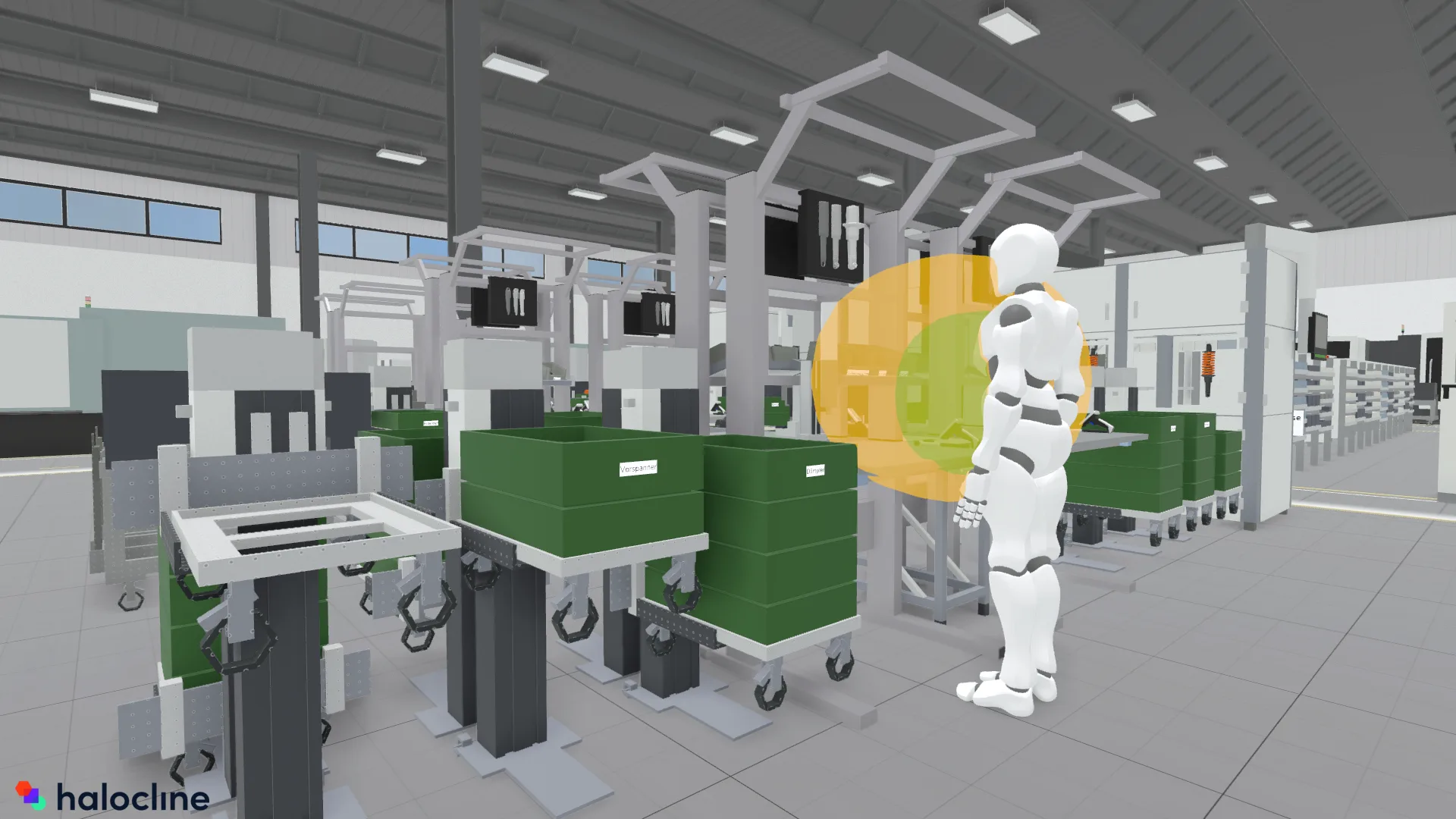
The reach distance spheres visualize the areas of your workstation that are easily accessible (green) and those that are not (yellow).
The working heights show the minimum, optimum and maximum working heights. This visualization helps you to quickly see which objects are placed too high or too low.
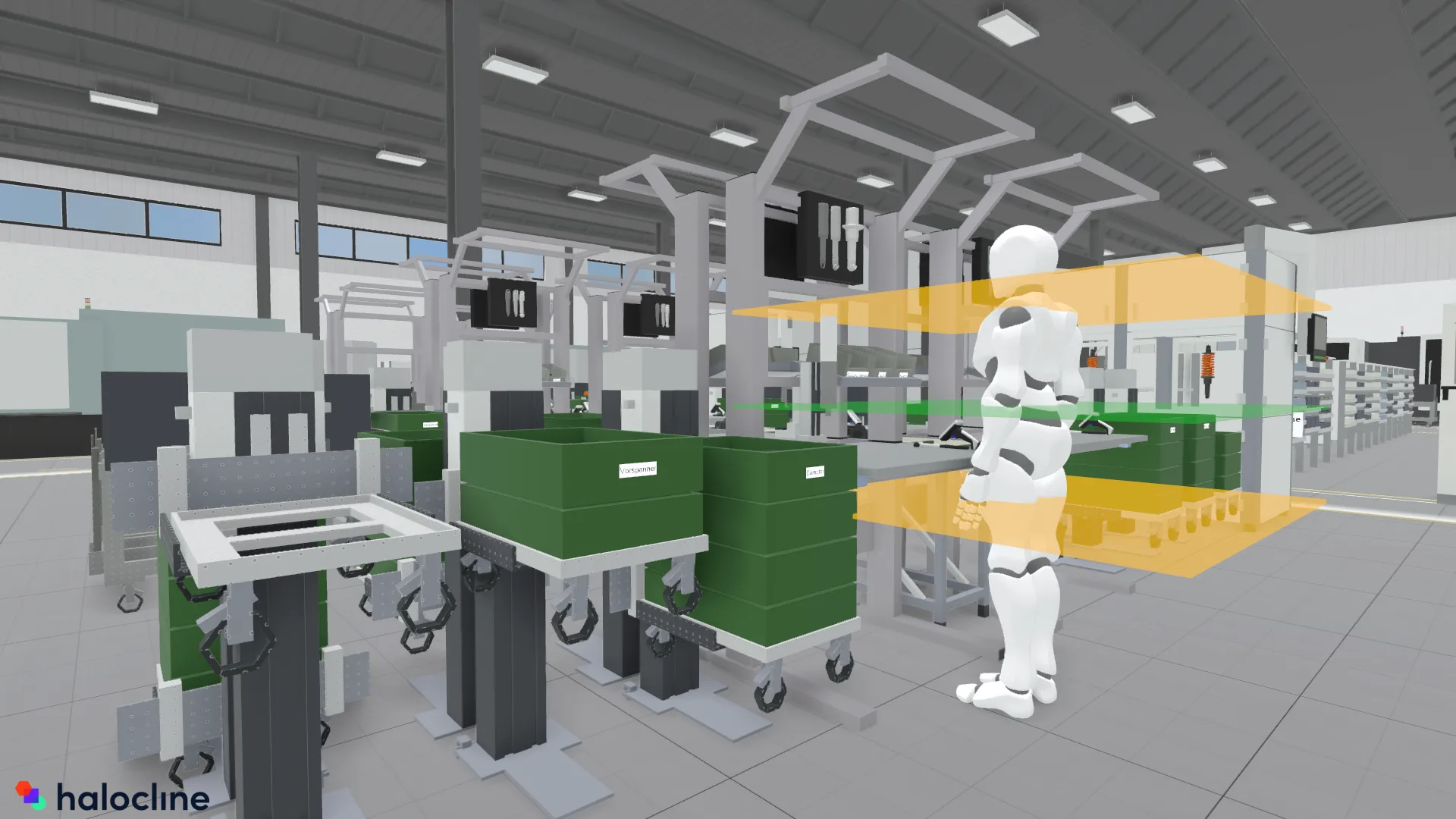
The values for the reach distances and working heights depend on the size of the avatar (based on DIN EN ISO 14738:2009-07) and can be adjusted in the reach distance configurator (see below).
Activation of the Reach distance#
Reach-distance avatars are always in your local library. By default, there is no avatar in your reach distance library. Using the reach distance configurator, you can create your own models.
You place reach-distance avatars like other objects from the library. You can rotate the avatar using the thumb button or by pressing "r".
You can place as many reach distance avatars as you like and edit the position afterwards with the adjust tool.
You can adjust various settings via the context menu. To do so, select the desired avatars and click on the gear icon.
Reach distance avatar - settings#
Position - here you can change the posture of the represented avatar from standing to sitting. The visualizations will be adjusted accordingly.
Visualization - here you can switch between the view of the reach distance spheres and the view of the working heights.
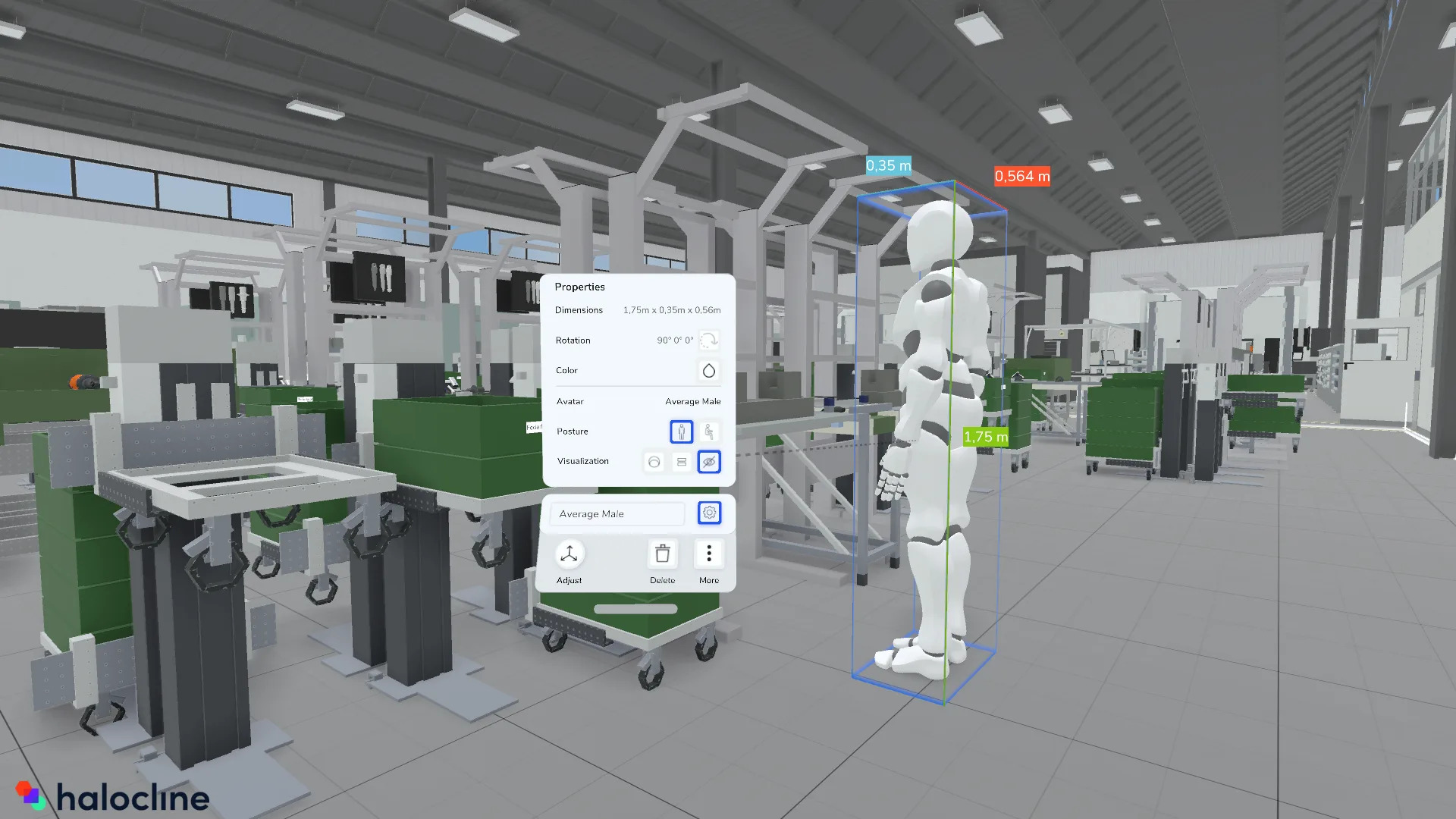
In addition, you can control the visibility of all avatars in the settings menu and thus show or hide them altogether.
To get more information about each reach distance avatar, move your controller over the respective avatar. A tooltip will appear showing the name.
To delete the avatar, select an avatar and click on "Delete" in the menu.
Related to