Movement constraints: locking axes for movable objects
2 min read
- Professional
- Desktop
With the ‘Restrict movement’ function, you can restrict the movement of objects in Halocline Performance to specific axes. This is particularly useful for displaying realistic movements for objects such as trolleys, drawers, height-adjustable tables or other objects that can only be moved to a limited extent.
Anleitung#
Activate movement restrictions#
- Select object: Select the desired object and look at the context menu.
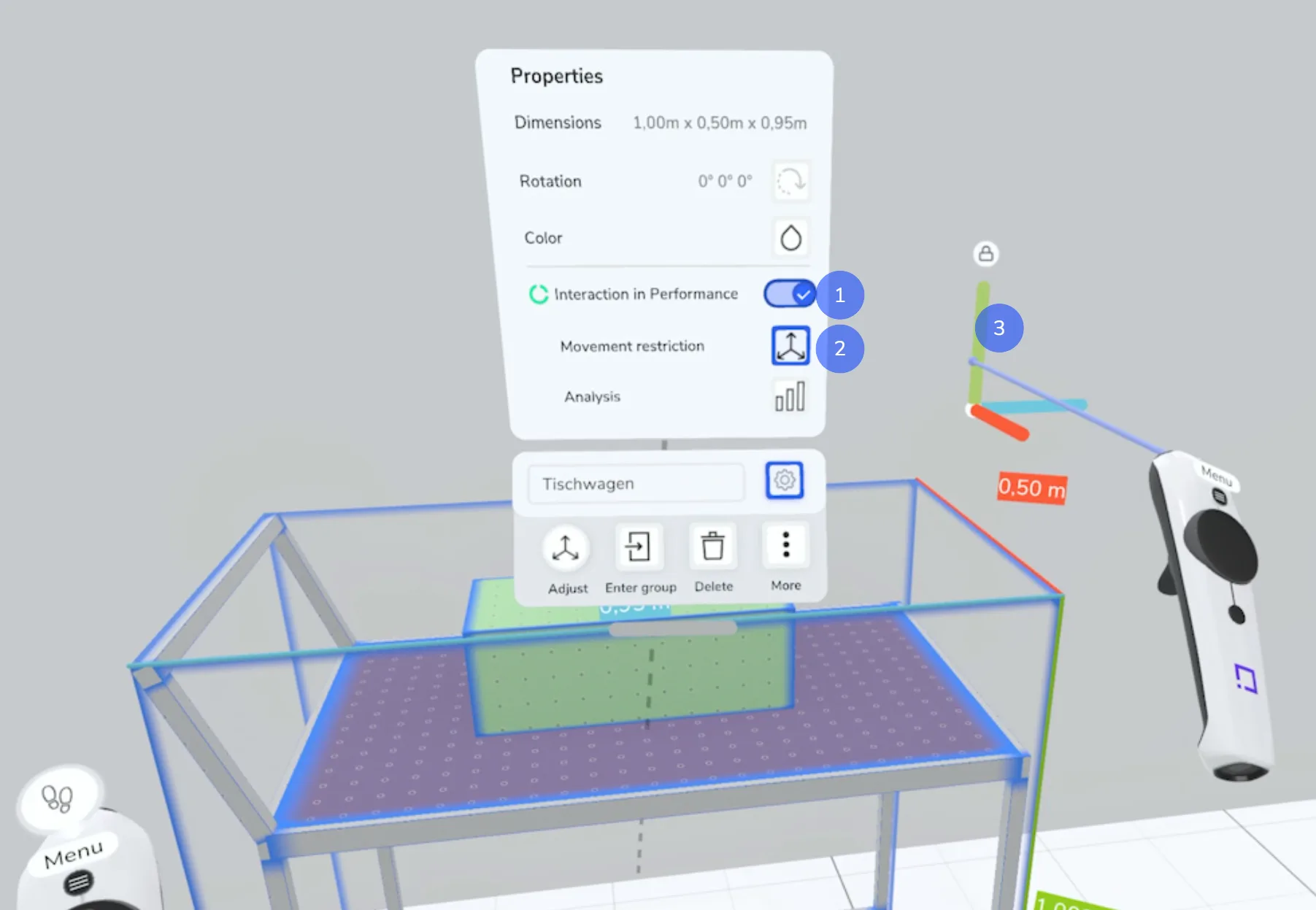
- (1) Activate interaction: Open the properties window via the gear icon and activate the ‘Interaction in Performance’ option.
- (2) Set movement restrictions: Click on ‘Movement restrictions’ to display a coordinate system.
- (3) Restrict axes: Click on the axes to block movement in this direction. Restricted axes are greyed out and marked with a lock symbol.
If the movement restrictions are activated, the object is not affected by gravity. This means that if the object is moved upwards, it will not move downwards by itself.
Examples of movement restrictions#
-
Examples of movement restrictions
-
Height-adjustable table: Select the table top and all elements that should move with it. Group these objects and deactivate the sideways movements so that only vertical movement is possible.
-
Trolley: Select the trolley and all objects that are to be moved with it, group them and deactivate the vertical axis so that the trolley can only be moved on one level.
-
Drawer: Select the drawer and its contents, group the objects and deactivate the vertical and sideways movements so that only forward movement is possible.
Nested movements#
In Halocline, you can assign individual objects their own movement within groups.
- Interaction on the topmost group: When the group is moved, the entire content moves with it.
- Individual interaction on a subgroup: Objects with their own mobility can be moved independently of the group if they are touched directly.
Example - trolley:
The trolley is restricted to one level, while a component in the trolley has its own free movement.
Hierarchy of the group:
- Table trolley: Movement restricted to a plane
- Component: Free movement
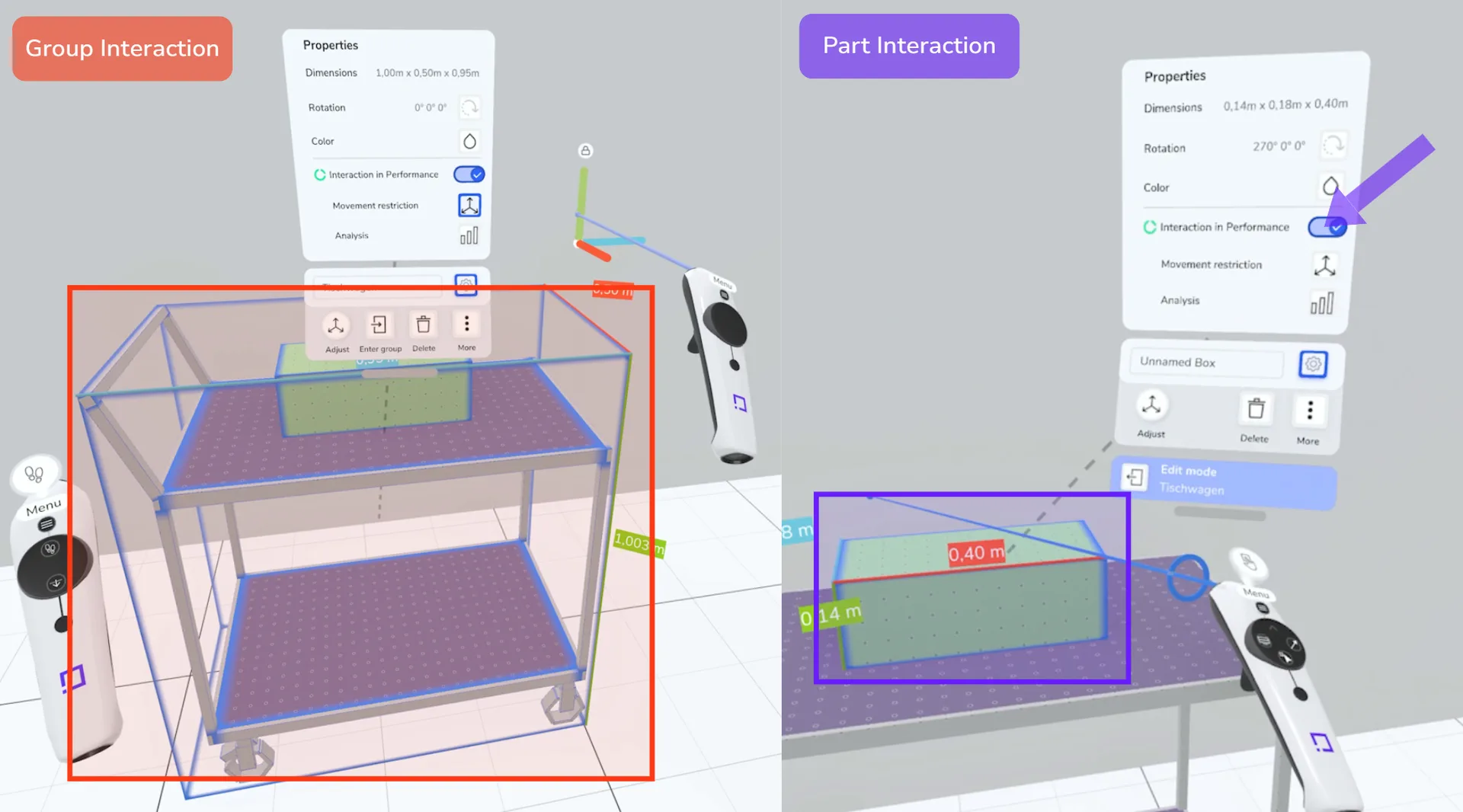
If you grab the trolley in Performance, everything is moved together. If you grab the component, you can move it separately.
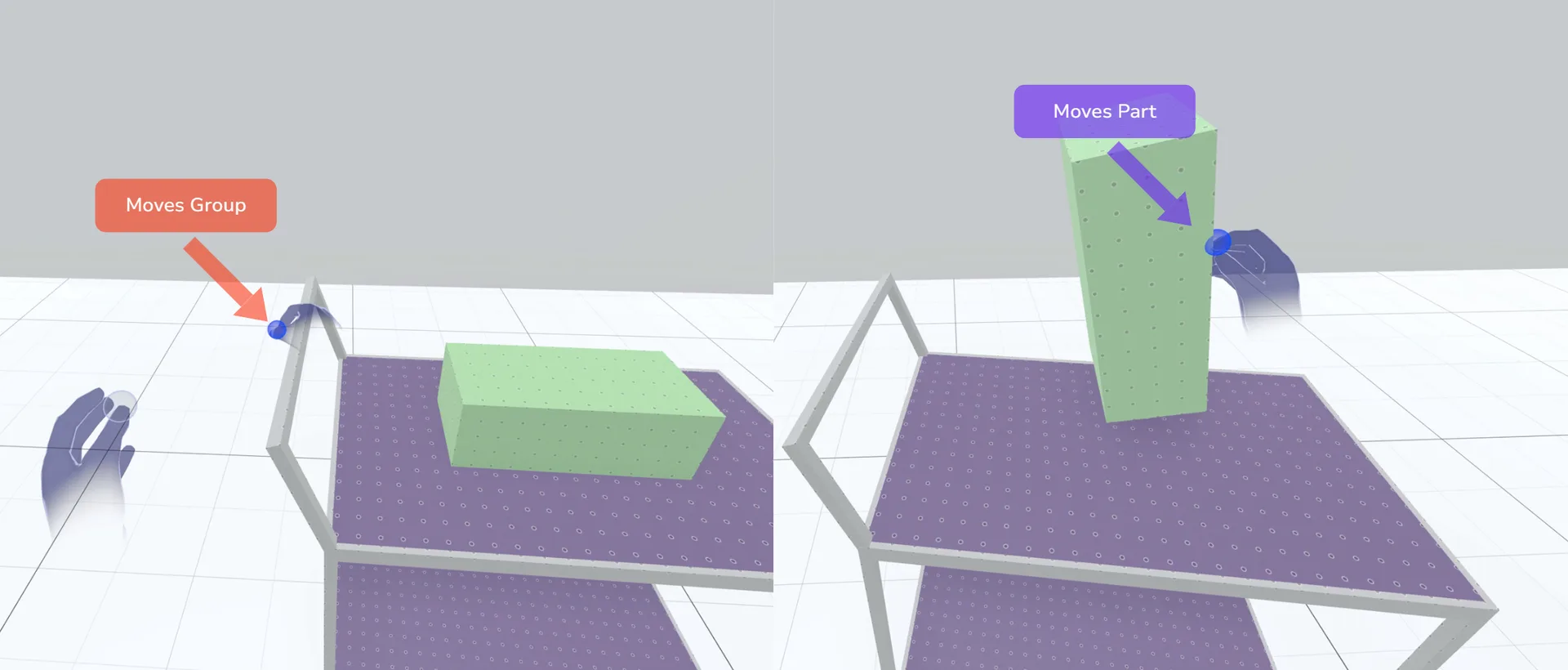
Further examples of the structure and hierarchy of nested movement:
Drawer trolleys
- Drawer trolley group: Movement restricted to the surface
- Subgroup drawer: Movement restricted to the front
- Component subgroup: Free movement
- Subgroup drawer: Movement restricted to the front
Height-adjustable table
- Workstation group: No movement
- Table top subgroup: Restricted movement at height
- Component subgroup: Free movement
- Table top subgroup: Restricted movement at height
Notes on grouping#
- If a group consists exclusively of individually movable objects, the group as a whole cannot be moved. To be able to move the group completely, make sure that at least one part of the group is not individually movable.
- If a group structure becomes too complex or movements do not function correctly, it is advisable to break up the group and restructure it. This will allow you to better optimise the mobility of the individual elements and the group as a whole.
Related to