Placing labels with the text tool
1 min read
Available in
- Team
- Professional
- Desktop
Function#
With the text tool, you can place signs with a text of your choice. You can position them anywhere, change their size and change the background color.
Instructions#
Menu > Tools > Label
- You will see a preview at the end of the ray on your controller.
- Point the controller at the position where you want to place the label.
- Click the trigger to place the label.
- The keyboard opens. Type in the desired text.
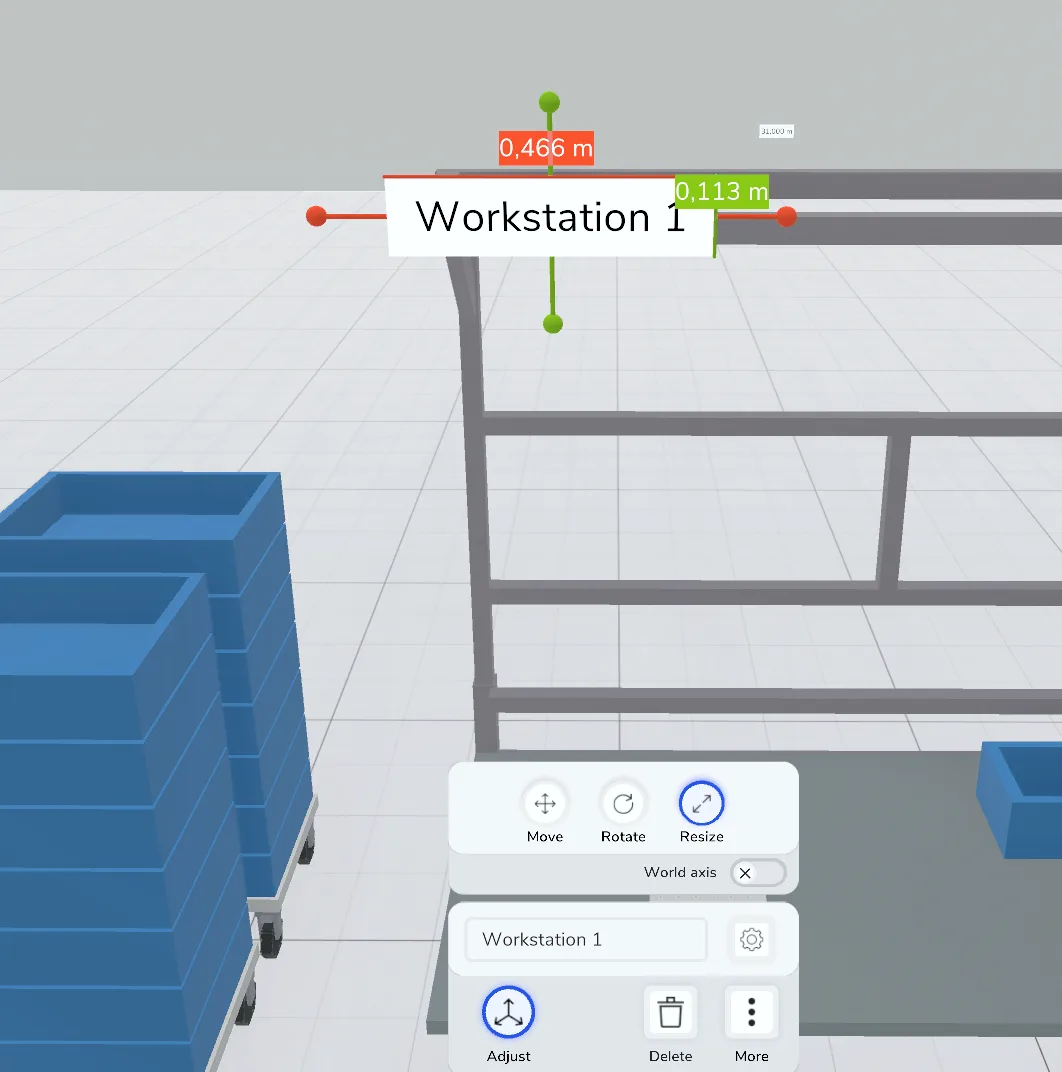
If you have selected a label, you can edit it via the context menu.
- Change the name to change the displayed text.
- Set the background color. The text color adjusts automatically.
- Change the size via Adjust. The text also adjusts automatically.
Related to