Container types before version 2026.3: tray, small load carrier, mesh box
1 min read
- Professional
- Desktop
The containers in Halocline allow you to precisely consider material allocation. You can select suitable containers and assign them to specific components. More information about material assignment to containers can be found here.
In Halocline Layout, three predefined container types are available:
- Storage bin
- Small Load Carrier (KLT)
- Lattice box
If you need additional container types, you can easily create and add them yourself.
Predefined Load Carriers#
Menu > Library > Storage bin / KLT / Lattice box
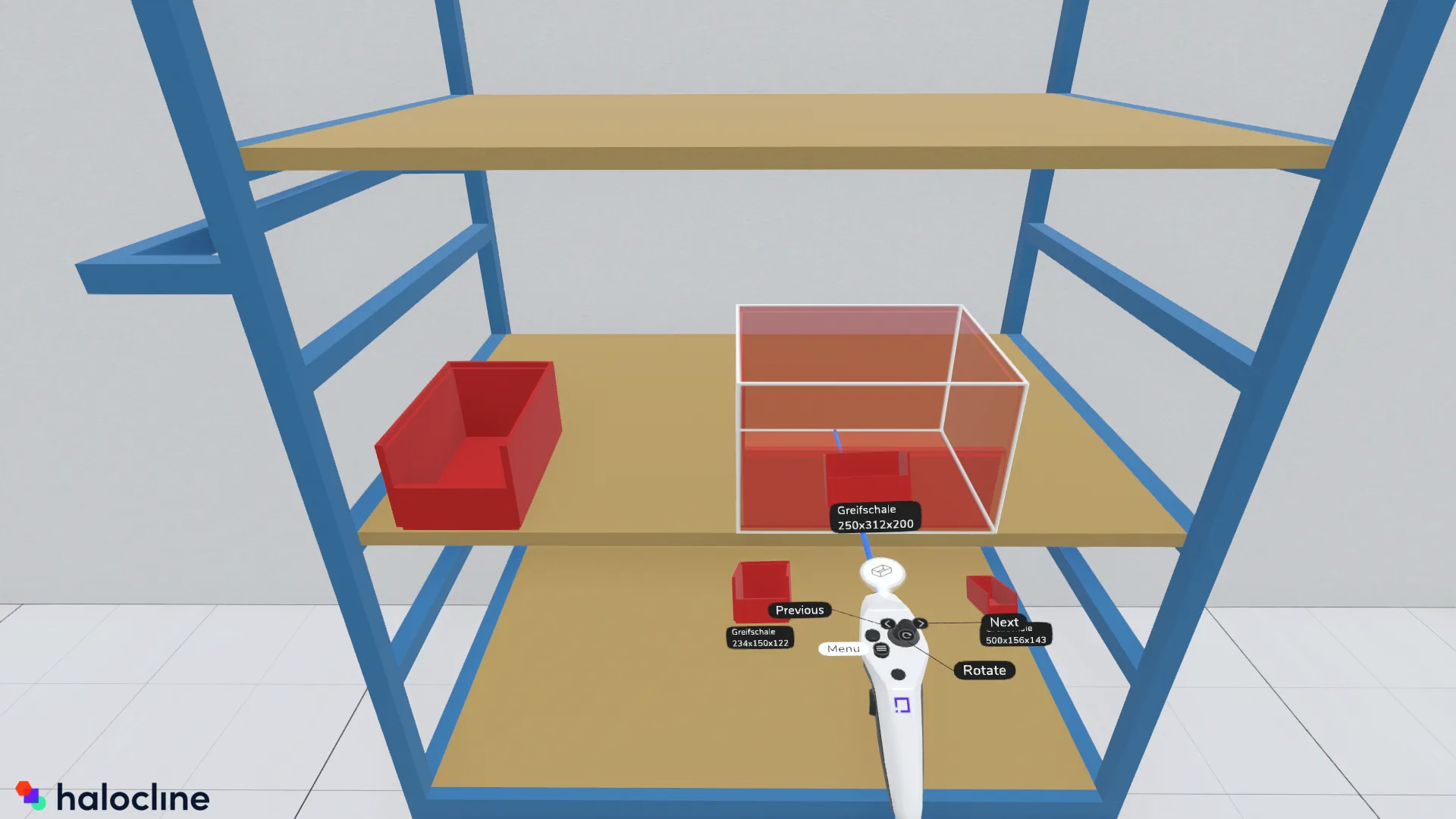
The placement function works the same for all container types.
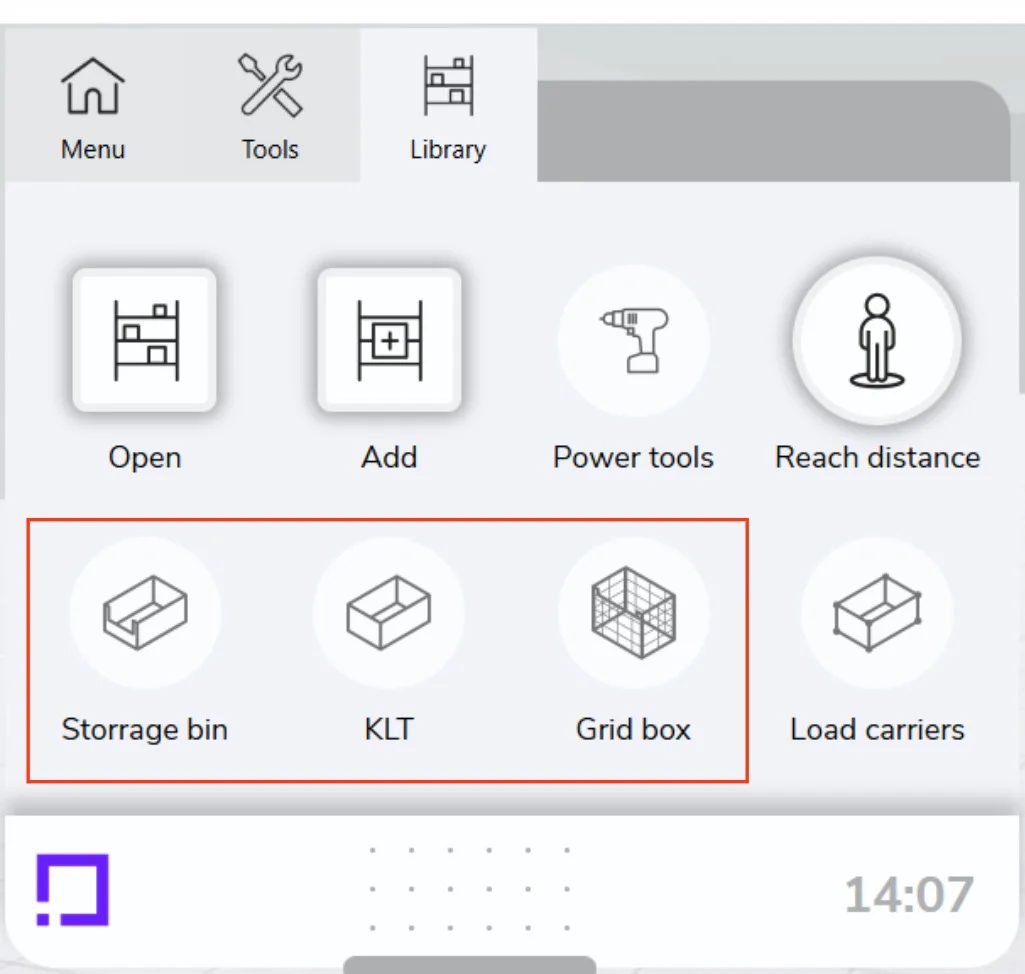
Once you have selected a container type, the available shapes will be displayed on the controller. Move the joystick left or right to choose the appropriate container. Then, point to the desired location and press the trigger to place the object.
Load Carriers#
Placing#
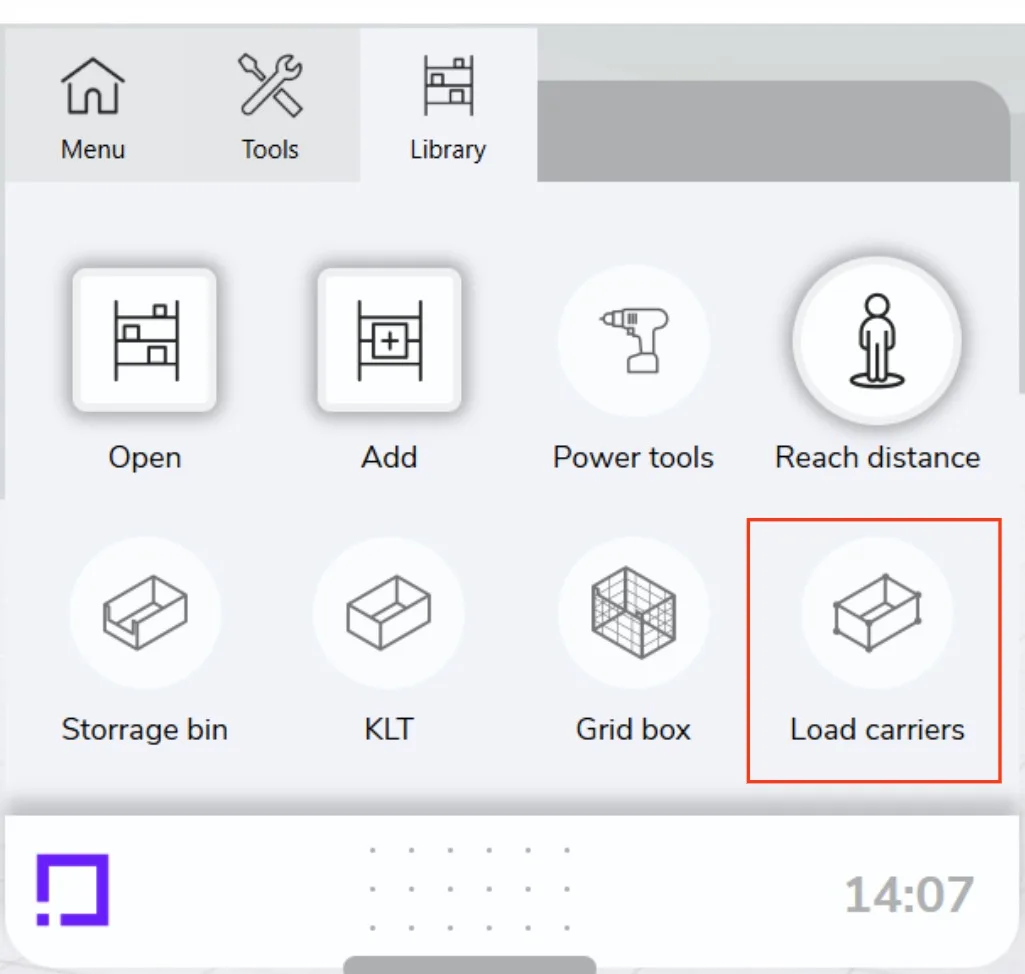
VR > Menu > Library > Load Carriers
The "Load Carrier" option works just like the one described above but contains your own custom containers.
Creating#
Desktop Application > Library > Load Carriers > New Load Carrier
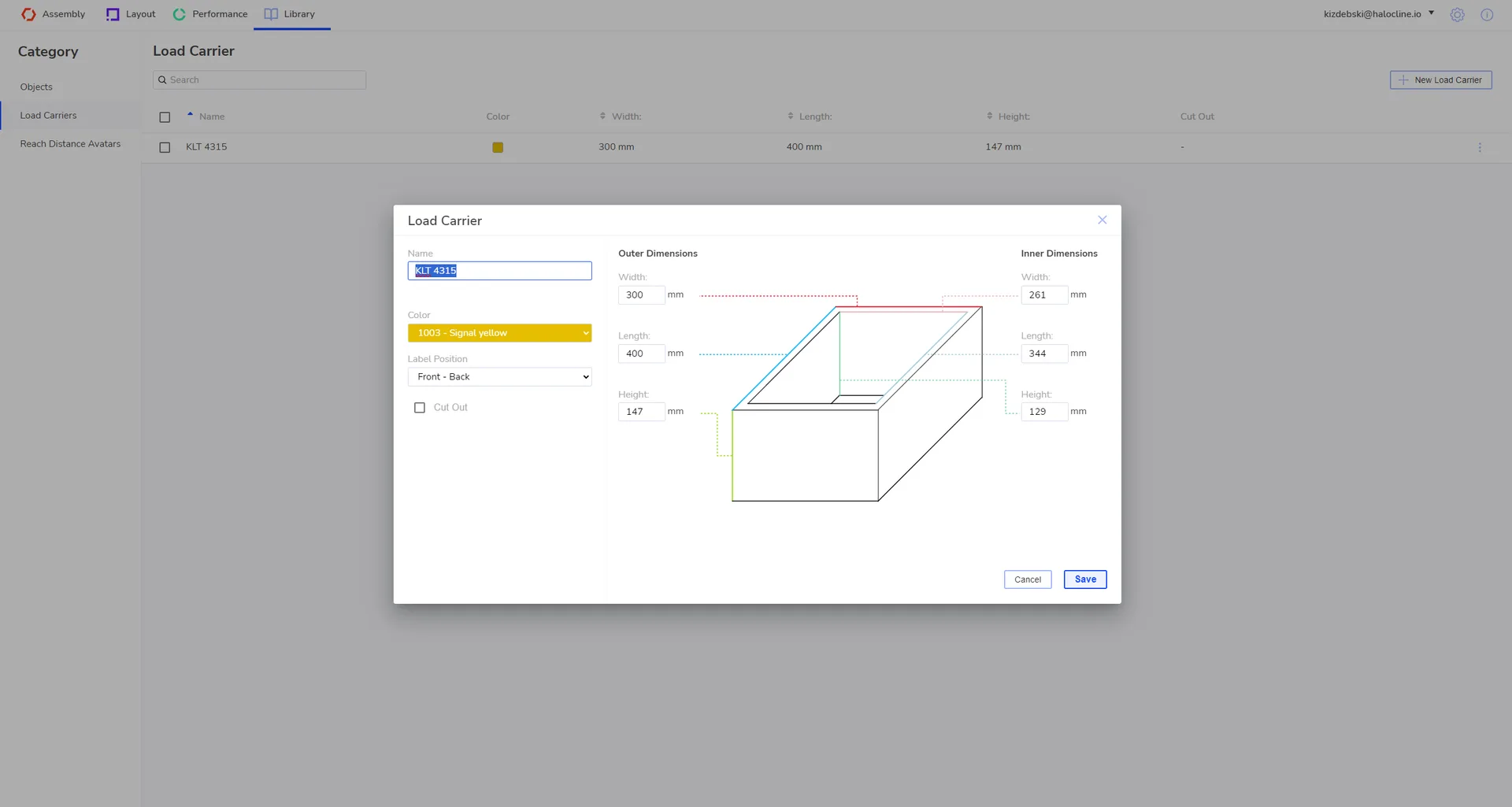
The load carrier must first be created in the Desktop Application of Halocline. Follow these steps:
- Open the Desktop Application of Halocline.
- Navigate to Library > Load Carriers > New Load Carrier.
- In this menu, you will find an overview of all the load carriers you have created.
- Customize the dimensions and colors of the load carriers according to your requirements.
Once your load carrier is created, you can place and use it in the layout as usual.