Starting Halocline Performance in VR
1 min read
- Desktop
In the VR application of Halocline Performance, you can test your planning from Halocline Layout, record and analyze the workflow.
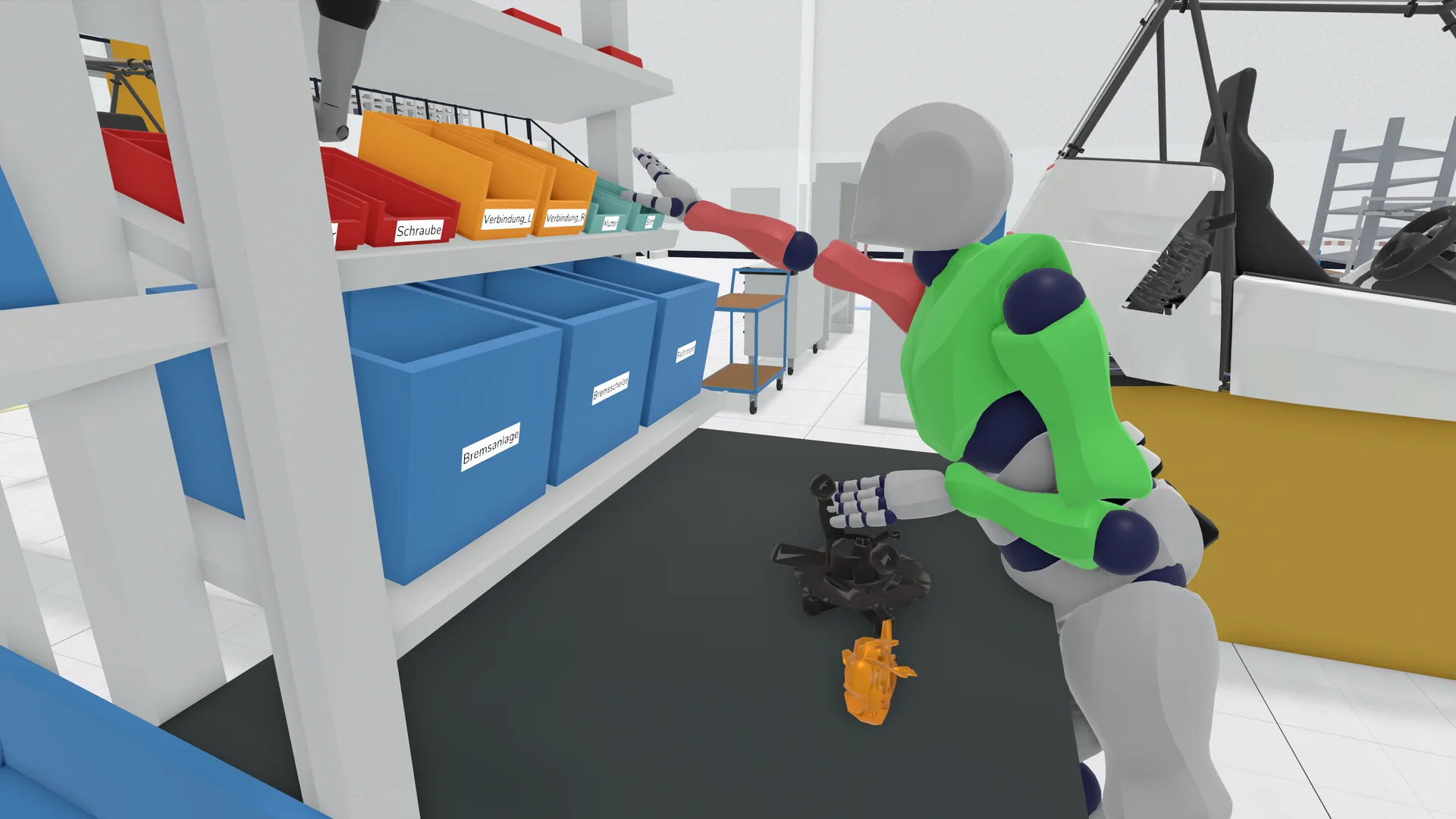
Select Data#
To use Halocline Performance extensively, you need data created in Halocline Layout containing interactive elements such as parts, load carriers and CAD imports.
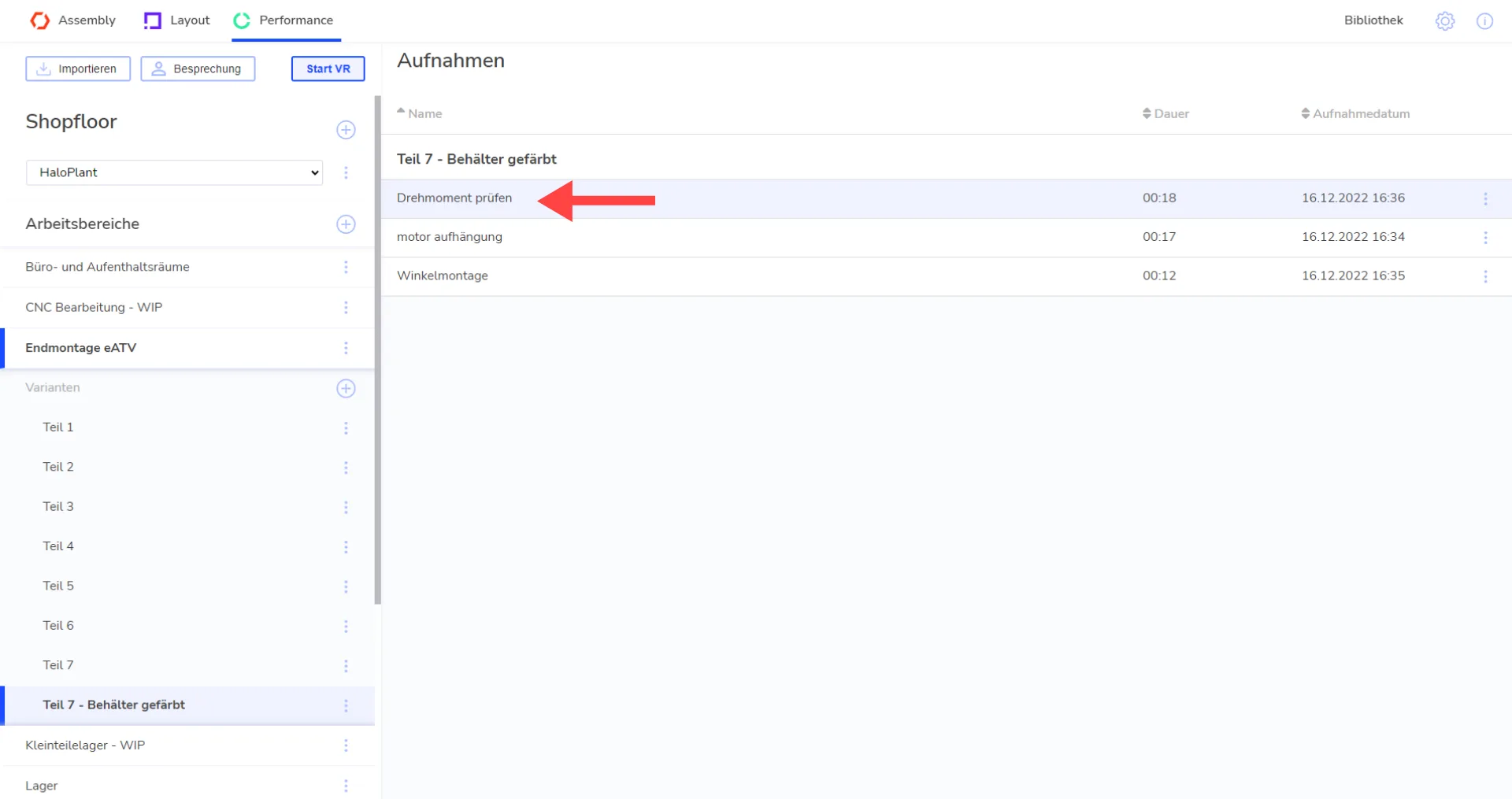
Click on the Performance tab at the top left of the desktop view.
The selection of shopfloor, workspace and variant works the same way as in Halocline Layout. See the article "Starting Layout VR" for more information.
Optional: If there are already recordings of processes, they will be displayed in the list on the right. Select them by clicking on the list item. This opens the playback window in VR with the selected recording automatically. However, it is not necessary to select a recording to start Halocline Performance.
Start VR#
Make sure your VR headset is connected and ready to use. Then click on the "Start VR" button in the upper left corner. The VR application opens in a new window. Put on your headset to start planning in VR.
|
Note: You can also switch seamlessly between layout and performance at any time in VR by selecting the respective product section in the VR main menu. |
Next Steps#
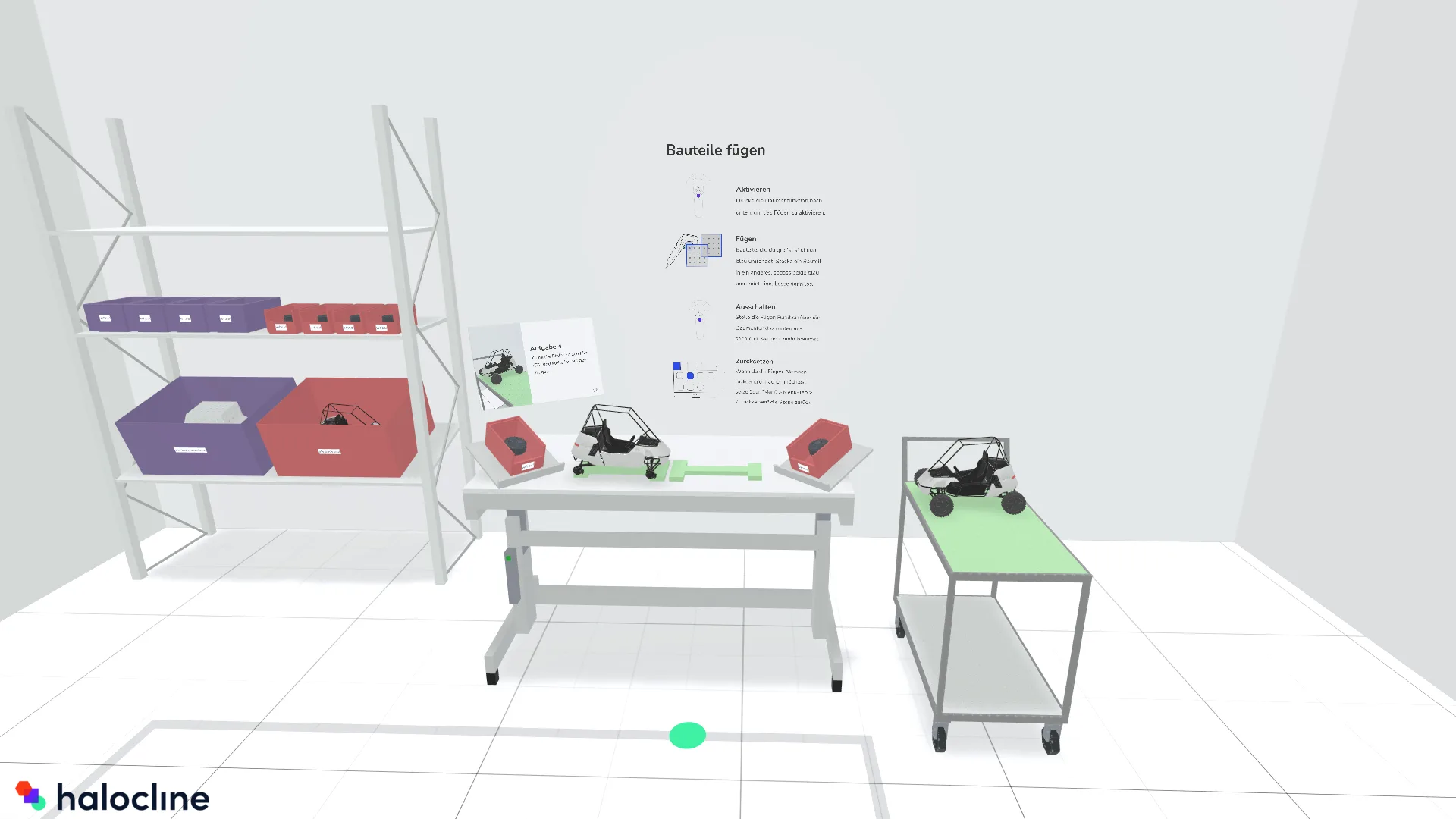
Use our tutorial to learn the basics of Halocline Performance:
Related to