Performance tab: managing recordings and starting VR
1 min read
- Professional
- Desktop
Overview#
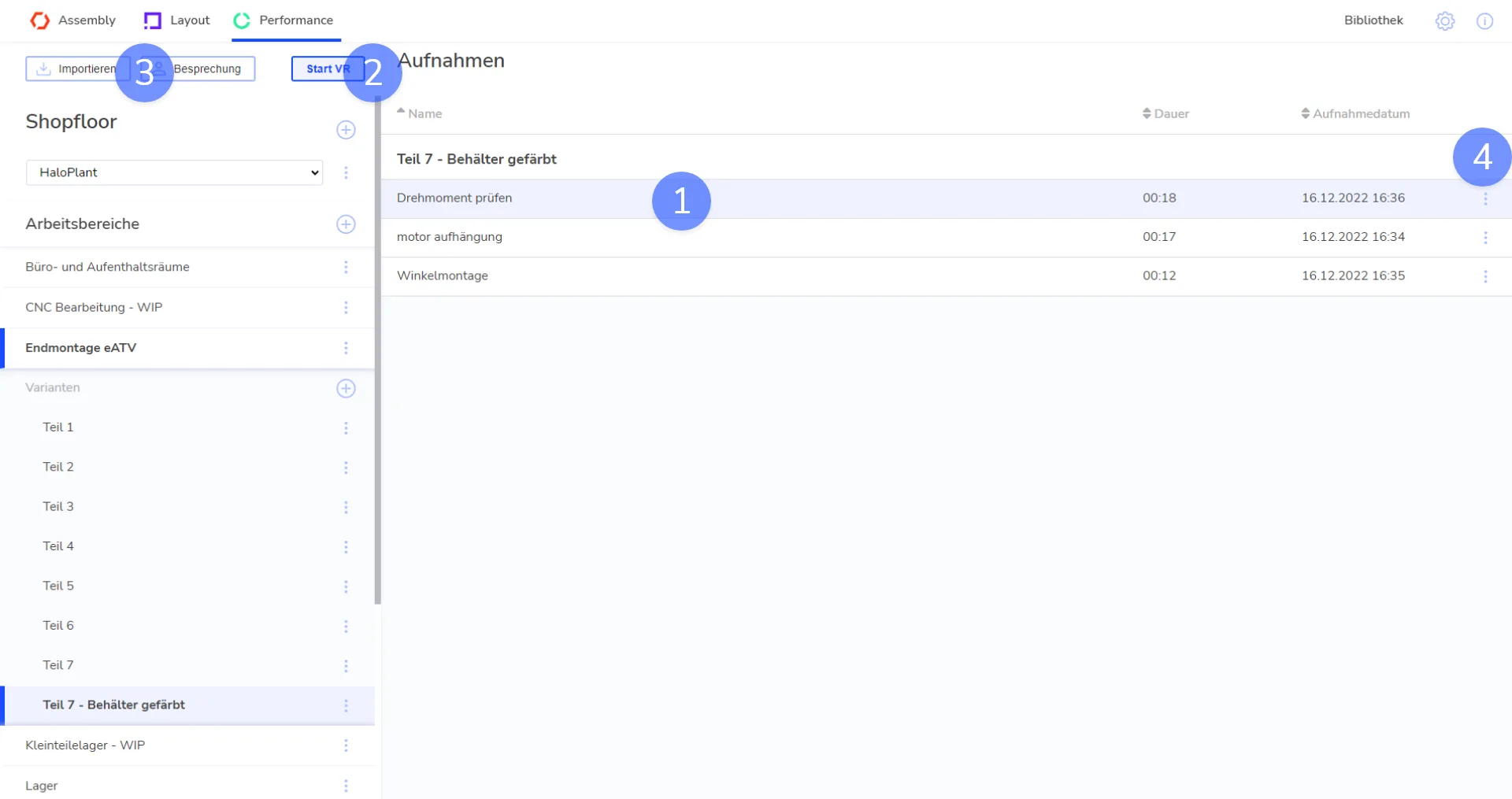
In the desktop application, you will find the Performance tab at the top left. Here you can manage the recordings for your store floor. Click "Start VR" to open the VR application with the selected recording in a new window.
Select Data#
Check out the Desktop Layout article beforehand to learn all the basics about Shopfloor, Workspace and Variant.
1) Select recording#
Select a recording in the list on the right by clicking on it. You will see all recordings assigned to the selected variant in the list.
2) Start VR#
Click on the blue "Start VR" button at the top. You start into the variant with the recording that you have selected. You can also select and play back all recordings directly in VR in the recording window or in the desktop view.
3) Meeting (Beta)#
Click the blue "Discuss" button above to discuss your selected variant online with other Halocline users.
4) Contextmenu#
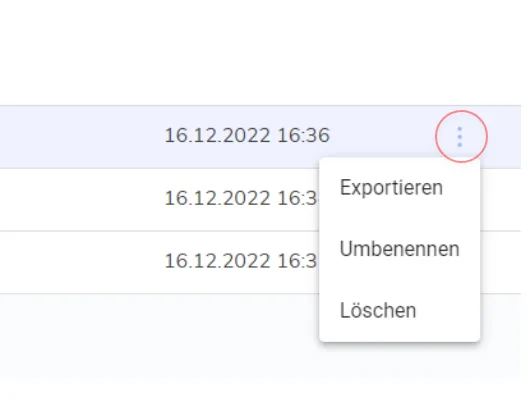
Click on the "three dots" to open the context menu. You can export, rename or delete the recording.