Performance settings: view and station
1 min read
- Professional
- Desktop
Function#
If you want to view or change your Halocline Performance settings, select the settings button in the main menu.
Instructions#
Menu > Main menu > Settings
To get to the settings, open the main menu. In the first tab you will find the Settings button. By clicking on it, another window opens. This contains the tabs "Display" and "Station".
Tab: View#
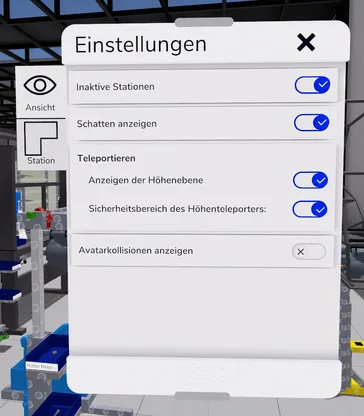 |
Inactive station Inactive stations are shown or hidden. Disabling this feature can result in a better VR experience when the hardware is heavily loaded. Show shadows Shadows are shown or hidden. Disabling this feature may result in a better VR experience if the hardware is heavily loaded. However, depth perception is degraded without shading. Teleport Displaying the height plane The gray level of teleporting to altitude is shown/hidden. Safety area of the height teleport The moving area around the user is shown or hidden. |
Tab: Station#
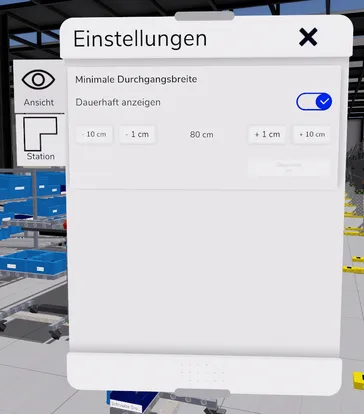 |
Minimum clearance width |