Assembly settings: unit, orientation, body contact
1 min read
Available in
- Professional
- Desktop
In the settings window you can make settings for various functions in the VR application Halocline Assembly.
Functions#
Menu > Adjust > Settings#
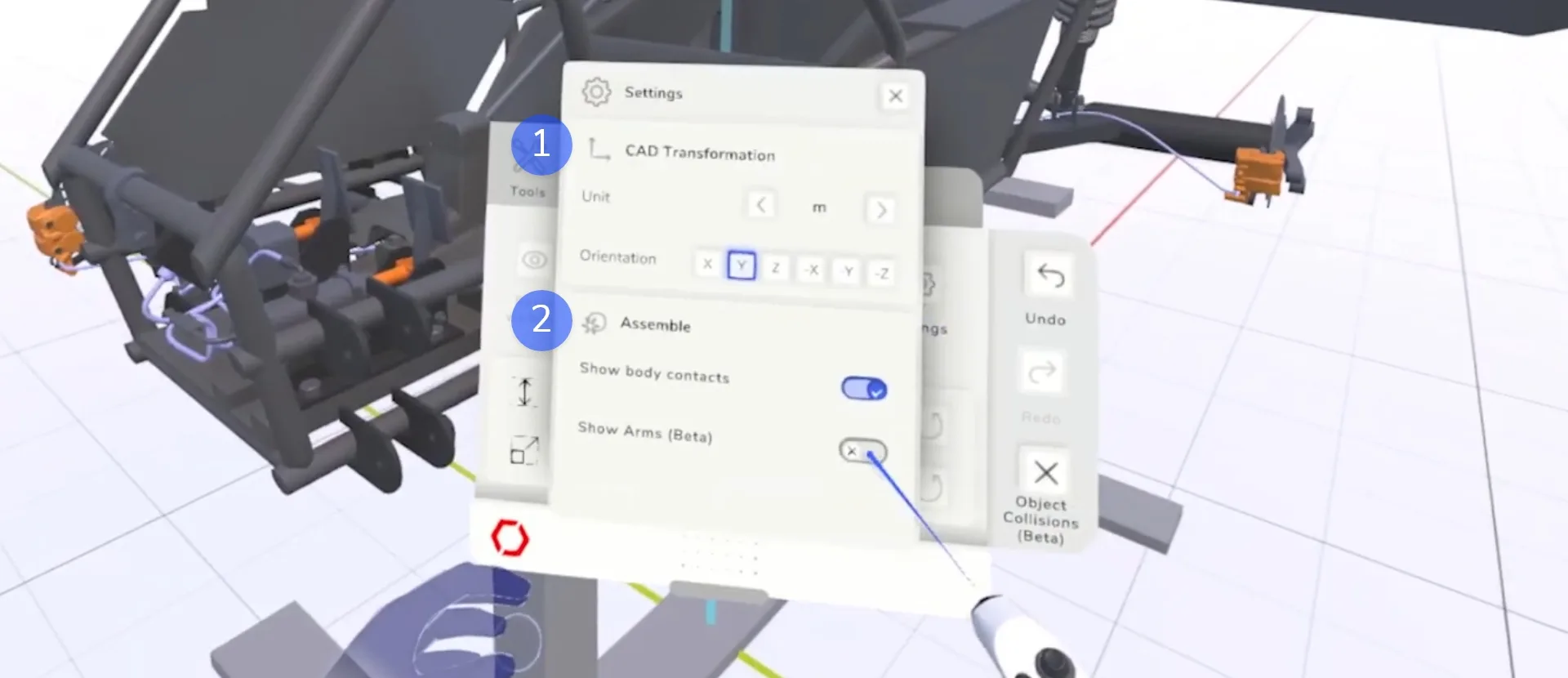
1) CAD Transformation#
Unit
Sets the unit of the imported CAD assembly.
- This setting is necessary if you use import formats that have no unit
- You can choose between the units millimeter (mm), centimeter (cm), decimeter (dm), meter (m), decameter (dam), hectometer (hm) and kilometer (km)
Rotation
Rotates the imported whole CAD assembly in the origin.
- This setting is necessary if the import format uses a coordinate system other than Halocline Assembly
- You can align using the x-, y- or z-axis
Note:
You can find the current overview of which information and settings are applied during export in the Export article.
2) Show Body Contact#
The visualisation helps you to recognize whether your body intersects with geometry in removal and installation situations. You can switch the visualization on and off using the buttons for hands and arms (beta).