Troubleshooting: the Halocline Cloud does not upload changes
1 min read
Available in
- Professional
- Add-On Cloud
- Desktop
Here you'll find solutions to common cloud synchronization issues – such as when changes can't be uploaded or the connection to the cloud is interrupted.
Upload error – Cloud not available#
Possible cause: Internet connection interruption or temporary cloud outage.
In this case, the following applies:
- Your changes will be saved locally.
- Your claim remains secure.
-
Changes that are not fully uploaded to the cloud are automatically rolled back.
Troubleshooting Guide#
- Check your internet connection.
- Try logging out of Halocline and then logging back in.
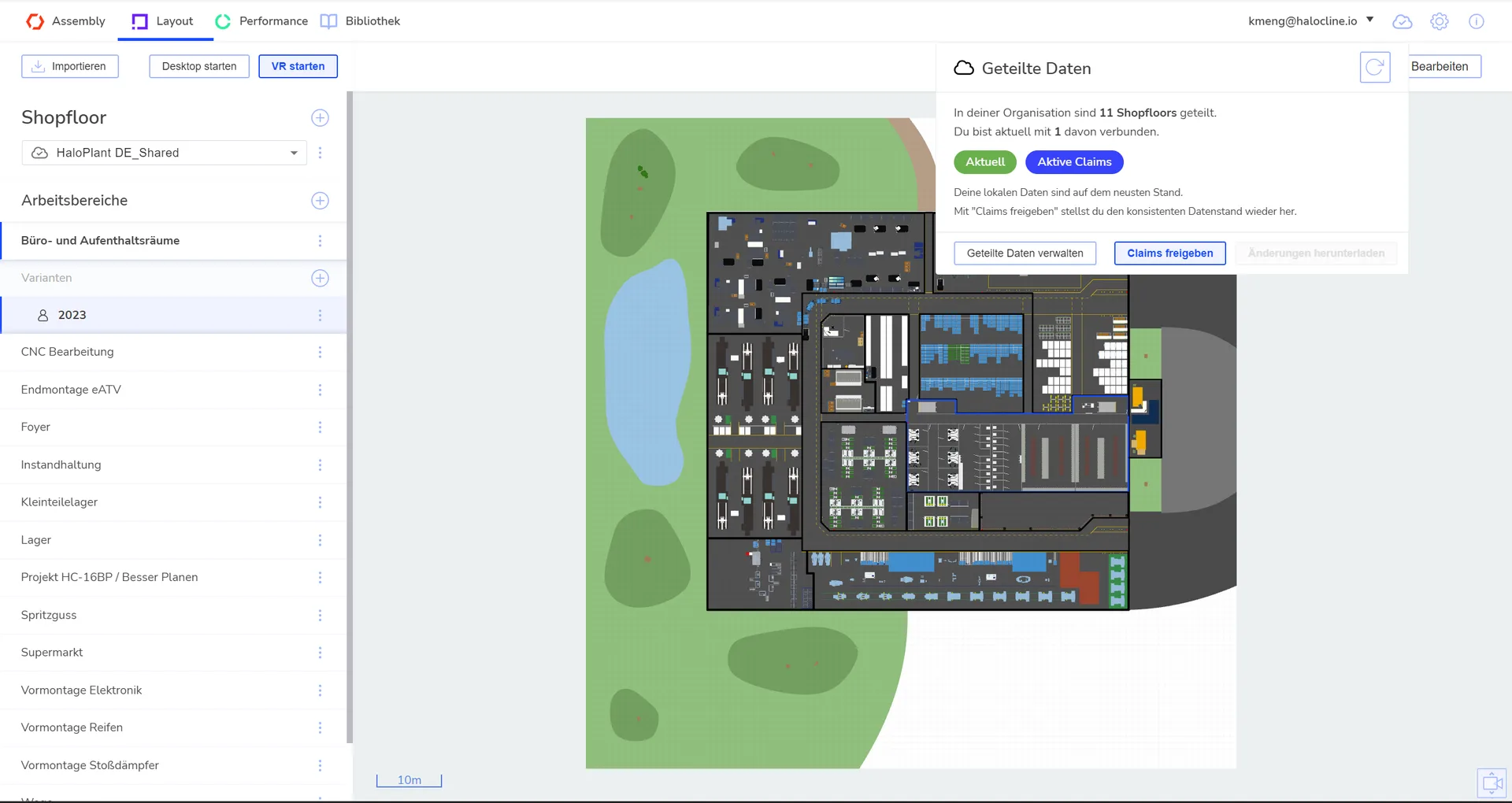
- Open the Cloud window and click the “Refresh” button.
- Once the connection is restored, click “Free Claims” in the cloud window to manually restart the upload.
→ Your changes are now being uploaded to the cloud.
Tip: If you can't resolve the issue this way or need to recover data, please contact the Helpdesk directly.
Related to