Downloading shopfloors from the Halocline Cloud
1 min read
Available in
- Professional
- Add-On Cloud
- Desktop
Using the “Manage Shared Data” feature, you can download your organization's shop floors to your device and view changes made by other users.
Instructions#
Download Shopfloor for the first time#
- Click the cloud icon in the upper-right corner to open the cloud window.
- Click on “Manage Shared Data” – a list of all available shopfloors in your organization will open.
- Select the desired shopfloor to download it.
→ From now on, you'll be notified whenever there are new changes on this shop floor.
Download Changes#
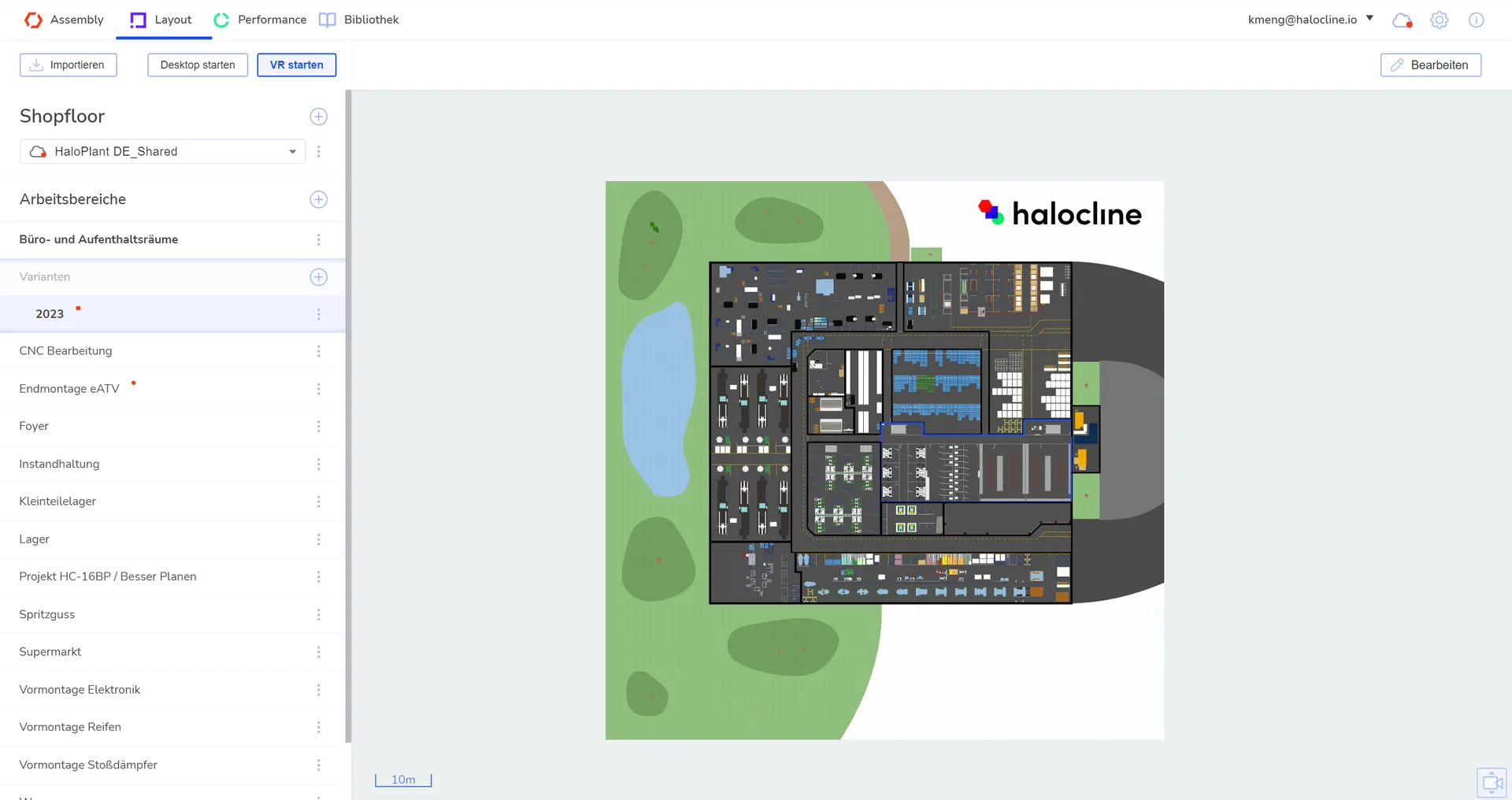
- You can identify pending changes by a red dot on the cloud icon, on the shopfloor, or on the affected work areas and variants.
- Try to open a variant with pending changes.
→ A dialog box appears with the option to download the necessary changes directly. - Alternatively: Open the cloud window and click “Download Changes” to download all pending changes at once.
Note: If variants or workspaces have been deleted, you can tell by the strikethrough on the name. Export the relevant data before downloading the changes if you want to keep it.
Tip: You will only be notified of changes to shopfloors that you have already downloaded. New shopfloors in your organization appear without notification – so be sure to check “Manage Shared Data” regularly to see if any new shopfloors are available.