Exporting data at a glance: STEP, PDF, glTF and more
4 min read
- Team
- Professional
- Desktop
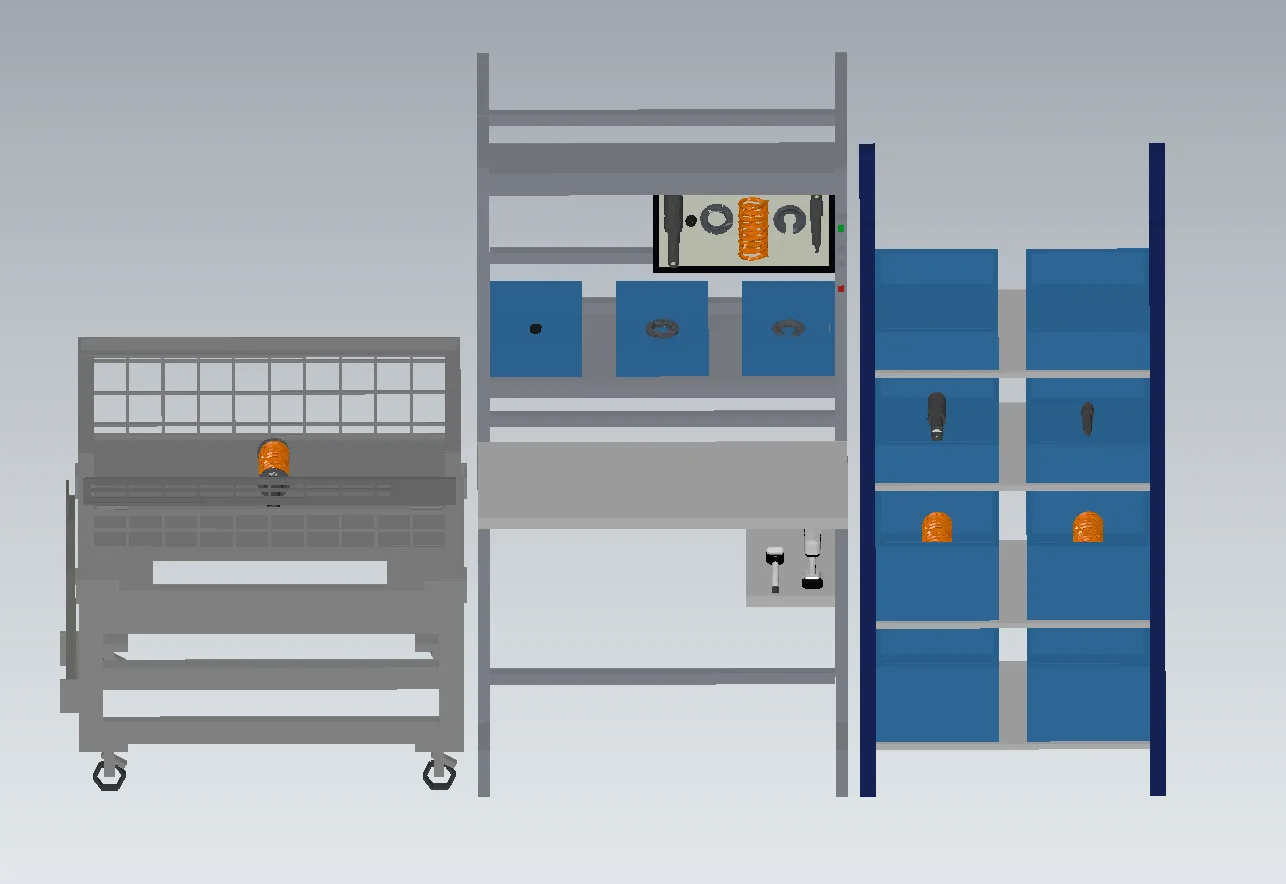
You can export objects from the Library, individual Work Areas, Variants, and entire Shopfloors for reuse in other programs or for documentation.
Instructions#
In Halocline Desktop#
Shopfloor, Work Area, or Variant
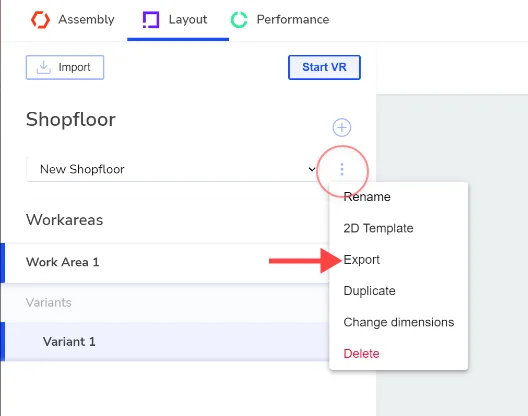
- Click the three-dot menu of the hierarchy level you want to export.
- Select Export.
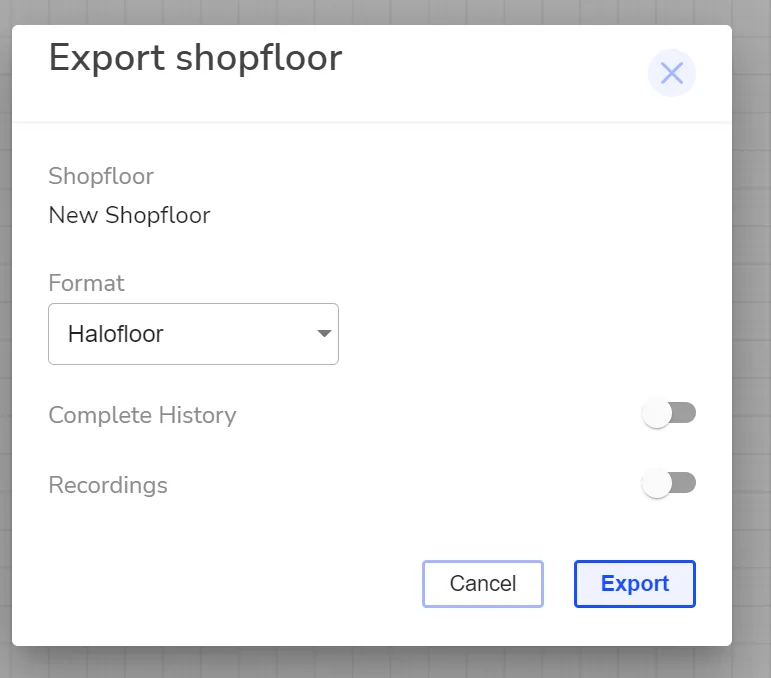
- Select the format and, if applicable, the additional options.
- Set the storage location and file name.
Library Items
- Select an item in the Library, or several at once.
- Select Export.
- Select the format.
- Choose a destination folder. Each item is saved as its own file under its name. Existing files are not overwritten.
In Halocline Layout#
You can also export directly from Halocline Layout, via the Library, in the formats .haloitem, PDF, and STEP. For all other formats, as well as for exporting entire Shopfloors, Work Areas, and Variants, switch to Halocline Desktop.
Recommendation: Which Format for Which Purpose?#
| You want to … | Format |
|---|---|
| continue designing in CAD | STEP |
| exchange data between Halocline applications | Halocline format |
| visualize, show in VR, or 3D-print | glTF, USD, or STL |
| review on paper and document | |
| analyze quantities and load carriers | Bill of Materials |
All formats are available on all hierarchy levels. Two exceptions: the Bill of Materials is not available for Library Items, and the Halocline format has a different name depending on the level.
Formats you are not licensed for do not appear in the selection. In general, a Professional license is required to export Halocline data to other formats.
The Formats in Detail#
Halocline Formats#
| Level | Extension |
|---|---|
| Shopfloor | .halofloor |
| Work Area | .haloarea |
| Variant | .halovariant |
| Library Item | .haloitem |
| Performance Recording | .halorec |
These transfer all Halocline information without loss, including weights, tags, and library structure. Use them when you exchange data with colleagues or move between installations.
STEP and JT: Solids and Meshes#
| Format | Extension | Note |
|---|---|---|
| STEP | .step | AP214 per ISO 10303 |
| JT | .jt | JT 10.0, with geometry and tessellation |
The most complete transfer, and the recommended option if you want to continue designing in CAD:
- Boxes arrive as exact solids, not as a faceted model
- Groups become assemblies, object names appear in the structure tree, colors are preserved
- Parts inside load carriers are included
- Objects with identical dimensions are combined into a single part with multiple instances
- Load carriers, wire mesh boxes, tools, reach distance avatars, and imported CAD objects arrive as meshes
- True to scale, in millimeters
- Not included: part numbers, weights, tags
How to work with this in CAD is described under Reusing Halocline Models in CAD.
IGES, ACIS, and Parasolid: Solids Only#
| Format | Extension | Add-on required |
|---|---|---|
| IGES | .iges | Native CAD Formats |
| ACIS | .sab | Native CAD Formats |
| Parasolid | .x_t | Native CAD Formats |
These formats cannot store meshes. Only boxes are transferred; load carriers, wire mesh boxes, tools, reach distance avatars, and imported CAD objects are replaced by their bounding box. Assembly structure, names, and colors are preserved.
Mesh Formats: Visualization and 3D Printing#
| Format | Extension | Add-on required | Note |
|---|---|---|---|
| glTF | .glb, .gltf | Native CAD Formats | .glb binary, .gltf as text |
| USD | .usd | Native CAD Formats | |
| FBX | .fbx | Native CAD Formats | |
| OBJ | .obj | Native CAD Formats | |
| STL | .stl | Native CAD Formats | Binary. No colors, no structure. Everything becomes one object. |
| 3MF | .3mf | Native CAD Formats | Flat structure without nesting |
| VRML | .vrml | Native CAD Formats | |
| U3D | .u3d | Native CAD Formats |
All geometry is converted into triangle meshes, including the boxes. Suitable for visualization, VR, 3D printing, and presentations, not for further design work.
PDF: 2D Sketch#
A scale sketch with an overview page (isometric view and key data) and six views: Front, Back, Top, Bottom, Left, Right. The overall dimensions of the entire object are dimensioned, given in meters. Objects are drawn as outlines, without color fill. The PDF dimensions the entire object, not individual parts.
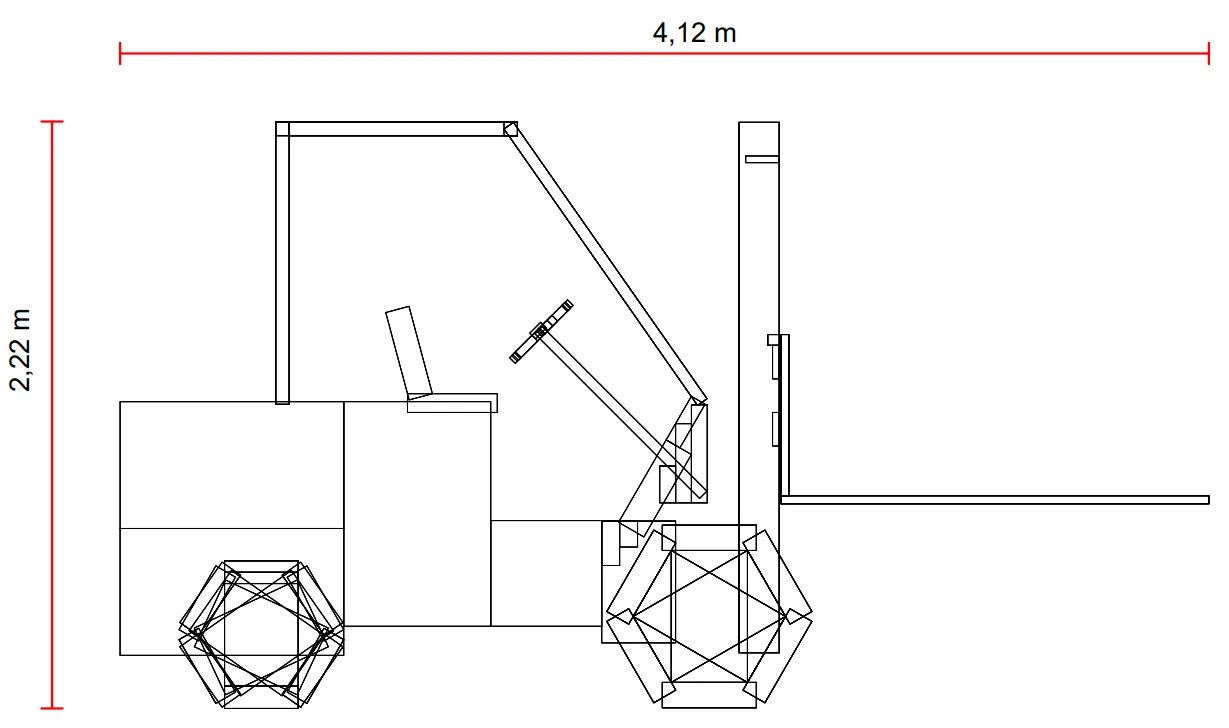
How to take measurements from it is described under Taking Measurements from a PDF Export.
Bill of Materials: XLSX#
A tabular analysis of the load carriers and parts used. See Exporting a Bill of Materials.
Export Options
Depending on the level and format, the dialog offers additional settings:
| Option | Where | Effect |
|---|---|---|
| Export all saved states | Shopfloor, Halocline format | Exports not only the latest state, but all saved states. |
| Include recordings | Shopfloor, Halocline format | Includes existing Performance recordings in the file. Only offered when recordings are present. |
| Export all variants | Shopfloor and Work Area, Bill of Materials | Analyzes all variants instead of only the selected one. |
| Compare with variant | Variant, Bill of Materials | Compares the selected variant with a second one. |
Related to