PDF export: reading dimensions in Adobe Acrobat Reader
1 min read
- Team
- Professional
- Desktop
With the help of Adobe’s Acrobat Reader, dimensions can be taken from any pdf exported from Halocline Layout. Thus, dimensions can be taken quickly and easily for setting up equipment and workstations on the shopfloor or for communication with suppliers and workshops.
Instructions#
- Export a complete shopfloor, a single workspace, a variant or an element from the library to a PDF. (Here: Export data from Halocline Layout)
Open the PDF (found in the folder \Documents\Halocline\Exports) in the free Adobe Acrobat Reader DC (https://acrobat.adobe.com/de/de/acrobat.html)
Now open the Measure tool under More tools.
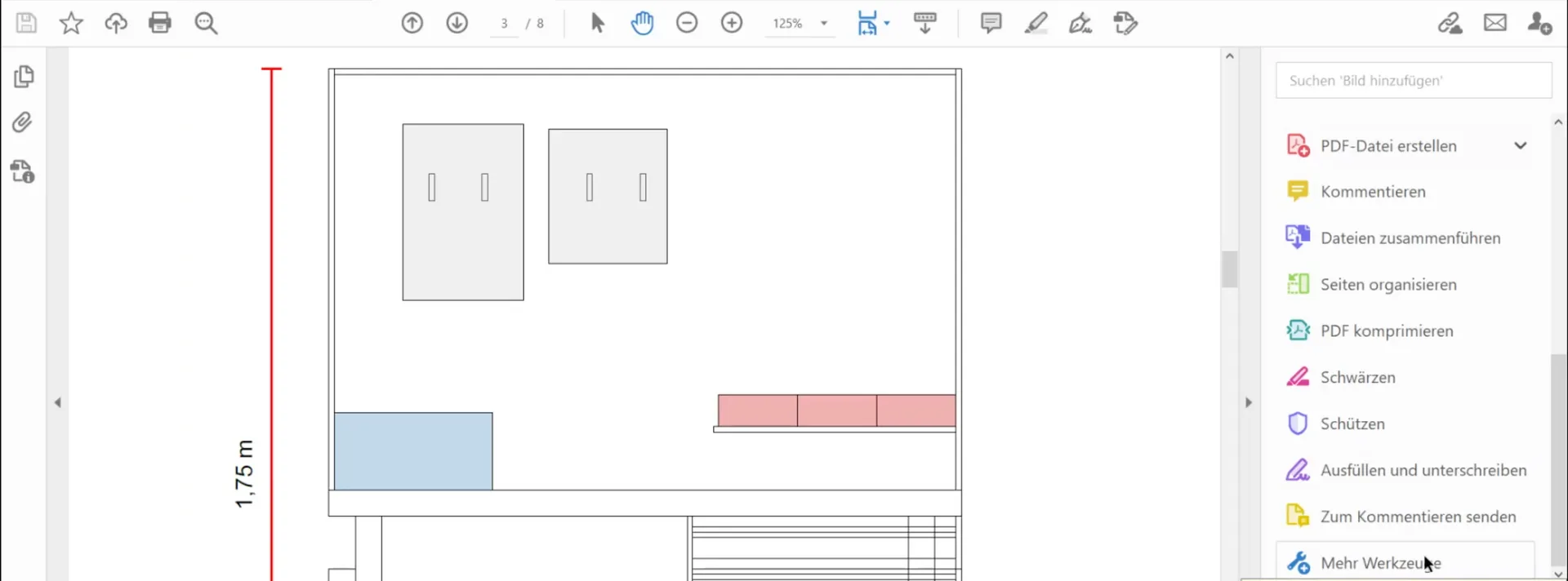
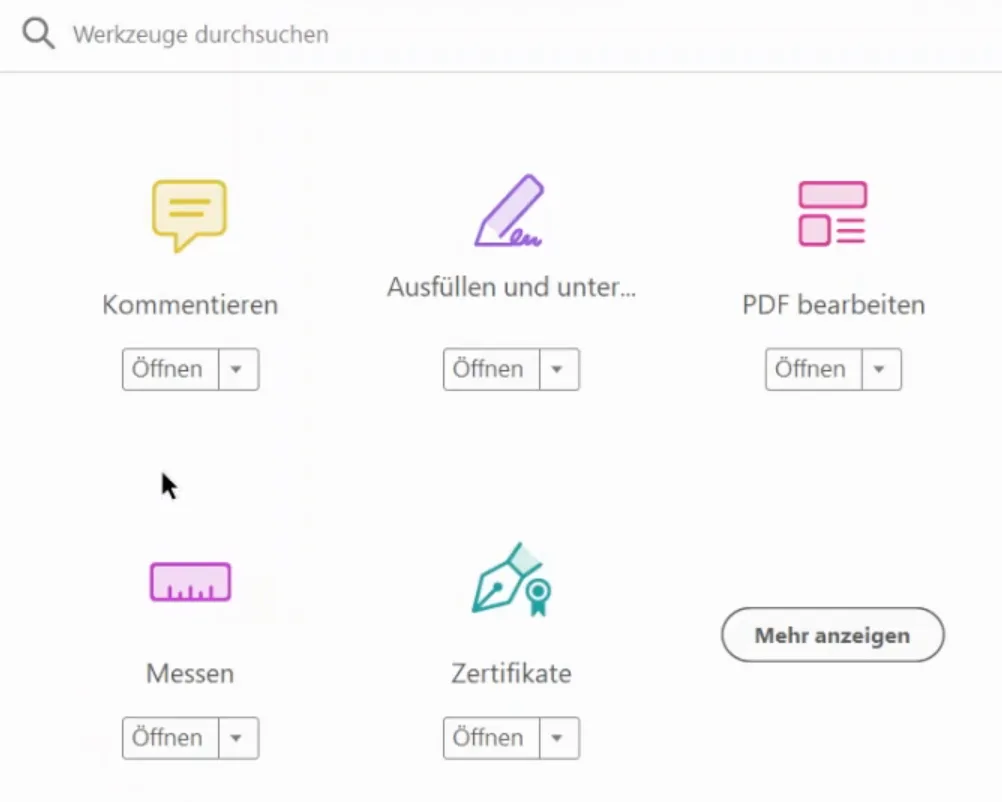
- In the now opened toolbar you click on Measure Tool.
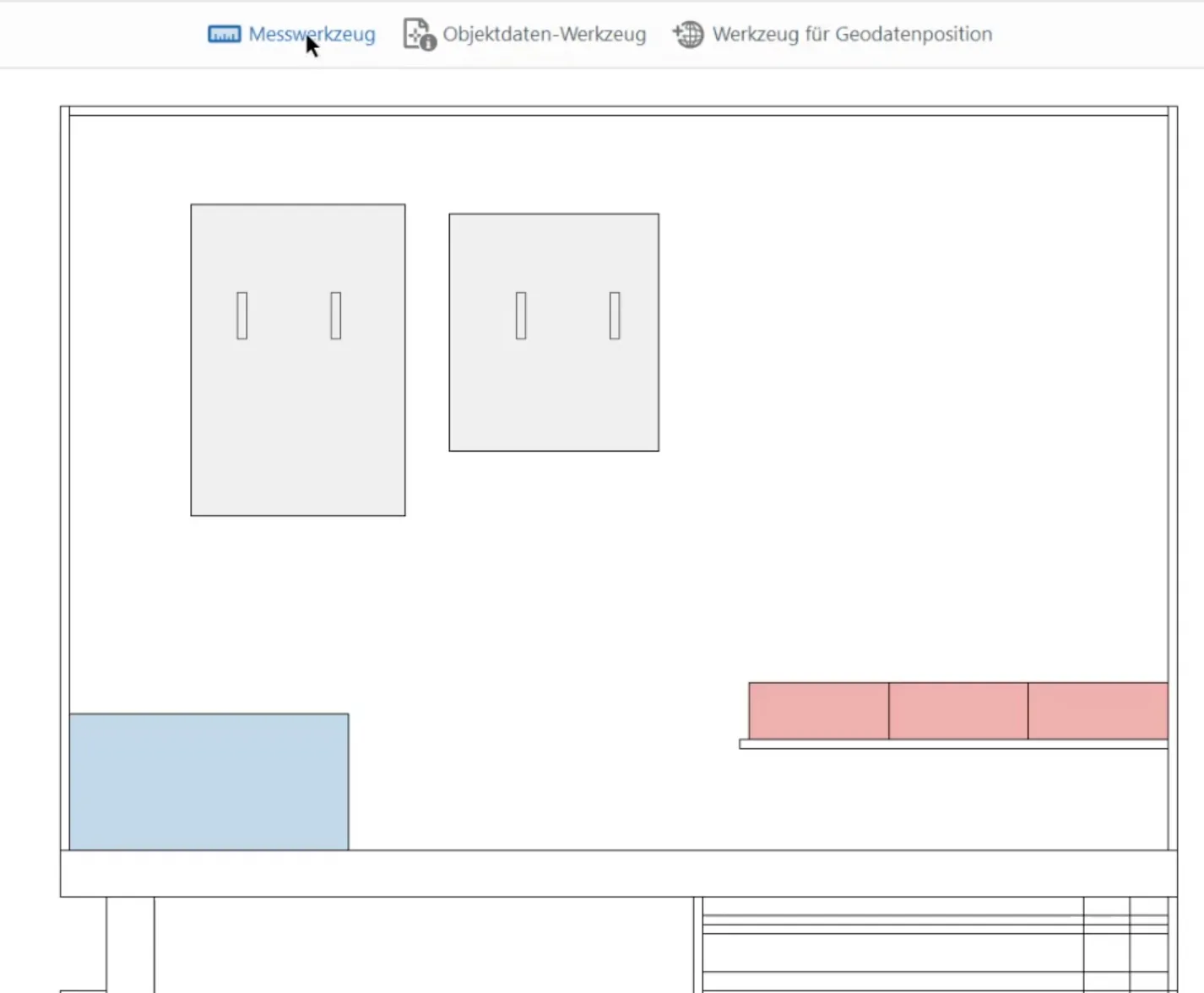
To get exact measurements from the PDF, you have to set the right scale:
- Measure a known length in the PDF - in the example below the scale supplied in the export at the edges of the page.
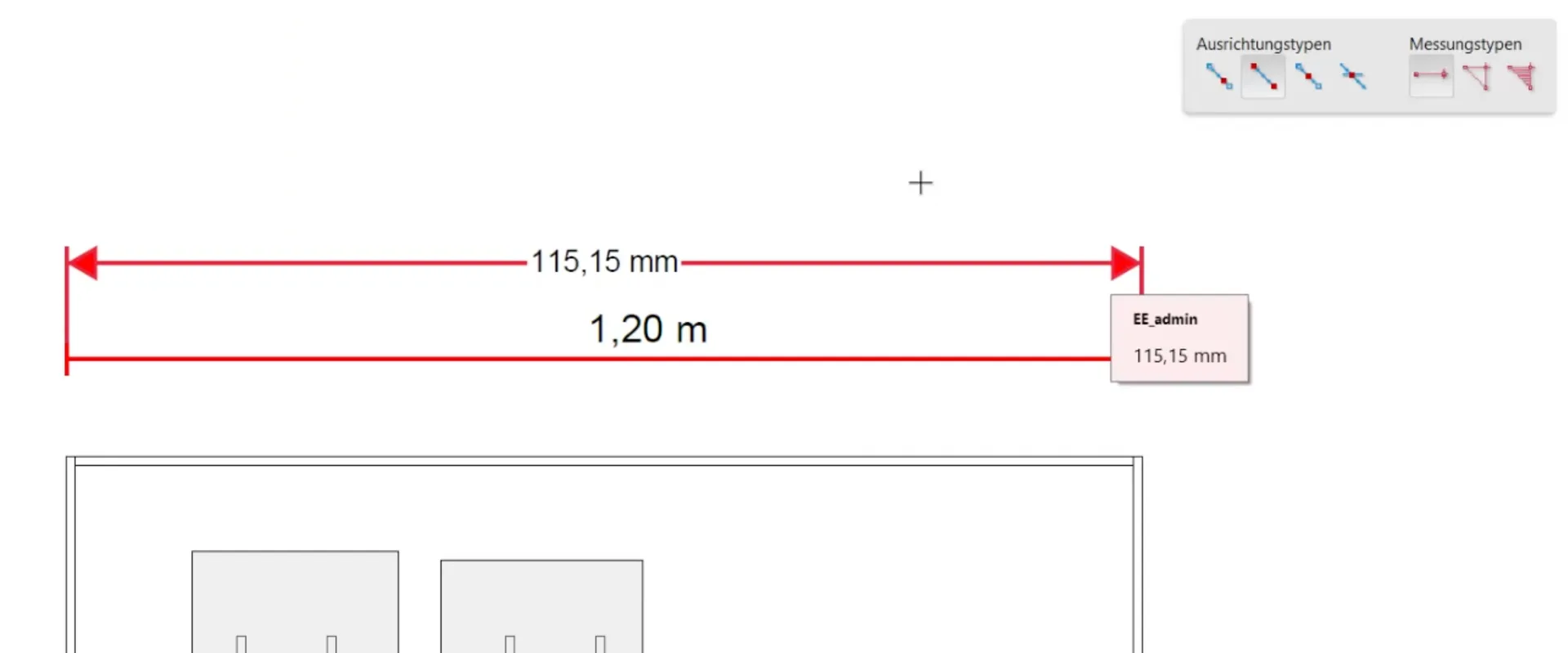
Right-click anywhere in the pdf and then click on Change dimensions and accuracy to open the corresponding window.
Now enter the dimension taken from the pdf and the corresponding real dimension and confirm with OK.
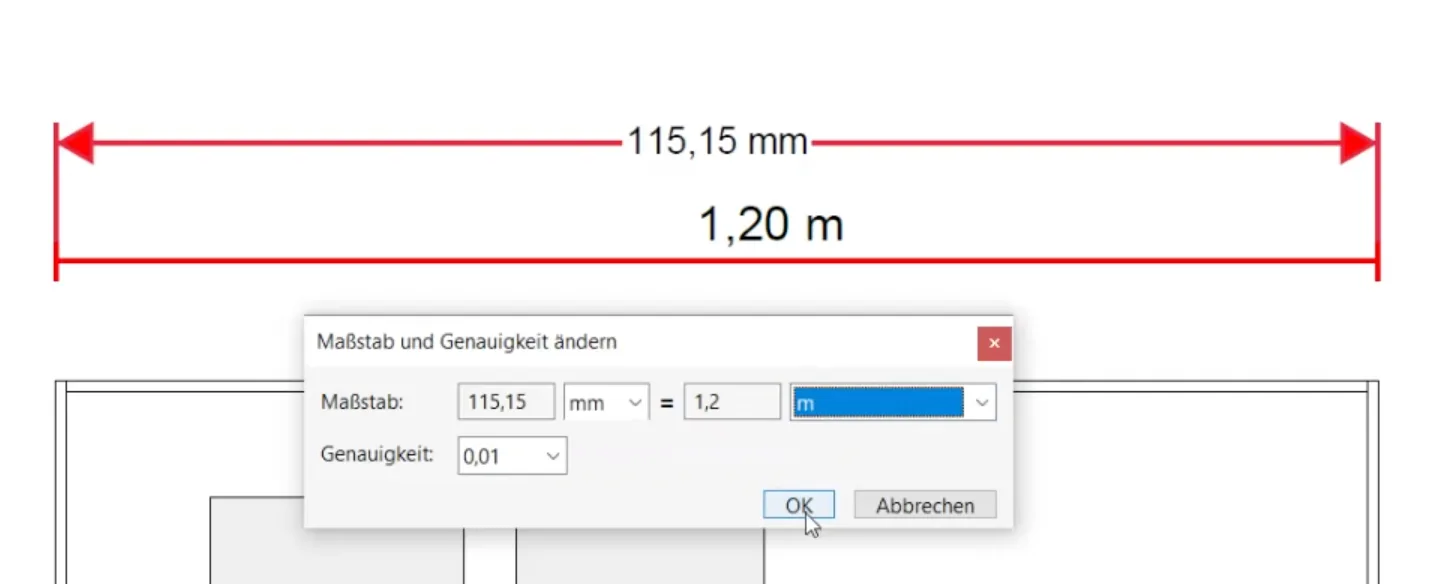
(For verification you can now measure the original dimension again).
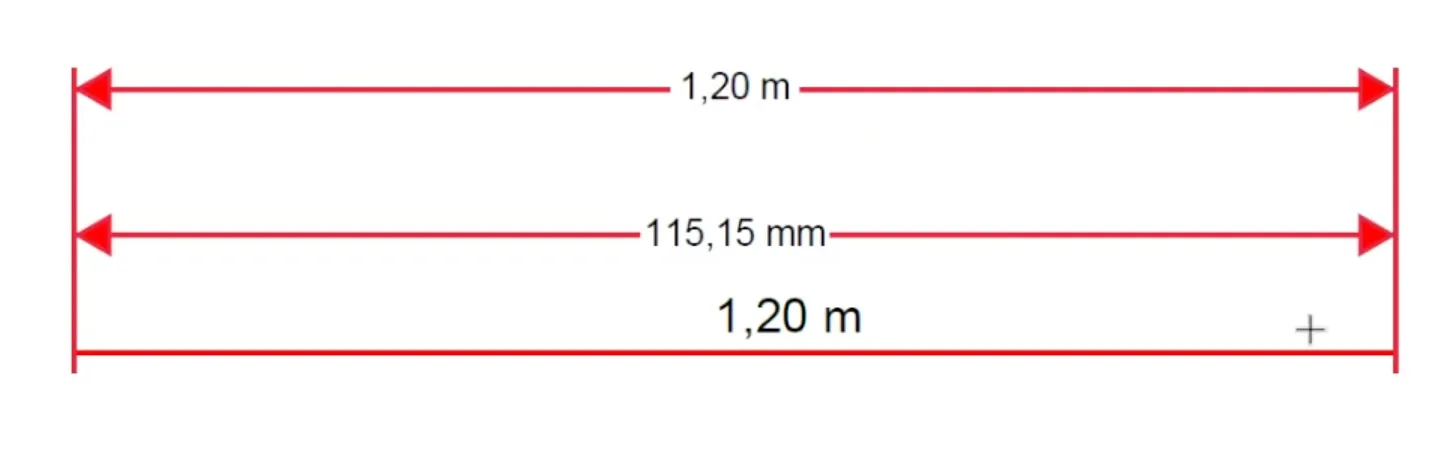
Now you can take any dimension in any selected zoom level.
Related to