Documenting and exporting the assembly sequence in Assembly
1 min read
- Professional
- Desktop
In the Assembly tab of the menu, you will find functions for preparing and documenting an assembly sequence.
Instructions#
Menu > Assembly#
Open the VR menu in Halocline Assembly and click the “Assembly” tab. The following functions are available to you:
- Disassemble Selection
- Assemble Selection
- Export Assembly Sequence
Disassemble and Assemble Selection#
Disassemble Selection
Your object selection, which you previously selected using the Select and/or Move tool, can be lined up into individual parts by clicking the “Disassemble Selection” button beneath your VR menu.
Assemble Selection
With “Assemble Selection,” your object selection is reassembled beneath the menu.
Export Assembly Sequence#
You can automatically document your assembly sequence using the Assemble tool and export the recorded assembly steps as an illustrated list (Microsoft Excel .xlsx file).
Proceed as follows:
Disassemble your assembly into individual parts using “Disassemble Selection.”
You can find the “Disassemble Selection” function in the VR menu under the “Assemble” tab.Select the Assemble tool in the Tools tab of the VR menu.
Grab the components and assemble them in your desired order.
Click “Export Assembly Sequence” in the Assembly tab. You will find the file at:
C:\Users\%username%\Documents\Halocline\Assembly Sequences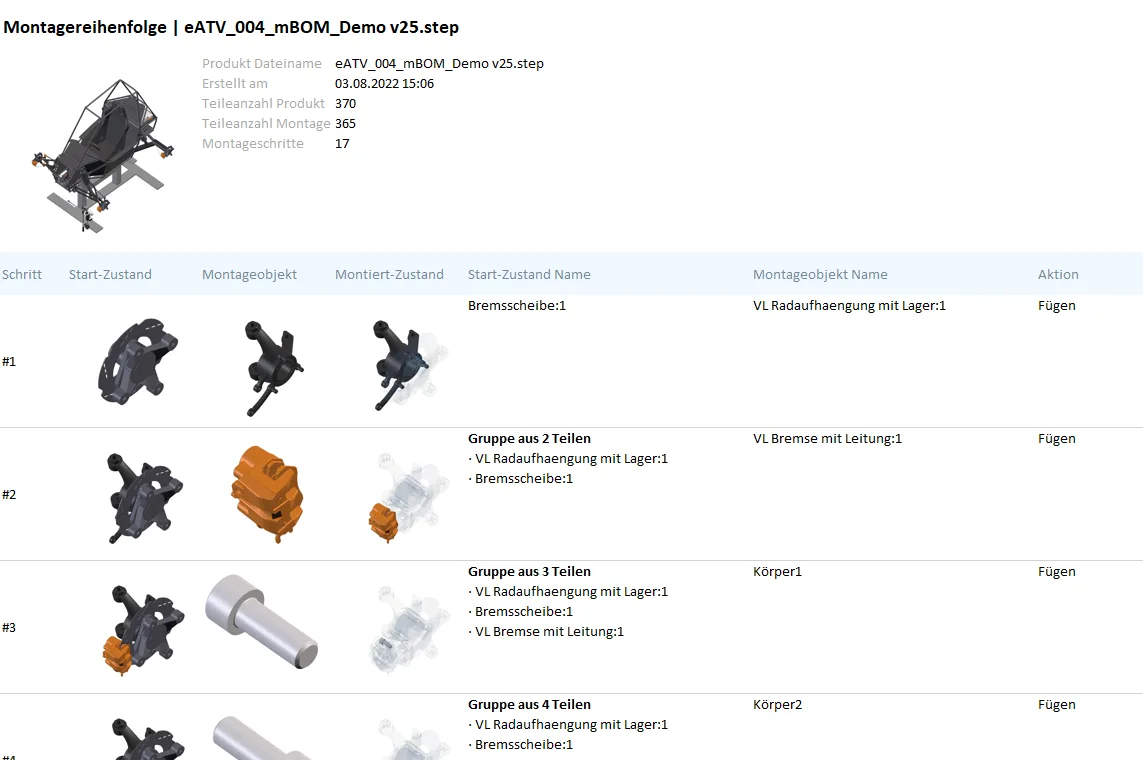
Tip:
Create a screenshot of your illustrated list and place it under
C:\Users\%username%\Documents\Halocline\NotesIn Halocline Layout, you can continue using the image of your sequence as a planning reference in the notepad.
Related to