Troubleshooting: no headset detected (OpenXR runtime)
2 min read
- Desktop
Your VR headset is not recognized by SteamVR or Mixed Reality? You can't open Halocline and get the following error message: "No headset found"
In this article, we will show you how to troubleshoot by enabling OpenXR Runtime.
For a smooth experience in Halocline, make sure you are using VR hardware that is compatible with Halocline. An overview of supported VR hardware can be found here: Which VR Hardware is supported?
Meta Horizon #
Activate OpenXR Runtime in the Meta Horizon #
- Open Meta Horizon
- If OpenXR is not enabled, you will get the following "notice" when launching the portal: Meta Horizon is not set as the default OpenXR runtime. This might prevent some applications from launching correctly. Set as default

- Click "Set as default"
- Click "Set Meta Horizon as "active""

- OpenXR Runtime ist now enabled
Start Meta Horizon and then Halocline
The activation of the OpenXR runtime in Meta Horizon can only be performed on a Windows account that has admin rights. Afterward, the setting will be adjusted for all Windows accounts on that computer.
Activating "OpenXR-Runtime" without an Admin Windows Account#
If your IT department can only access the laptop remotely, they can use this option.
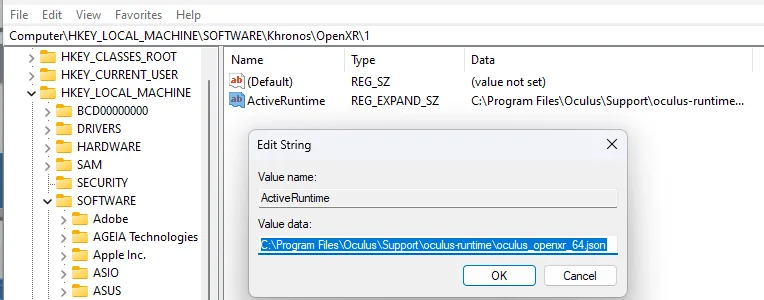
- Open the Registry Editor with admin rights.
- Navigate to Computer\HKEY_LOCAL_MACHINE\SOFTWARE\Khronos\OpenXR\1.
-
Adjust the path of the "ActiveRuntime" entry to the path of the OpenXR Runtime:
C:\Program Files\Oculus\Support\oculus-runtime\oculus_openxr_64.jsonFor the latest Meta Horizon from 2026, the path is:
C:\Program Files\Meta Horizon\Support\oculus-runtime\oculus_openxr_64.json
SteamVR#
Furthermore, since the Halocline 2021.2 release, it is important that you have your SteamVR version running on at least version 1.17.12. If not, please update SteamVR. You can find instructions here: Update SteamVR
If your HTC Vive headset is not recognized despite the SteamVR update, we recommend activating "Open XR Runtime" in SteamVR. This requires that you have admin rights on the computer. If you do not have admin rights, please contact your IT department.
Activate OpenXR Runtime on SteamVR#
- Connect your VR headset to the computer
- Wait until SteamVR recognizes your VR headset and marks it as active
- Please open the settings of SteamVR
- At the bottom left you will see "Advanced Settings"
- Please set the toggle to "Show"
- Now the tab "Developer" is visible
- Click on "Set SteamVR as OpenXR Runtime"
- Launch Halocline and open an object
- SteamVR should now recognize Halocline
If your headset is still not recognized, please send us a request.
Related to